Correcting a Split ACH Deposit in QuickBooks Online
Last updated: September 6, 2026
If you have processed ACH payments with Novi Pay - Fiserv, you may need to manually update your bank deposit that was created in QuickBooks Online.
After rolling out Novi Pay - Fiserv, we identified a difference in how they handle payouts compared to our previous payment providers, QuickBooks Payments and Stripe.
This has been resolved for deposits going forward, but you may need to reconcile historical deposits.
Due to this difference, some deposits from the past few weeks may not have matched your bank deposits exactly in QuickBooks Online. The steps below walk you through how to correct those deposits so they align properly with the transactions in your bank account and can be matched accurately.
You will likely see two deposits into your bank account when an ACH transaction is involved:
One deposit for credit card transactions (minus the fees)
A separate deposit for ACH transactions (no fees taken out)
TLDR
Confirm which, if any, deposits need reconciling.
Correct the deposit Novi automatically created.
Create a second, new, deposit for the ACH transactions.
Note: We tried to be thorough in our explanations below. The length of the instructions in this article does not correspond with the difficulty of this reconciliation. It should be quick, less than 5 minutes or so to do!
Example Details
For this example, we are looking at two deposits that went into the bank on 12/18:
One deposit was for $3,208.12
One deposit was for $1,176.78
Combined total is $4,384.90, we'll use this later in our example
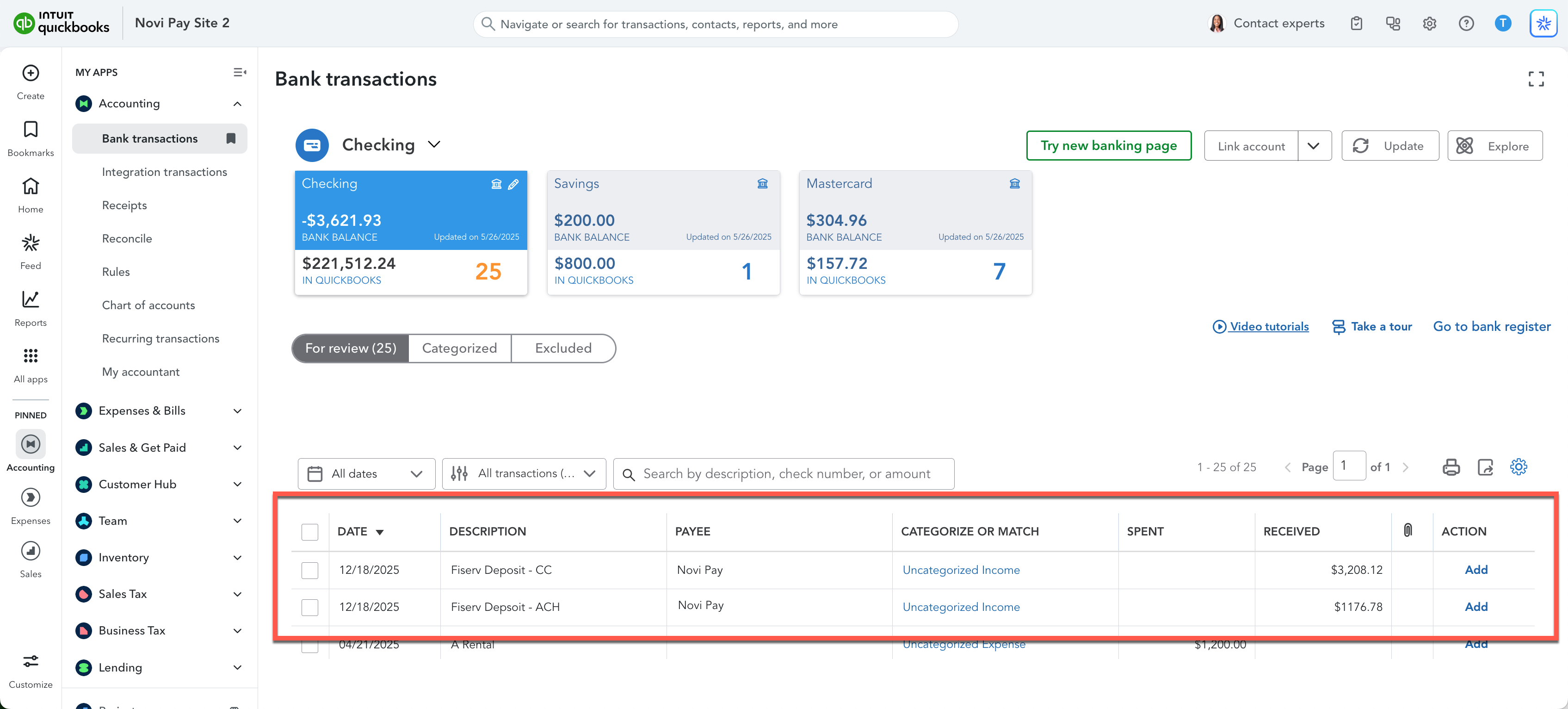
They are not auto-matching in the QuickBooks Online transactions window because Novi created the deposit as one deposit, instead of two, so the system cannot auto-match them.
It's important not to manually categorize them as you do not want to cause duplicate entries in your accounting!
Locate the Deposit in Novi Pay
Log in to Novi and head to the Novi Pay > Balances tab.
Find the deposit near the date of what you are seeing in your bank account
In the Novi Pay> Balances tab, we see a singular total deposit of $4,384.90 and the date is close, on 12/17:
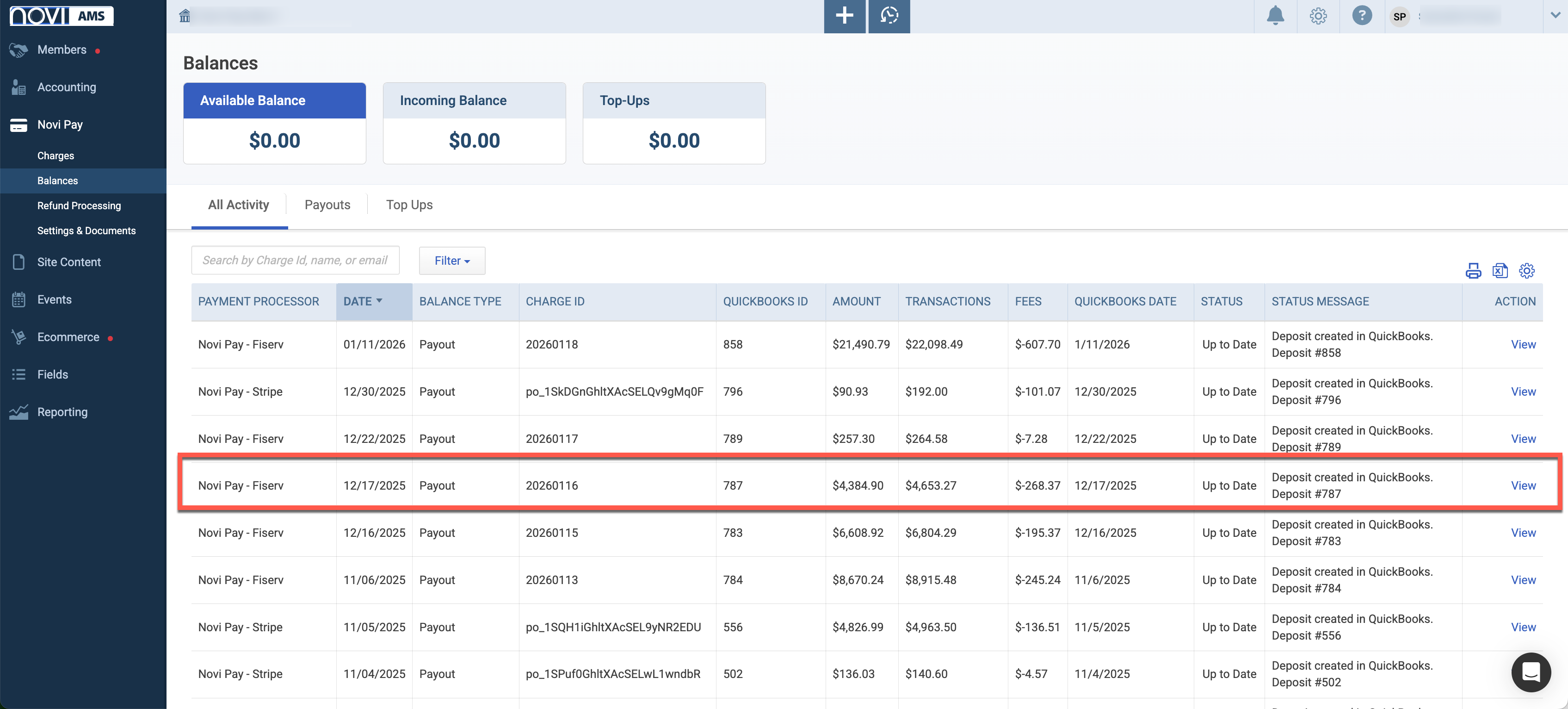
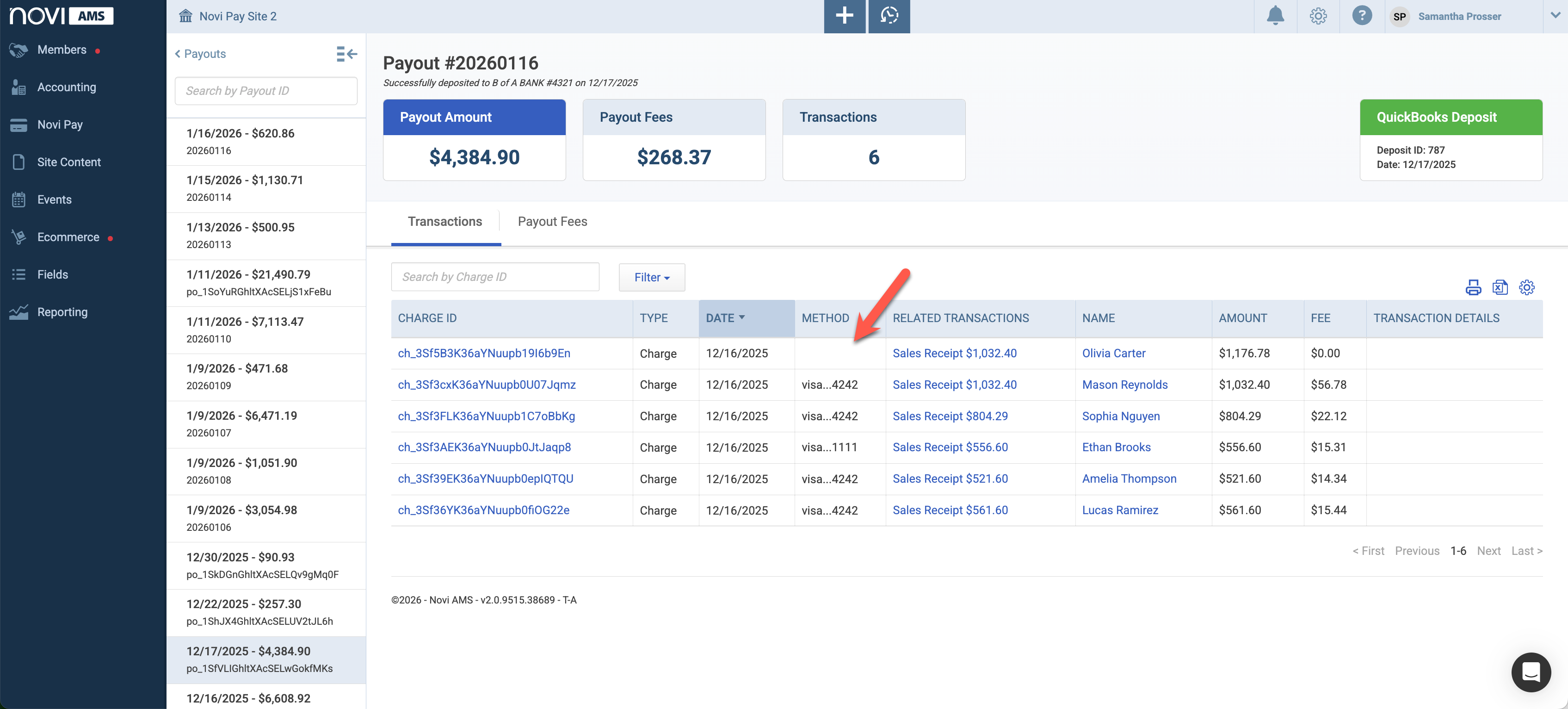
When we click on View in the Action column on the right, we can see more details of the payout and locate the ACH transaction Hint - it has no Payment Method info:
Locate the Deposit in QuickBooks
Now that we have nailed down the details of which deposit needs correcting, you can find it in QuickBooks Online.
Log in to QuickBooks Online.
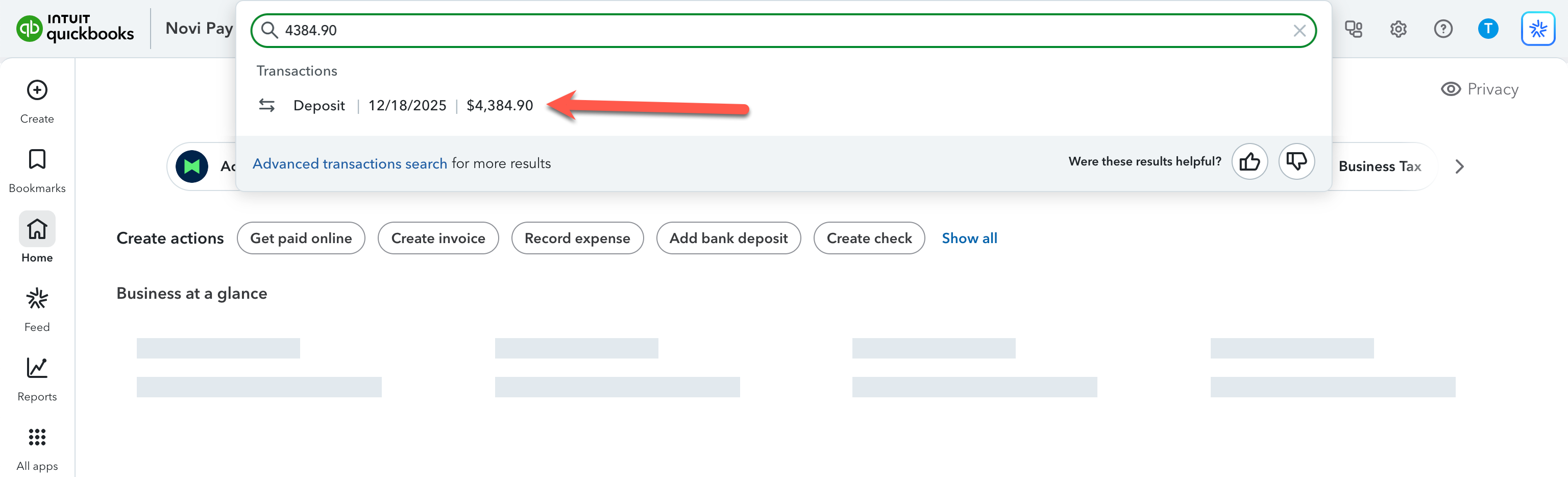
Go to the search icon in the top of the screen
Search the amount of the total deposit created by Novi (Ex. $4,384.90)
Click that deposit when it appears.
Remove the ACH Transaction from the Deposit
Inside the deposit screen, you will see a list of included payments.
Identify the ACH transaction in the list (Ex. $1,176.78)
Hint - the payment normally says "ACH" in the memo.
Uncheck the ACH transaction.
Confirm that the remaining total now matches one of the bank deposits (the credit card payout).
Click Save and New.
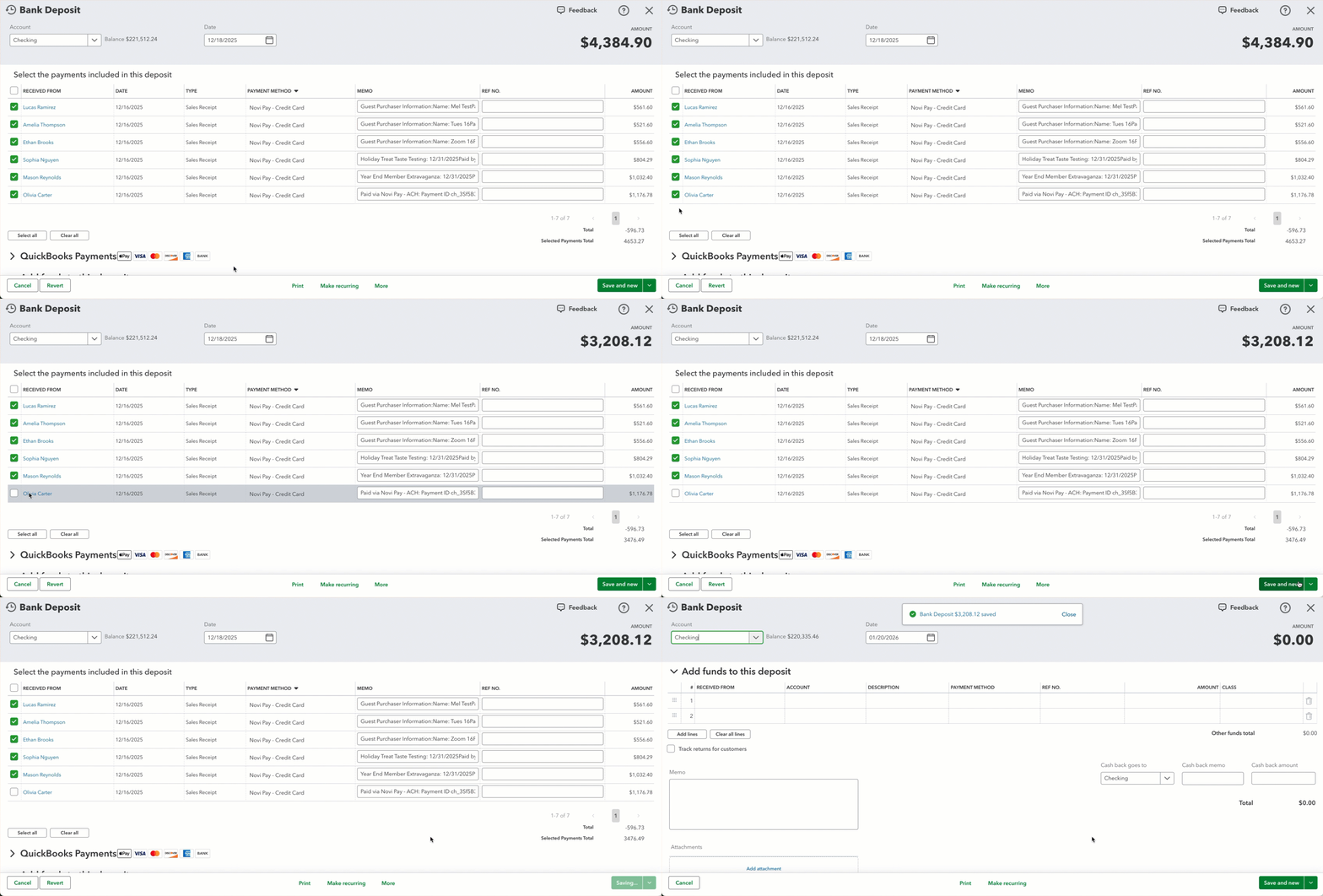
At this point, one corrected deposit is saved and should now match a bank deposit.
Create the Second Deposit for the ACH Transaction
After clicking Save and New, you will be taken to a new deposit screen.
Ensure the same, correct bank account is selected.
Apply the correct date of the deposit if applicable.
Re-check the ACH transaction that was previously removed.
Confirm the total matches the separate ACH deposit shown in your bank account.
Click Save and Close.
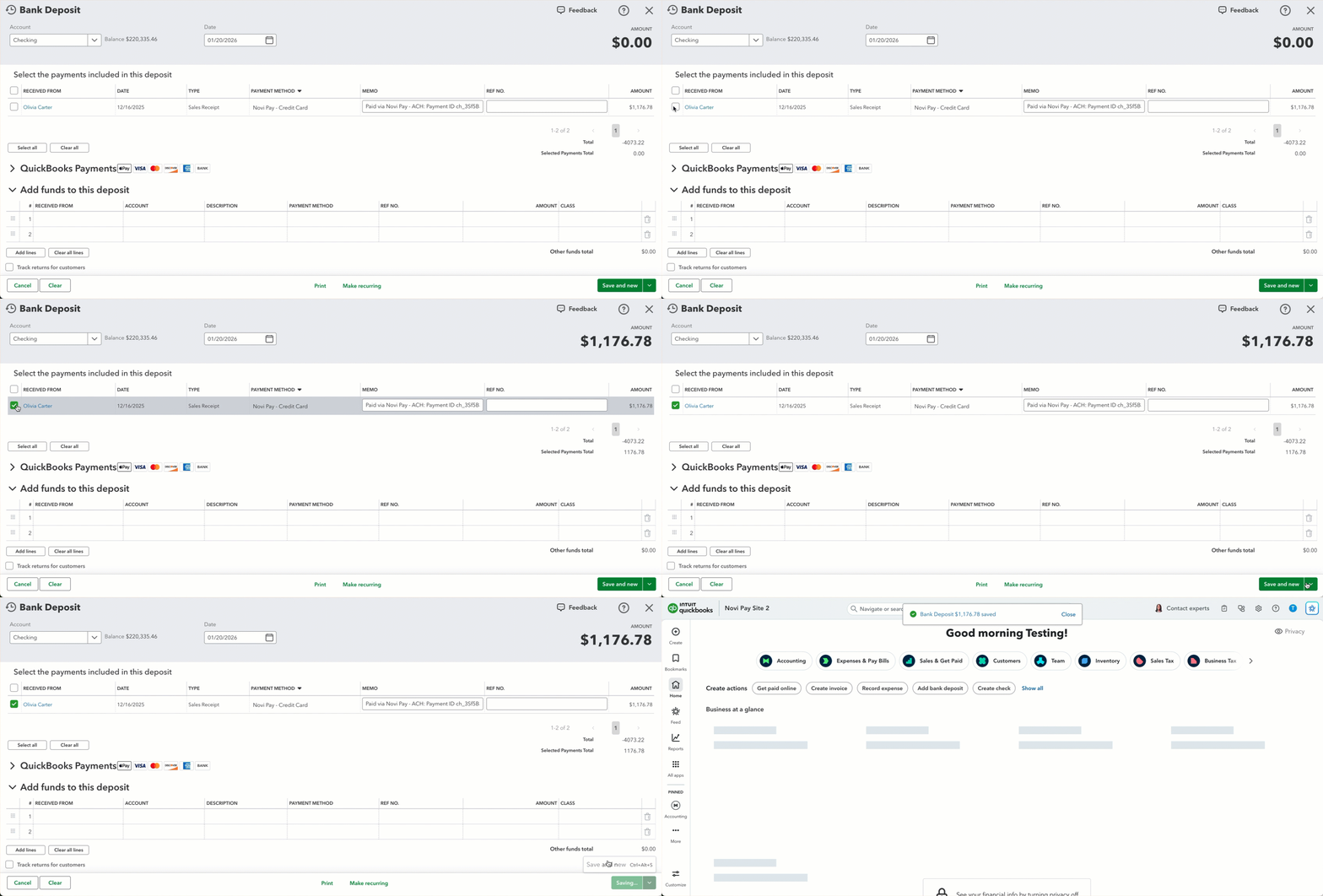
You should now have two deposits in QuickBooks Online that each correctly match your bank deposits.
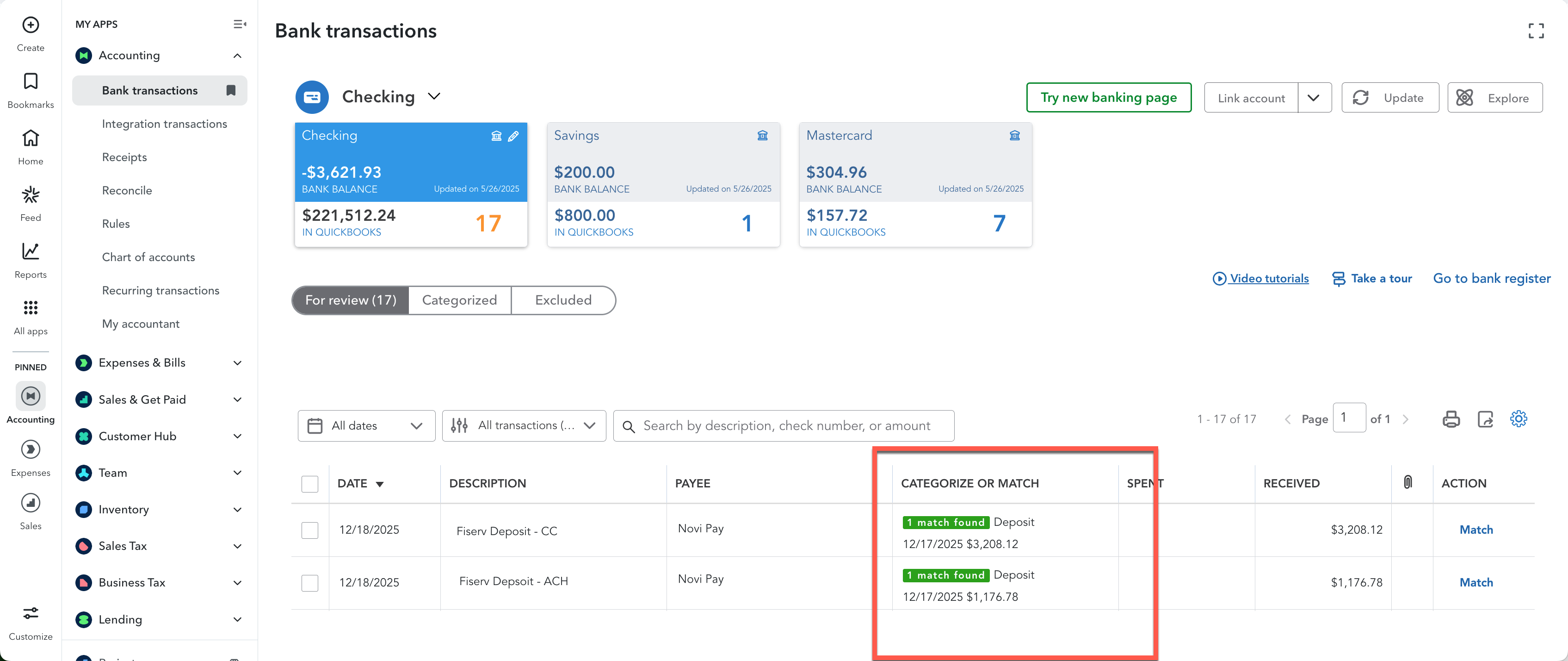
If you use QuickBooks Online's bank transaction screen, match the deposits in the Bank Feed
Go to Banking > Transactions (or Transactions > Bank Transactions, depending on your QBO view).
For each bank deposit, they should now show a "match".
Match each deposit to the corresponding corrected deposit you just created.
Separate ACH Fees
WIth Novi Pay - Fiserv, ACH processing fees are not deducted per transaction from each deposit like they are with credit cards.
Instead:
All ACH fees are combined and withdrawn as a single expense at the end of each month.
You will see this as a separate debit in your bank account and will need to categorize it accordingly.
While our deposits will automatically account for credit card fees, we're actively working with Fiserv on a solution to automatically create an expense for your monthly ACH fees with a level of polish you've come to expect from our automation.