Common User Account Creation Errors
Last updated: November 17, 2026
How to help your members when they have trouble creating a user account.
If one of your members reports trouble with their user account, the first thing you should do is check that they have a user account!
Check for Existing User Account
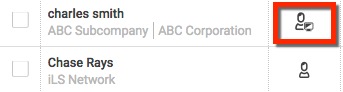
You can easily check for this in your member database under the Members tab. Type in the name of the member and check to make sure their icon next to their name has a small computer next to it as noted in red below.
Create New User Account
If the person has NOT created their account, you can create their account for them by following these steps:
Go to the person's record on the backend
Click on the Settings tab
Scroll down to the Account Detail section
Enter their email address (which can't be associated with another person's user account)
Click the Create User button
Please note: if the person is having trouble receiving their email, see the information below regarding email deliverability.
Common Errors When Creating User Accounts
There are a few common errors that your members may receive upon creating their accounts.
An account already exists for that email address
This occurs when someone has already created a user account with that email address. When there's a conflict, the user will receive a message on the frontend that the email is in use.
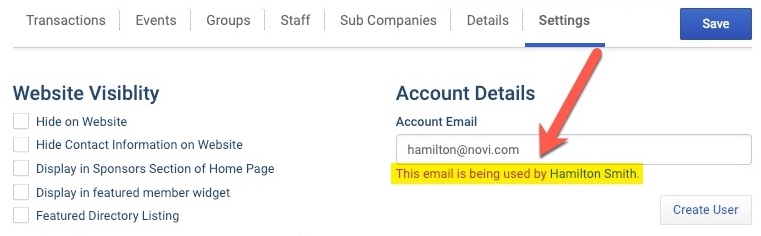
On the backend, a message will appear (in red font) below the email field. The message will list the name of the user who already has an account with that email address and will also provide a hyperlink so you can navigate directly to their profile. This will allow you to quickly troubleshoot the conflict.
If the email in use belongs to the user and is being used by someone else, you have the ability to remove it from the original user's account, but remember that they will no longer have an account if you do that. Before you make this change, confirm that the request is coming from the person who owns that email address (for example, by replying to a message sent from that address). This protects your members from someone trying to take over an account that isn't theirs.
You may suggest that the user create a new account with a separate email.
Invalid Token
This typically occurs when a member uses a password reset link that has expired. For security reasons, password reset links are only valid for a limited time. When a user uses an expired token, they are taken to a page with a message that their link has expired and are prompted to request another password reset.
They may also have tried to use an email address different from the one on their User Account.
Steps to fix:
Send them a fresh password reset email. This is found under the member’s record on the Settings tab and then click the Send Password Reset button.
If the new link still doesn't work, make sure they are using the same email address shown on their Settings tab. This may be different than the email on their Details tab.
If both of those things check out and they are still having trouble, please ask them what browser they are using and send a message to the Novi team with their name, email address, and browser type (such as Chrome or Internet Explorer).
Confirmation Code Email has not been received
The email may have gone into the user’s spam folder. Have them check there first.
If it’s not there, find their member record and send them a password reset. If they still don’t receive an email, their IT team may have created their own rules for what types of emails can be received. Have your member check with their IT department to see if your emails are being blocked.