Smart Renewal Notices: How to Send Emails for Membership Renewals
Last updated: October 12, 2026
Review and edit the email messages that are sent to your members for renewal invoices and auto-pay notices.
This article is specific to open renewal invoices. Looking for smart invoices for new member dues, ecommerce, events, or custom invoices?
→ Learn More: 📄 Getting Started with Smart Invoices
When renewing memberships, it's important to communicate with members so the organization receives the dues payment in a timely manner and to remind members of outstanding invoices.
Novi's Smart Renewal Notices allow for customization of the renewal and auto-pay email notices. Remind renewed members of association benefits and when payment is currently due - hyperlinks and images can even be included in the Smart Renewal!
The number of customizable emails within a Member Type depends on its Auto-Renewal settings.
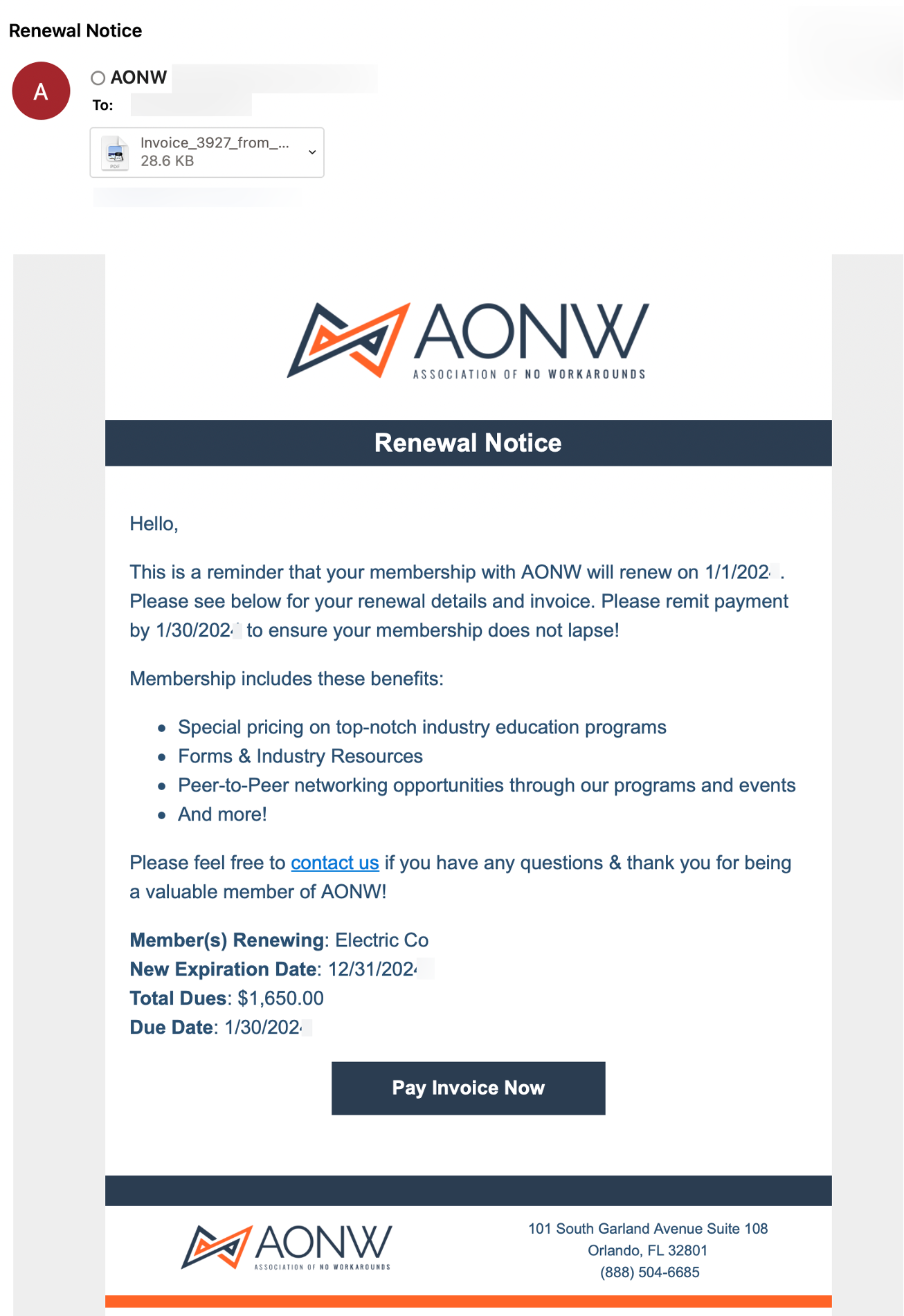
How to View & Edit "Smart Renewal Notice" Email Messages
On the backend, go to Members > Member Types > select a member type.
Go to the Renewal tab.
Take note of your Renewal Type settings - This setting will affect which renewal emails* are displayed for this member type.
Scroll down starting with the Renewal Notice Email to view and edit the email messages (more info on each type of email below).
*If auto-renewal is disabled, you will only see the Renewal Notice Email. Otherwise, you will see all of the emails described below.
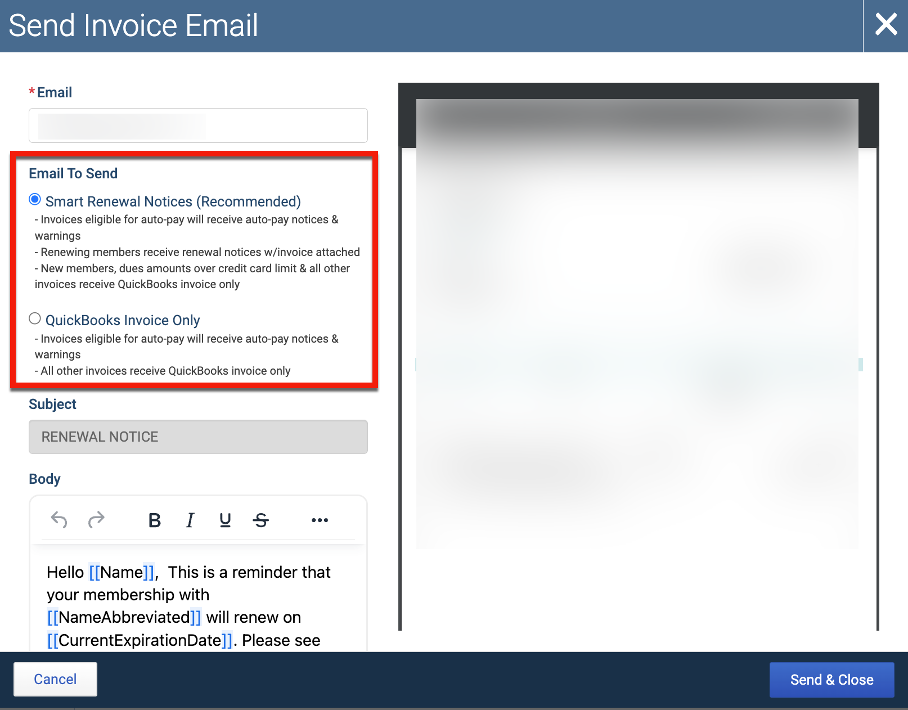
How to Send Smart Renewal Notices
The system can be set up to automatically send renewal notices, once renewals have run - OR - for admins to manually send renewal notices. Either way, these notices must be sent before members are notified of their renewal and auto-pay runs.
→ Learn More: 📄 How to Email Dues Invoices from Novi AMS
See the Admin Member Type Setup section of the Auto-Pay For Membership Renewals article for more information and our recommendations for these settings.
→ Learn More: 📄 Auto-Pay For Membership Renewals
Types of Smart Renewal Emails
The number of customizable emails on each Member Type depends on the Renewal Type settings, which are also found on the Renewal tab. Each email type will populate with default verbiage, but feel free to make changes at any time.
Tip: Ensure replies to any Smart Invoice emails go to the right person on your team by customizing the "from" and "reply to" email addresses.
→ Learn More: 📄 Association Settings: Transactional Emails
1. Renewal Notice Email
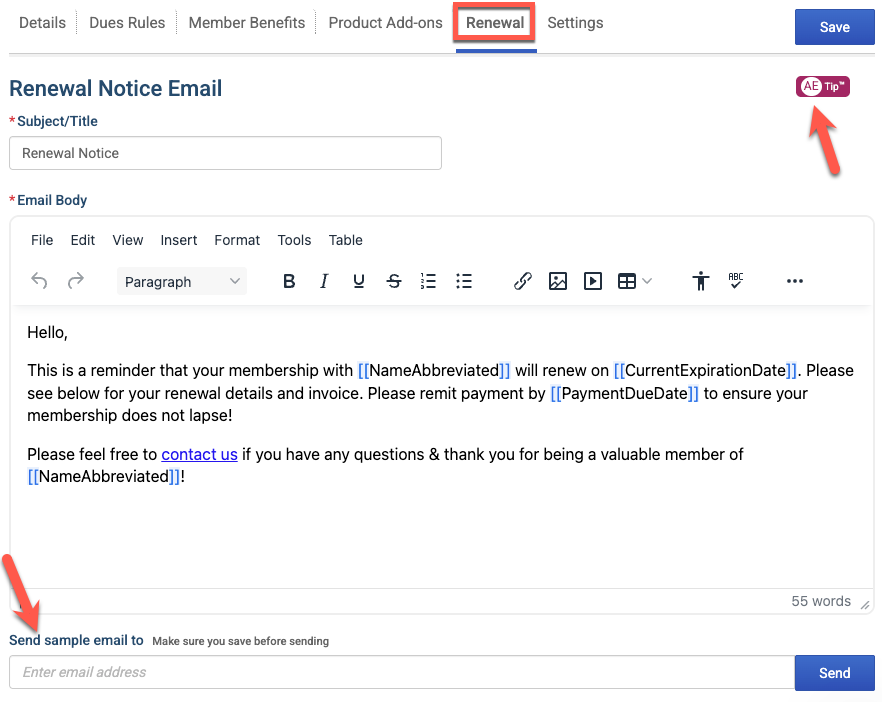
This Smart Invoice email will send to Members who have renewed via the Novi system and have not chosen to auto-pay their membership dues. It will also be sent to Members who are manually renewed by an admin on the backend.
When sending to companies, renewals are sent in the following priority order if the first is not available:
Billing Contact
Company Email
Primary Contact
If no email exists, the invoice will not be marked as Sent and you will see a message when trying to send it that no email is available.
When do they receive this email?
For members who are renewed via the Novi system or manually by an admin, they will receive this email once you send them their invoice and select the Smart Renewals option. You can do this as a batch action or as a single email.
→ Learn More: 📄 How to Email Dues Invoices from Novi AMS
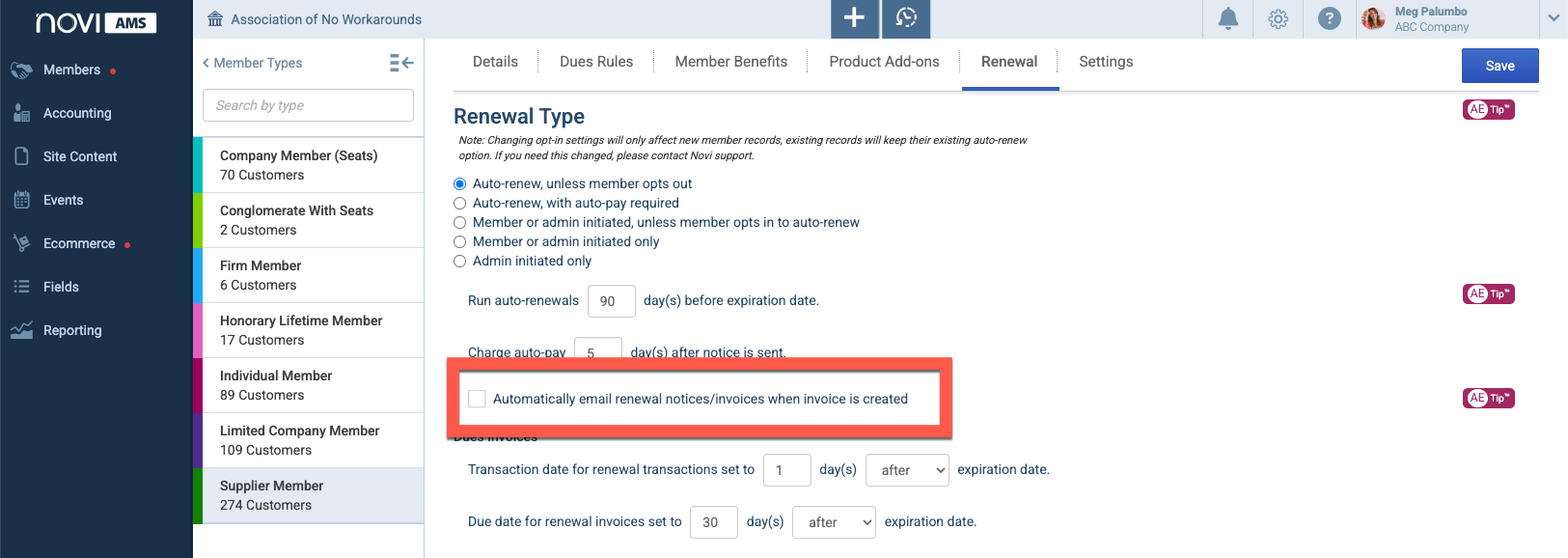
Important Note: If the Member Type utilizes the setting to automatically email renewal notices/invoices when the invoices are created, this email will be automatically sent once Novi runs your renewals. This setting is commonly used by associations with anniversary renewals. Most associations with calendar renewals do not automatically email renewal notices, so they can spot-check them first.
2. Renewal Payment Confirmation Email
This email is triggered when a renewal invoice is paid. It's sent to the member record's email (designated member) and the primary and billing contact for the member, if applicable.
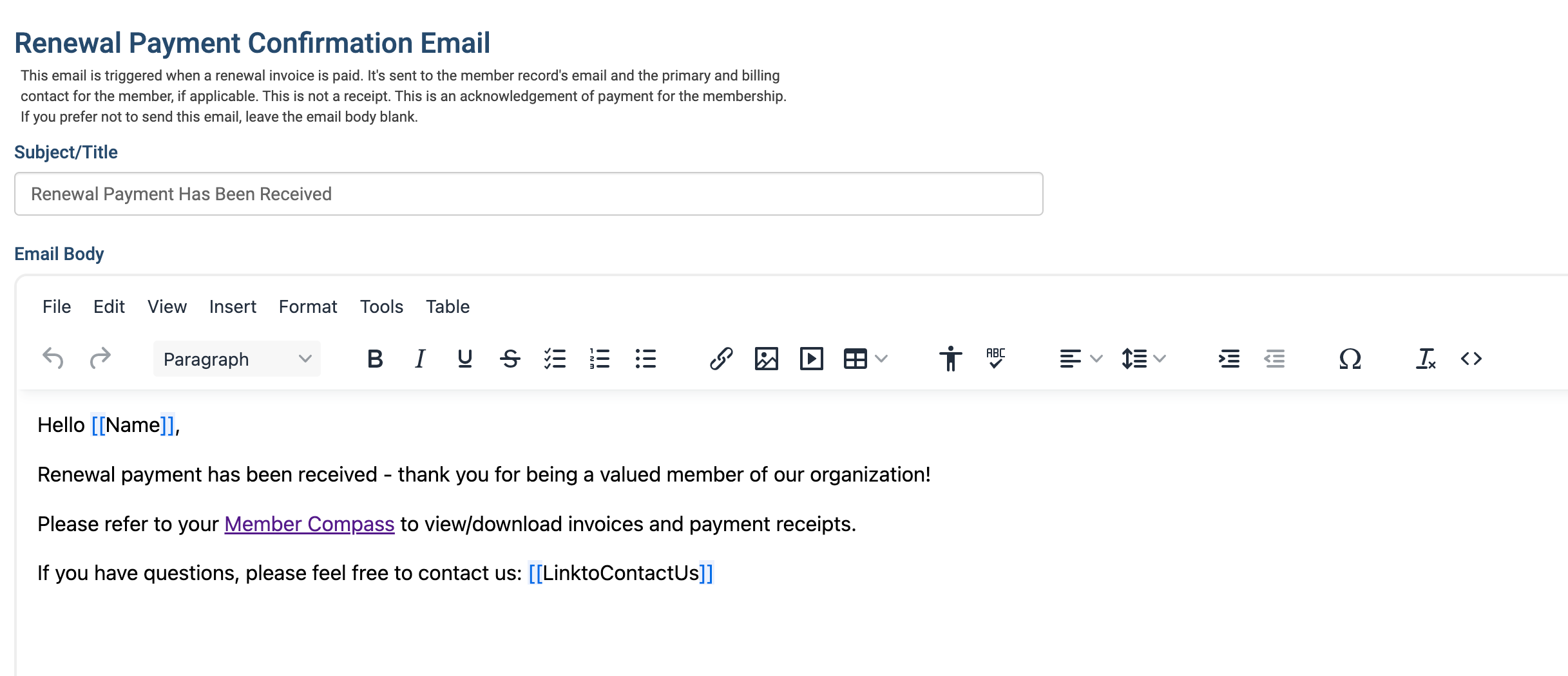
This is not a payment receipt. This is an acknowledgment of payment for the membership.
If you prefer not to send this email, leave the email body blank. If blank, no email will send.
The body of the email supports the merge fields Member Type Name, First Name, Last Name, Parent Name, and New Expiration Date. See Merge Tags for Email Body below.
This email will not send to auto-pay success members. There is a separate email for that: Auto-Pay Charge Success Email (number 6 below)
3. Auto-Pay Renewal Notice Email
The auto-pay renewal notice email is sent to members if they have elected to auto-pay their membership dues and have a valid payment method on file.
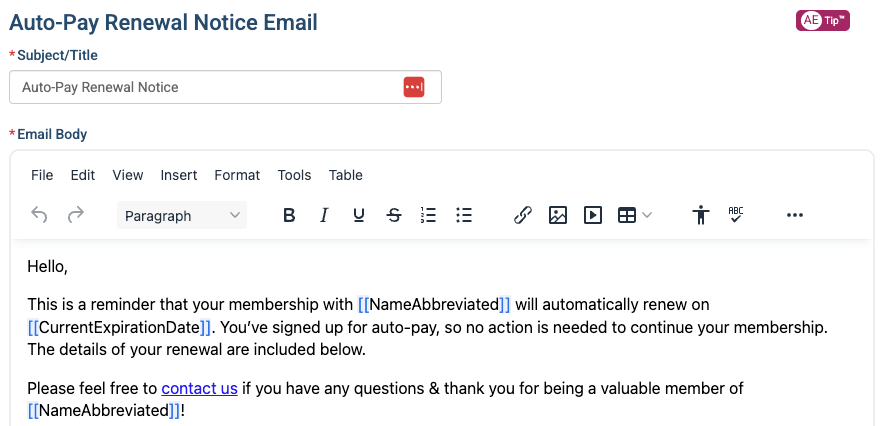
The valid payment method must be set as their default payment method (which is done by the member via their Member Compass).
→ Learn More: 📄 Navigating the Member Compass: Novi's Self-Service Hub
This email notice is meant to let customers who are on auto-pay know that their default payment method will be charged in a few days. The number of days is based on a setting you can control on the Renewal tab of the member type. The default setting is 5 days after this email is sent to the member.
When it comes to the auto-pay renewal notice, certain things are always included in the email. This includes the card's last four digits. Because they must be included, we insert that text automatically below the customizable text region. (see screenshot below)
Important Note: Here's a side-by-side comparison showing what can be customized and what is generated automatically by the system when the email is sent. Note that the curly brackets { } denote a Merge Field that will be pulled based on the member to which this notice is sent.
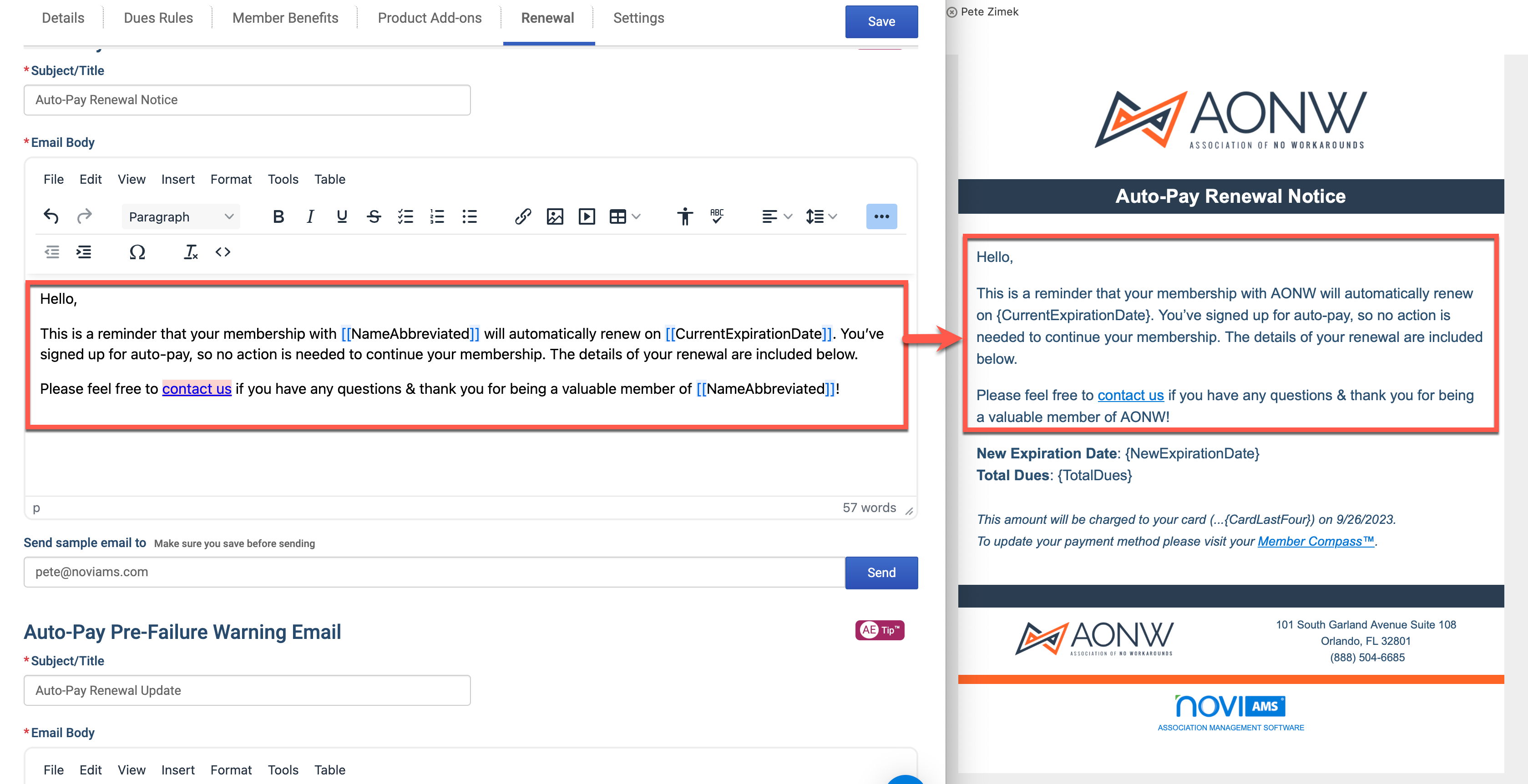
4. Auto-Pay Pre-Failure Warning Email
The auto-pay pre-failure warning email is sent to members as a warning that they elected to auto-pay their membership dues, but they do not have a valid payment method on file. It gives them an opportunity to correct or add a payment method.
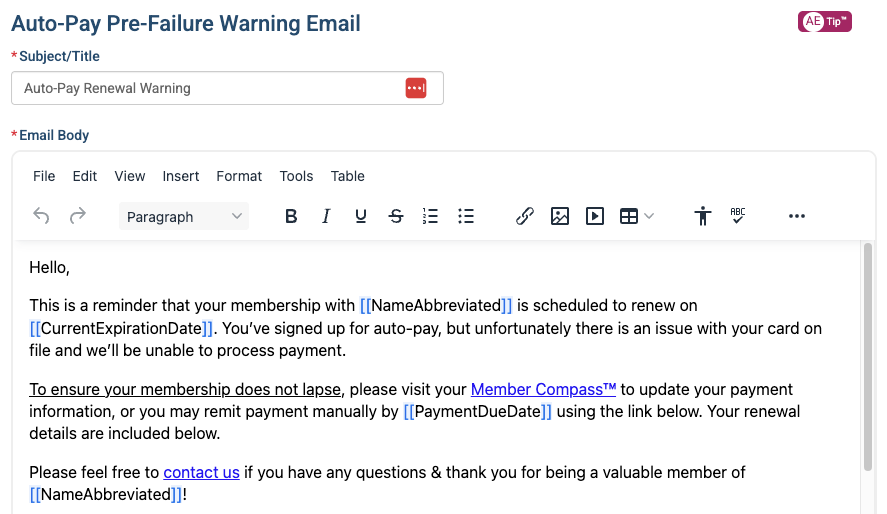
This "failure" could be because they've removed all of their payment methods, or their default credit card may have expired.
The dues invoice will be attached, and the email will include a link for the member to manually pay the invoice.
5. Auto-Pay Failure Notice Email
The auto-pay failure notice email is sent when Novi is unable to automatically charge for their membership dues.
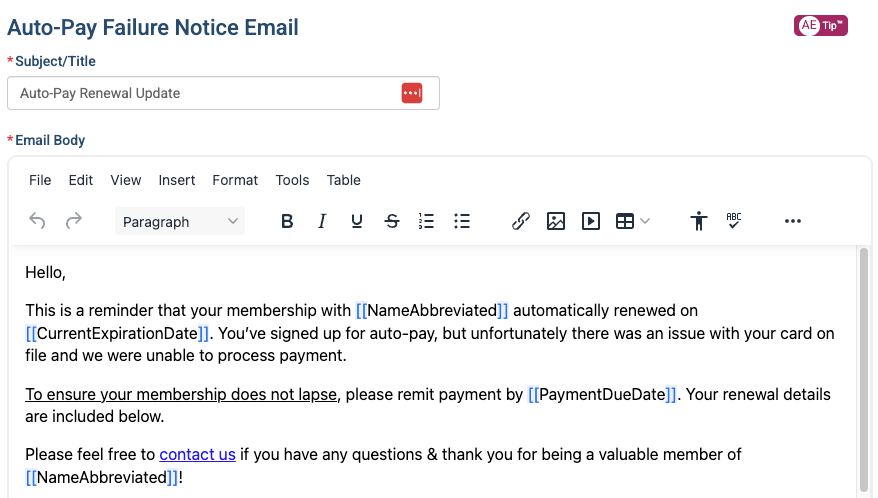
The reason for the failure is most likely that their credit card on file was either declined or expired.
The dues invoice will be attached, and the email will include a link for the member to pay the invoice.
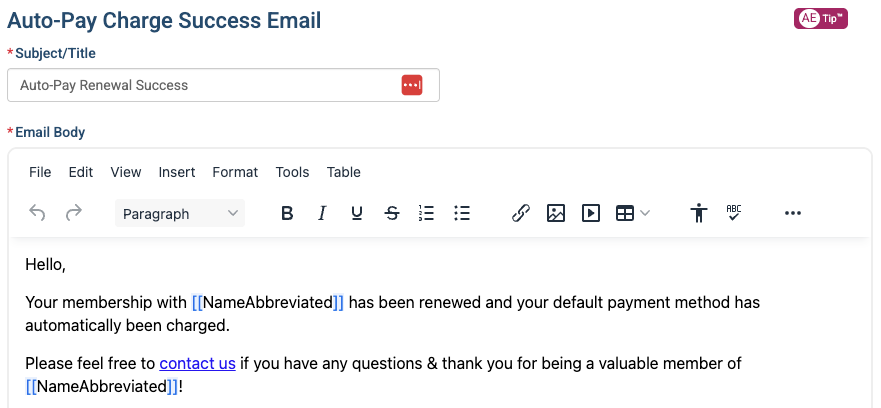
6. Auto-Pay Charge Success Email
The auto-pay charge success email lets members know that their membership dues were successfully charged to their default payment method.
Available Merge Tags for Email Body
The following merge fields (also called merge tags) can be added to Renewal Notice Email Body to personalize your messaging. (Note: Merge Tags are not available in other types of Smart Invoices.)
Expand the following sections to view available merge fields.
Default Merge Fields
To use a built-in merge field, be sure to include the double brackets and no spaces. Also, merge fields are case-sensitive.
[[FirstName]] - this will return “FirstName” for individual based member-types only.
NOTE: If your member type is company-based, this will not apply and you should use [[Name]] instead.
[[LastName]] - this will return “LastName” for individual based members only.
NOTE: If your member type is company-based, this will not apply and you should use [[Name]] instead.
[[Name]] - for company-based member types this will display the company's name, and for individual member types it will display the person's full name (first + last)
[[NameAbbreviated]] - this is your organization's name abbreviated
[[ParentName]] - this is the name of the parent member to which a person or organization is connected.
[[MembershipPeriodStartDate]] - this is the member's most current "Member Since" date. That is, the Membership Period Start Date will display the Member Since date that reflects the membership period covered by the current dues invoice.
[[CurrentExpirationDate]] - this is the member's expiration date prior to the renewal
[[NewExpirationDate]] - this merge field is included by default (below the custom message), even though you don't see it in the Email Body
[[PaymentDueDate]] - this merge field is included by default (below the custom message), even though you don't see it in the Email Body
[[TotalDues]] - this merge field is included by default (below the custom message), even though you don't see it in the Email Body
[[LinkToCompass]] - this is a link to the Member Compass
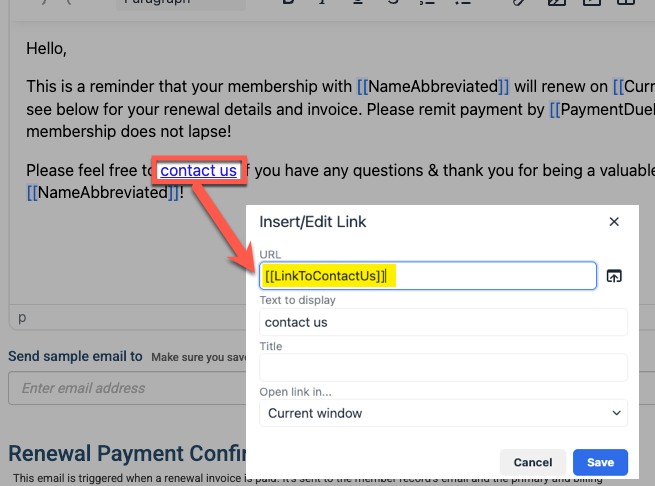
[[LinkToContactUs]] - this is a link to your website's Contact Us page
[[LinkToPayInvoice]] - this link allows the user to submit payment without logging in, BUT that means they will not have the option to save their credit card or opt-in to auto-pay (if available for their member type)
Custom Merge Fields
You can also create your own merge fields for any Custom Fields on your site. To create a custom merge field, be sure to include the double brackets and remove any spaces (if applicable). Also, merge fields are case-sensitive and should include any punctuation or special characters (like ampersands or apostrophes).
For example, if you have a custom field called "Rank" with options like Chief and Lieutenant, you could add this as a merge tag to address the renewing member.
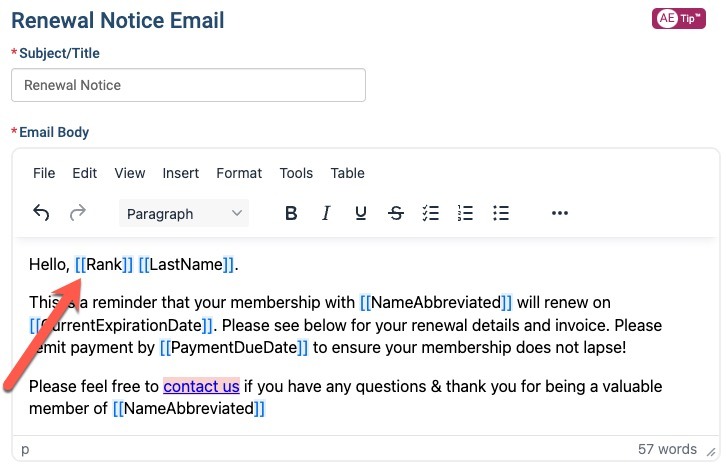
If the custom field has a Field Name that's different than the Display Name, you should use the Field Name for the merge tag.
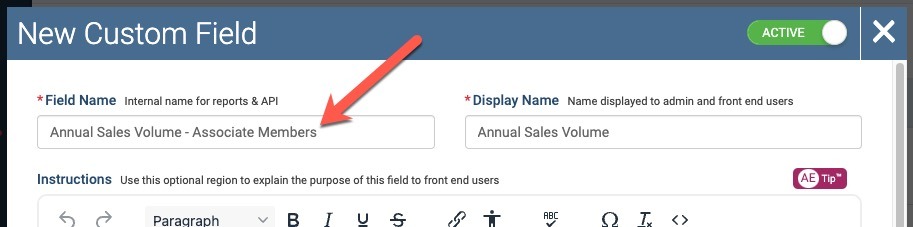
In the example in the screenshot above, the merge field would be:
[[AnnualSalesVolume-AssociateMembers]]
📌 Important Notes:
Consider if the member type is company-based or individual when using any of the "Name" merge fields.
The following information is included by default in all of the email templates above, and will be displayed below the custom messaging you enter:
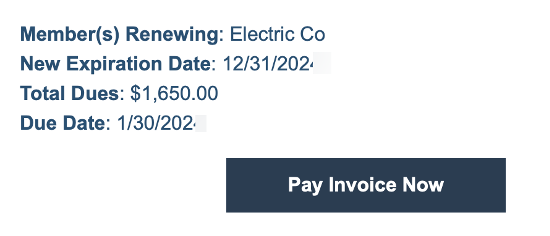
Clicking the Pay Invoice Now button (in the screenshot above) will take the user to a screen where they can pay the invoice without logging in. If you want to encourage them to log in, so they will have the option to save their credit card and opt-in to auto-pay future renewals, you can include the Member Compass merge field in your custom messaging - [[LinkToCompass]].
If someone clicks the Pay Invoice Now button on an old renewal notice (where the invoice has been non-renewed or voided), they will no longer be able to submit payment. Instead, they will see a message informing them the invoice is no longer available. For full details on what members see depending on the invoice status, visit 📄 Getting Started with Smart Invoices
When using the "Link" merge fields, you can use them as shown in the screenshot below:
Adding Images to the Email Message
Important Note: Adding images to transactional emails should be done with caution. Images are a leading cause of emails getting stuck in Spam/Junk and can harm your Safe Sender score.
When inserting images in smart renewal email messages, you can use 600px as the recommended maximum width since that's the width of the email template. For the image height, that's totally up to you!
After you add the image and save your changes, send yourself a sample email to see what the image, text, etc. will look like for your members (see next section for more info).
How to Send a Sample Email
Each email template has a field where you can enter your email address to receive a sample of the email. This can be found below the Email Body. Be sure to save any changes before sending the sample!

📌 Important Notes
Members must be logged in when paying an invoice to have the option to save their credit card or opt-in to auto-pay for future renewals (if available for their member type).
📄 Lifetime Memberships do not expire, so they cannot be renewed, and therefore will never receive Smart Renewal Notices or emails.
The "Smart Renewal Notice" emails described above will be the default (and recommended) way of sending dues renewal invoices from Novi, but if you are using QuickBooks Payments you can still select the "QuickBooks Invoice" email to send the default invoice email that you've set up in QuickBooks Online.