Create a Manual Dues Invoice
Last updated: October 20, 2026
In most cases, you will want Novi's automated member type settings to create dues invoices. However, you can still process a dues renewal for a single member.
Manually Renew a Single Member
Warning: Do not use the Renew Membership button on members who have already been auto-renewed. This will generate a duplicate invoice and push their expiration date out an additional year beyond what it should be.
1. Open the member/customer record that you want to use. If you have not created the member record, then follow this article instead: Create a member from scratch
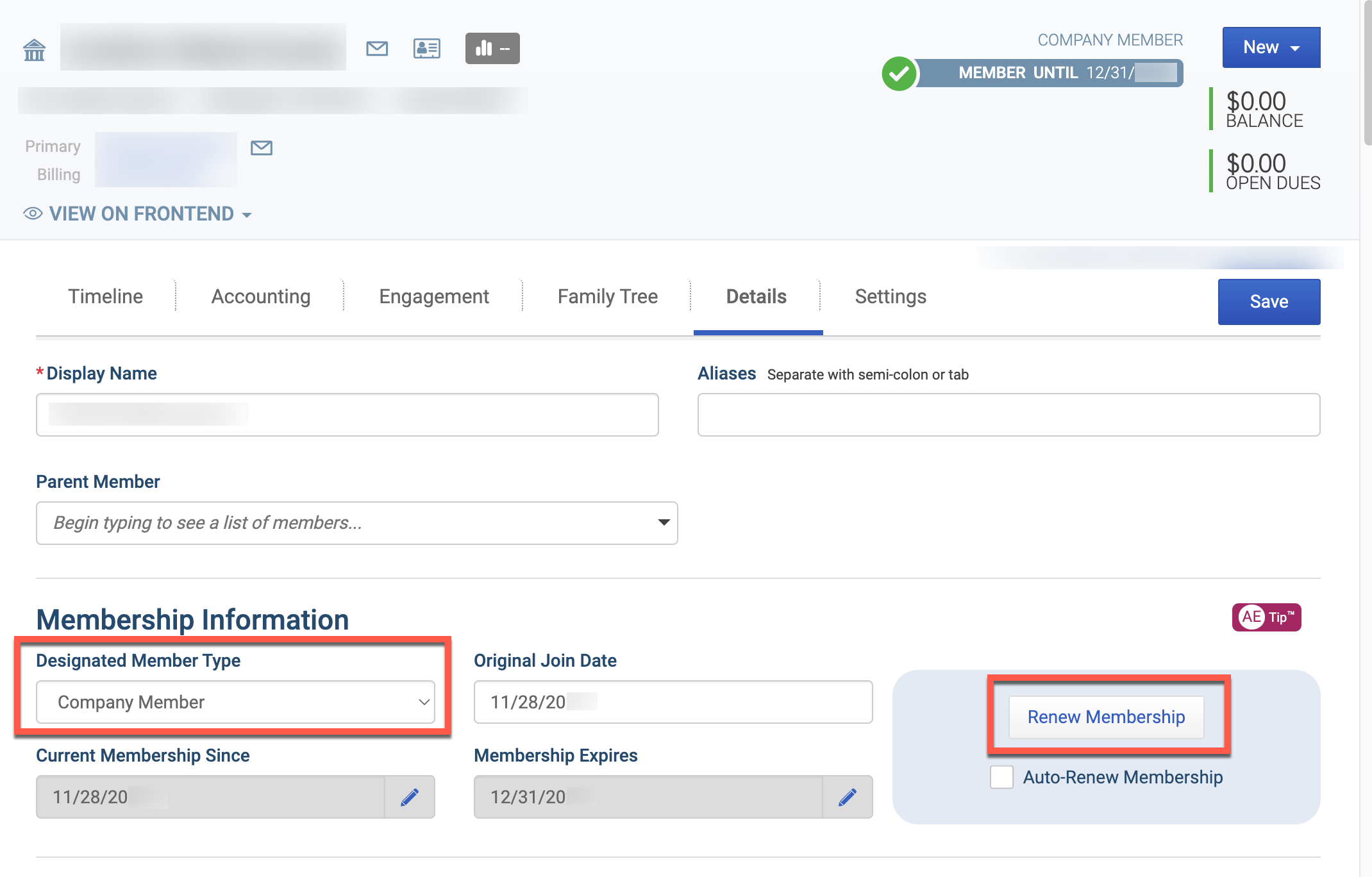
2. Navigate to the Details tab.
3. Ensure that the member has a Designated Member Type selected. Remember, "None Designated" can only inherit member benefits.
4. If the member is expired (or renewing early), press the Renew Membership button. If the member is a prospect, then press the Save & Convert Prospect to Member button.
5. When the Create Membership (or Renew Membership) modal opens, review the Membership Summary for accuracy.
If the Expiration Date was already correct, this process will advance their expiration date to the next year. So if applicable, change the expiration date back to the current year before saving.
6. Enter Payment information. If you don't want to charge for dues, see the section below.
7. Depending on your business practices, you may Save & Close, Save & Send (the invoice), or Save & Print (the invoice).
Create Membership without Charging
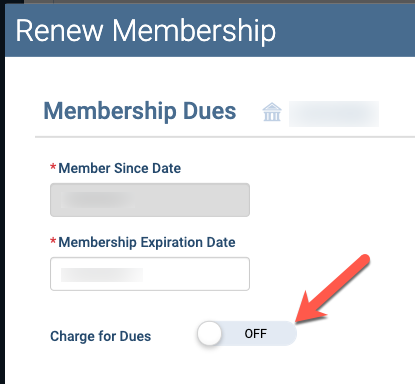
To update membership information without creating a dues invoice, follow the same workflow above with one exception. On the Create Membership/Renew Membership screen, toggle Charge for Dues to OFF.
Important: Manual edits to a member's expiration date (outside of the renewal process) can cause incorrect invoice generation during automated dues processing. If a member has already paid for the current year but has an incorrect expiration date due to manual editing, use this "Renew without charging" process to correct the expiration date without creating a duplicate invoice.
Custom Dues Invoices or Dues Invoices Created in QuickBooks Online
Generally, we recommend against creating dues invoices directly inside of QuickBooks Online or using Novi's Custom Invoice function. However, we realize that this may need to be done from time to time.
In those instances, you will be responsible for updating that member's data inside of Novi by manually renewing the member using the steps above or by manually editing the membership information.
Key information to check when manually editing a member record:
Designated Member Type
Membership Expires Date
Related Articles: