Bill Specific Members a Custom Dues Amount at Renewal
Last updated: October 6, 2026
Some members pay a dues amount that differs from the standard rate for their member type, such as a negotiated rate, a grandfathered rate, or another approved exception. With an admin-only custom field and two sets of dues rule conditions, Novi can bill each of these members the amount listed on their record in a custom field at every renewal, while everyone else continues to receive the standard rate.
Is This the Right Approach?
Use this setup when:
The custom amount applies to one or more members and should carry into future renewals.
You want Novi to calculate renewal invoices automatically instead of editing multiple invoices manually.
Use a different approach when:
It's a one-time exception. Adjust the invoice in QuickBooks Online instead.
The renewal invoice already exists. Adjust that invoice in QuickBooks Online or make adjustments and recalculate. The setup below applies to future renewal invoices. See also: 📄 Recalculate and Update Open Dues Invoice
It's a new membership. If a new member needs an amount that differs from the standard rate, create the membership from the admin without charging dues, then invoice the member through a custom invoice or QuickBooks Online. See also: 📄 Custom Invoices and Sales Receipts in Novi
Step 1: Create an Admin-Only Custom Field
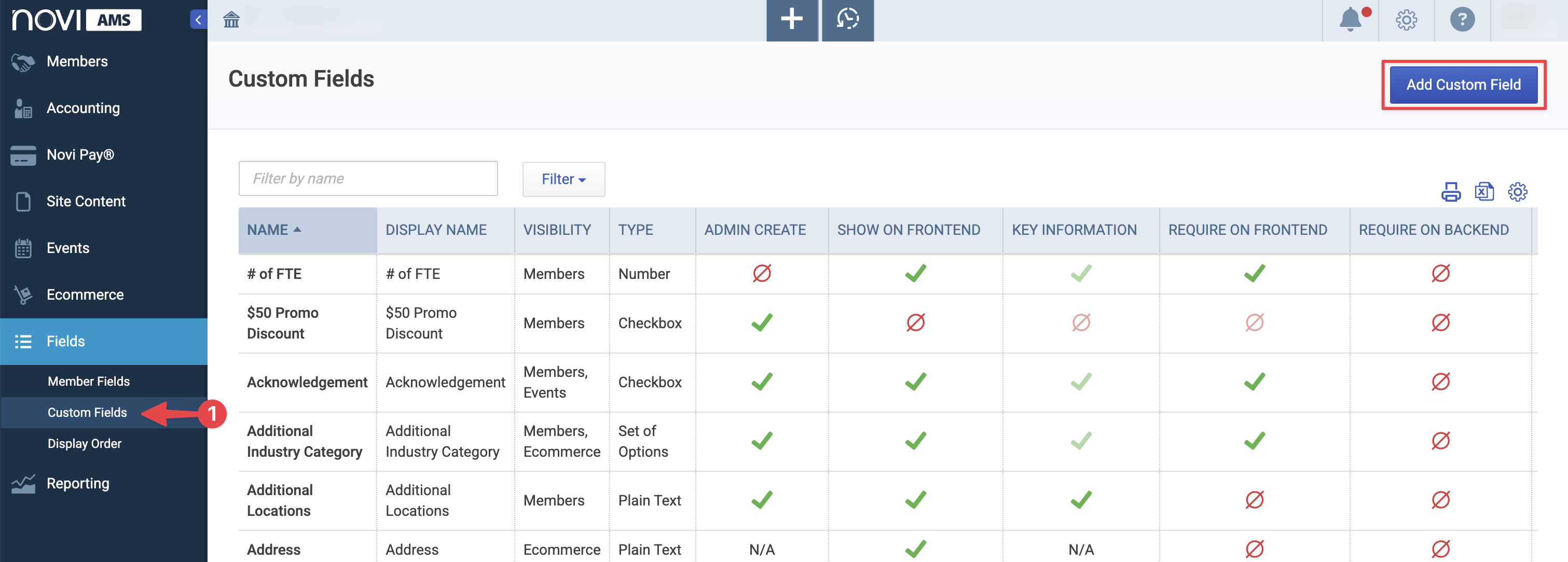
Go to Fields > Custom Fields > Add Custom Field
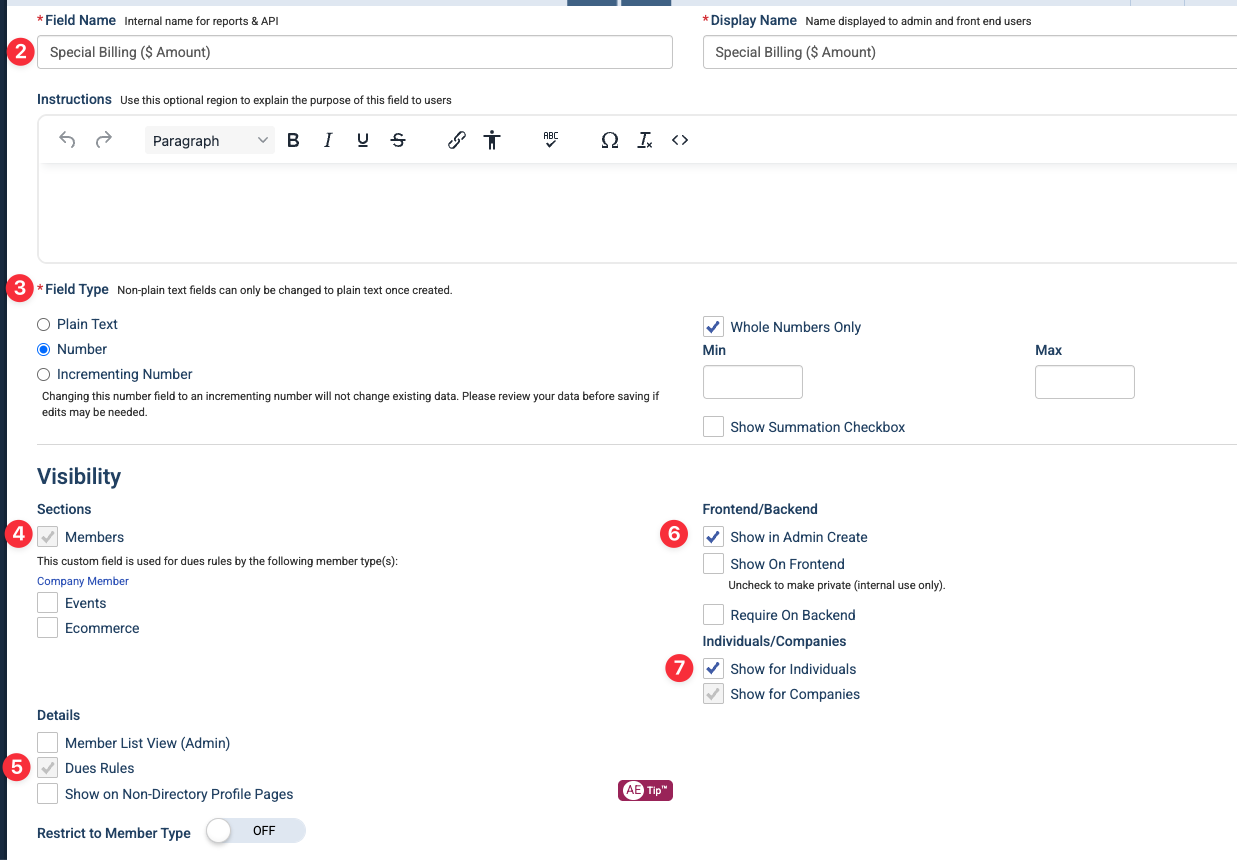
Name the field something clear, such as Custom Billing Amount, Special Billing Amount, or Custom Dues Amount.
Set the field type to Number. You may also want to check Whole Numbers Only.
In the Visibility section, make the field available for Members.
In the Details section, make the field available for Dues Rules.
In the Frontend/Backend section, keep the field hidden from the frontend so members cannot enter or change this amount themselves. Select only Show in Admin Create.
Choose whether the field should show for individuals, companies, or both, based on the member type that needs special billing.
Save the custom field.
Step 2: Enter the Amount on Member Records
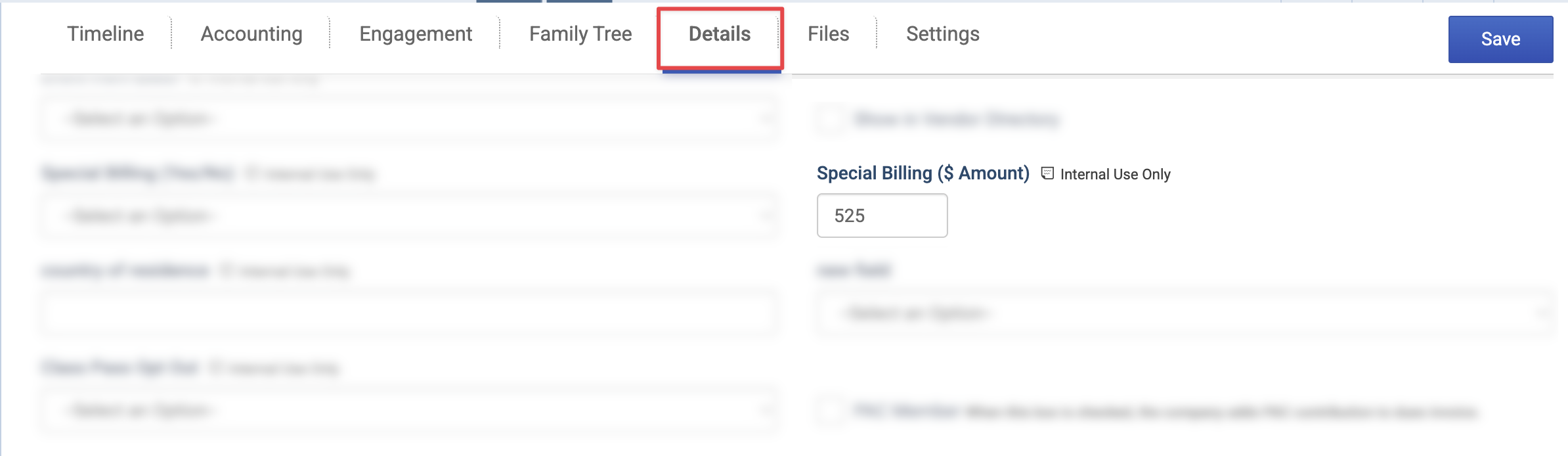
Open the member record that should receive the special billing amount.
Find the custom field you created within the Details tab.
Enter the exact amount that member should be charged for dues.
Save the record.
Leave this field blank for members who should receive the standard dues amount.
Step 3: Limit Standard Dues Rules to Members Without a Custom Amount
Next, update the normal dues rule so it only applies when the member does not have a custom billing amount.
Go to the member type’s Dues Rules.
Open the standard dues rule.
Add a condition using is null with your custom field – e.g. Special Billing is null.
Save the dues rule.
This tells Novi: if the custom billing amount field is blank, charge the standard dues amount.
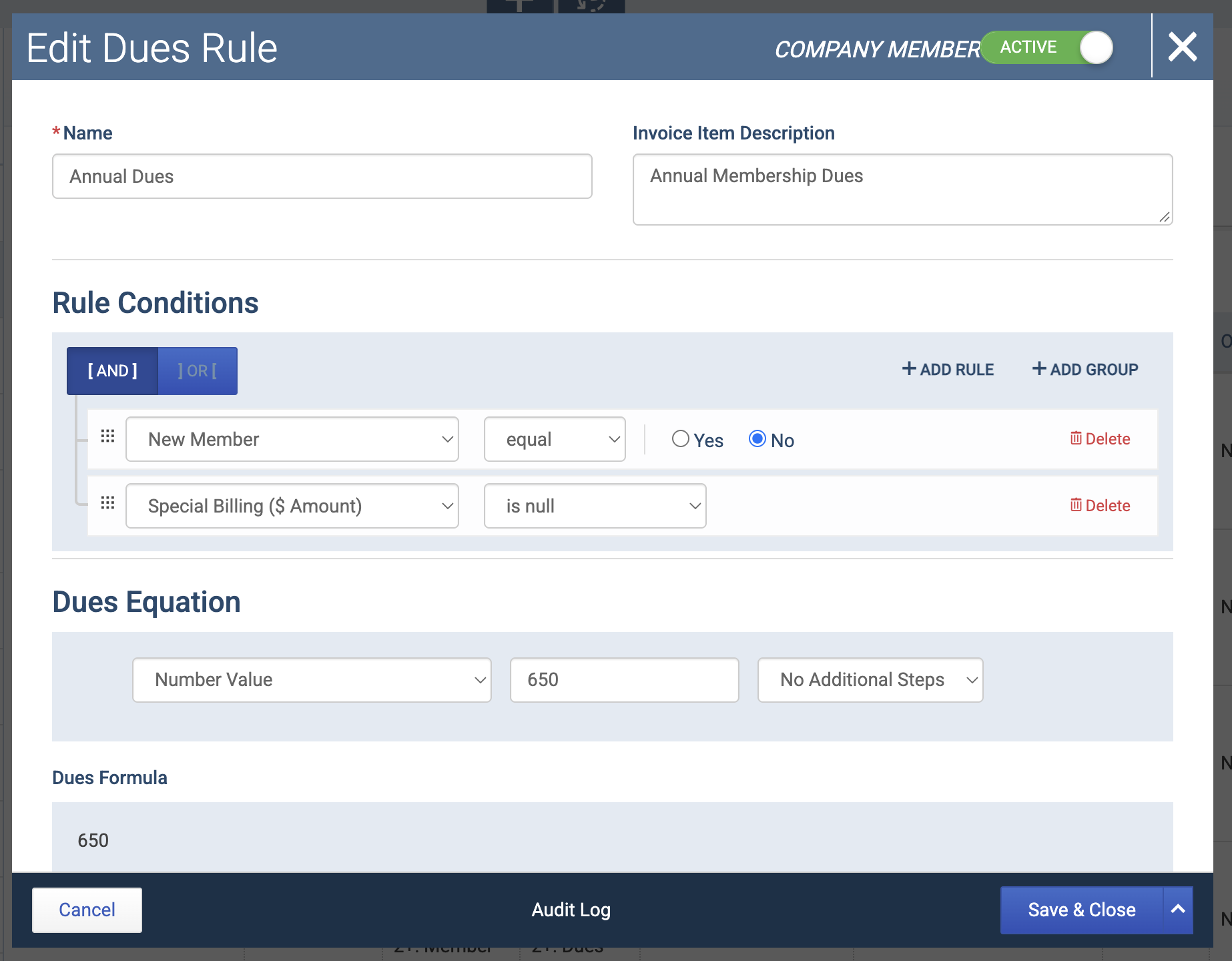
Important: Add this condition to every rule that calculates dues for this member type. Any rule you miss will also bill custom-amount members, charging them twice. Optional rules, such as donations or featured listings, typically don't need the condition.
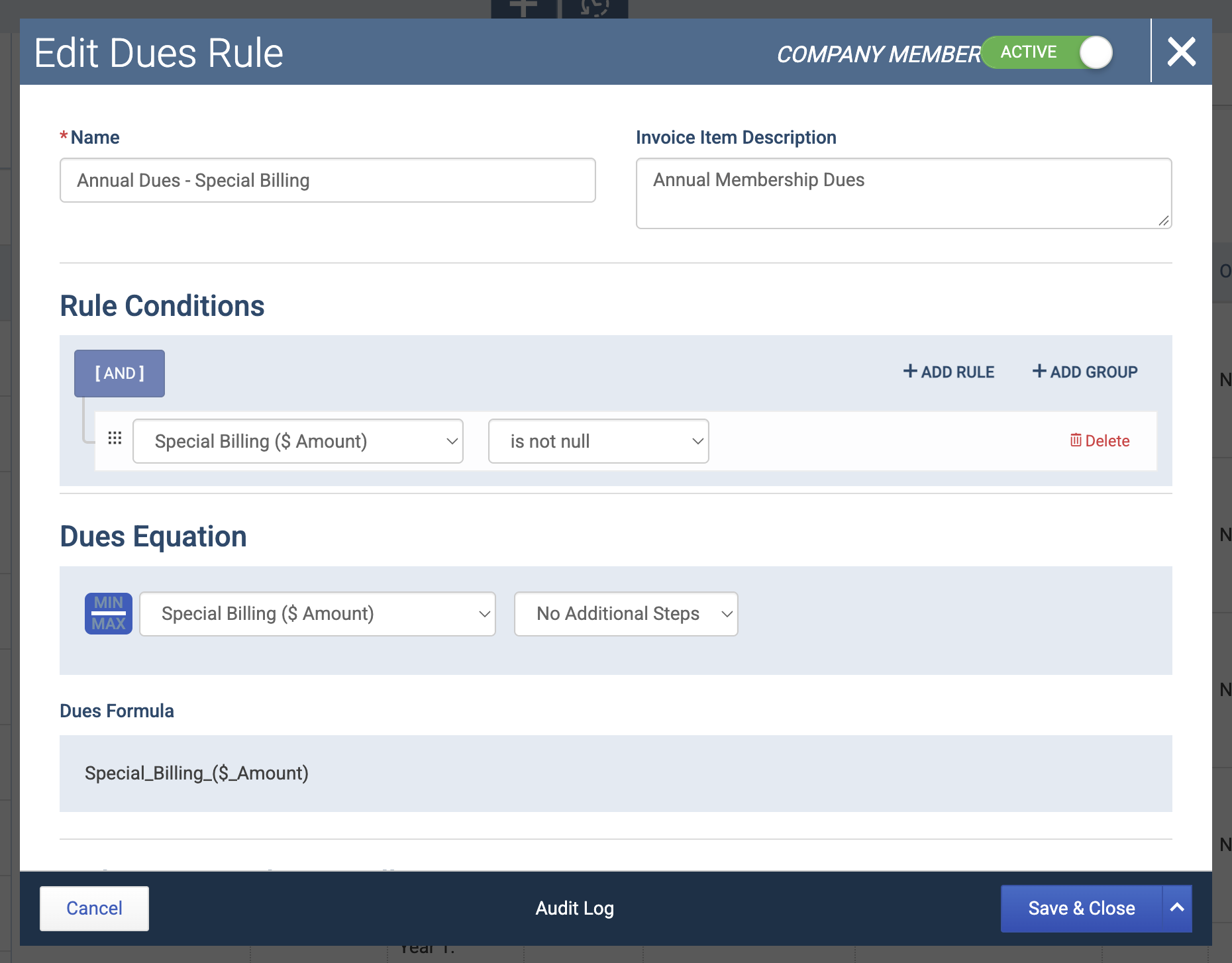
Step 4: Create the Custom Amount Dues Rule
In the same member type, create a new dues rule.
Give it a clear name, such as Custom Dues Amount or Special Billing Amount.
Add a condition using not null with your custom field – e.g. Special Billing is null.
In the Dues Equation section, select your custom field with no additional steps. This will tell Novi to look at the value in that field on the members' records when determining dues.
Click Save.
Step 5: Test Both Billing Paths
Preview a renewal for each scenario before any real invoices go out:
Open a member with the custom field blank.
On the Details tab, click Renew Membership and confirm the preview shows the standard dues amount.
Exit without completing the renewal.
Repeat with a member who has a custom amount entered, and confirm the invoice preview shows only that amount.
Important Notes
If you use this setup across multiple member types, update and test each member type's dues rules separately.
Editing dues rules affects every future renewal for that member type. Test before your renewal cycle begins.
Entering 0 in the field counts as a value, so the member would be billed $0