Add Custom Filters to Directory Search
Last updated: September 15, 2026
Allow website visitors to search for members based on custom fields.
Create and arrange filters based on certain member fields (member type, city, state/province, zip, county/parish, country), custom fields, groups and committees.
How to set up custom directory filters:
Before You Get Started – If you need a filter that doesn’t exist yet, create the custom field or group first. Custom fields must be checkboxes (shown in directory as "any/yes/no") or a set of options (shown in directory as a drop down). Groups and committees will be shown with "any/yes/no."
Navigate to Members → Segments → Directories
Select the directory you need to edit. In the Standalone Directory Filters section, and select the custom field, group, or committee that you want to use as a filter.
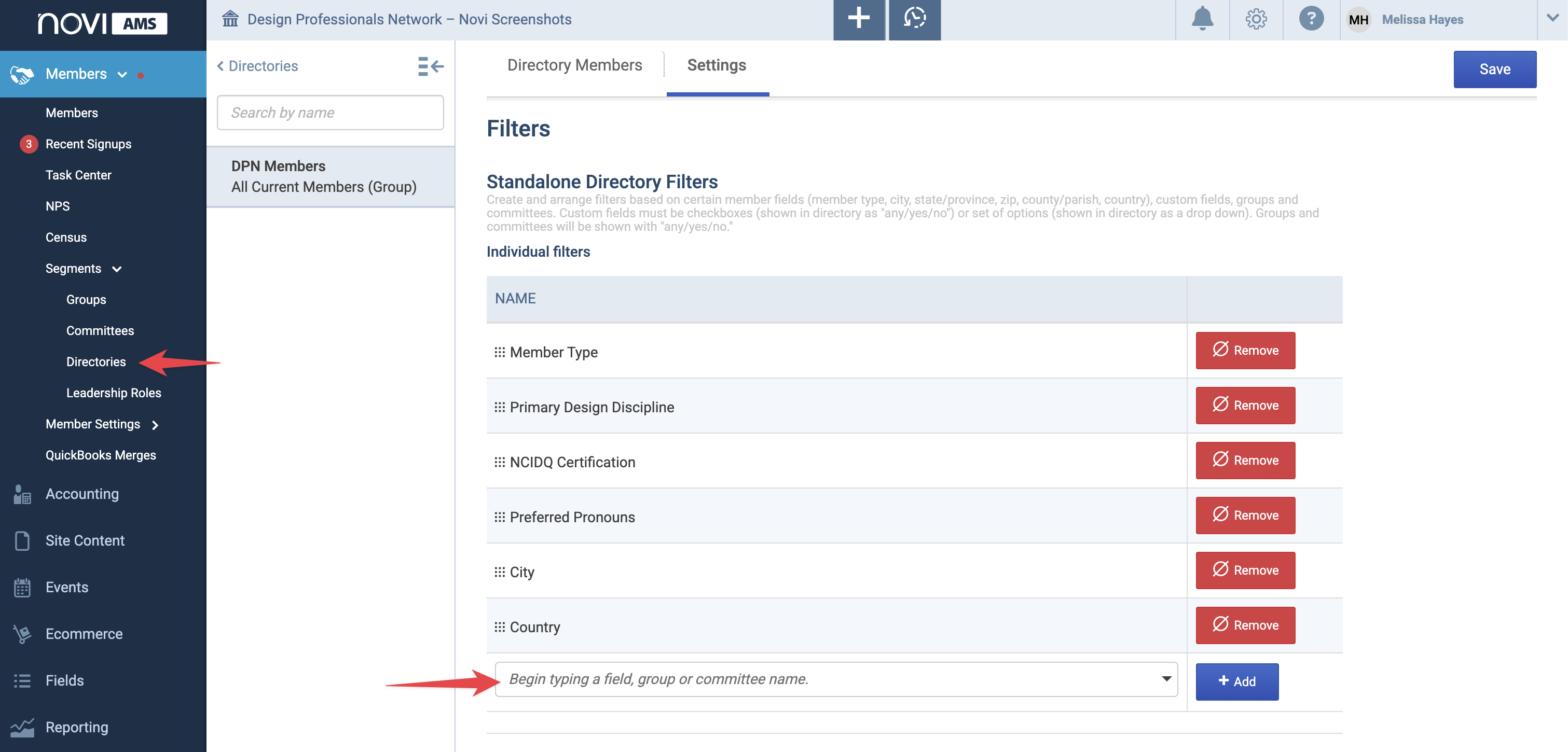
Your new custom field will now appear as a filter in Directory settings! 🎉
Items of Note:
Multi-select filters: Custom-field and Member Type filters are multi-select, so visitors can combine filters. You can also share links to pre-filtered results.
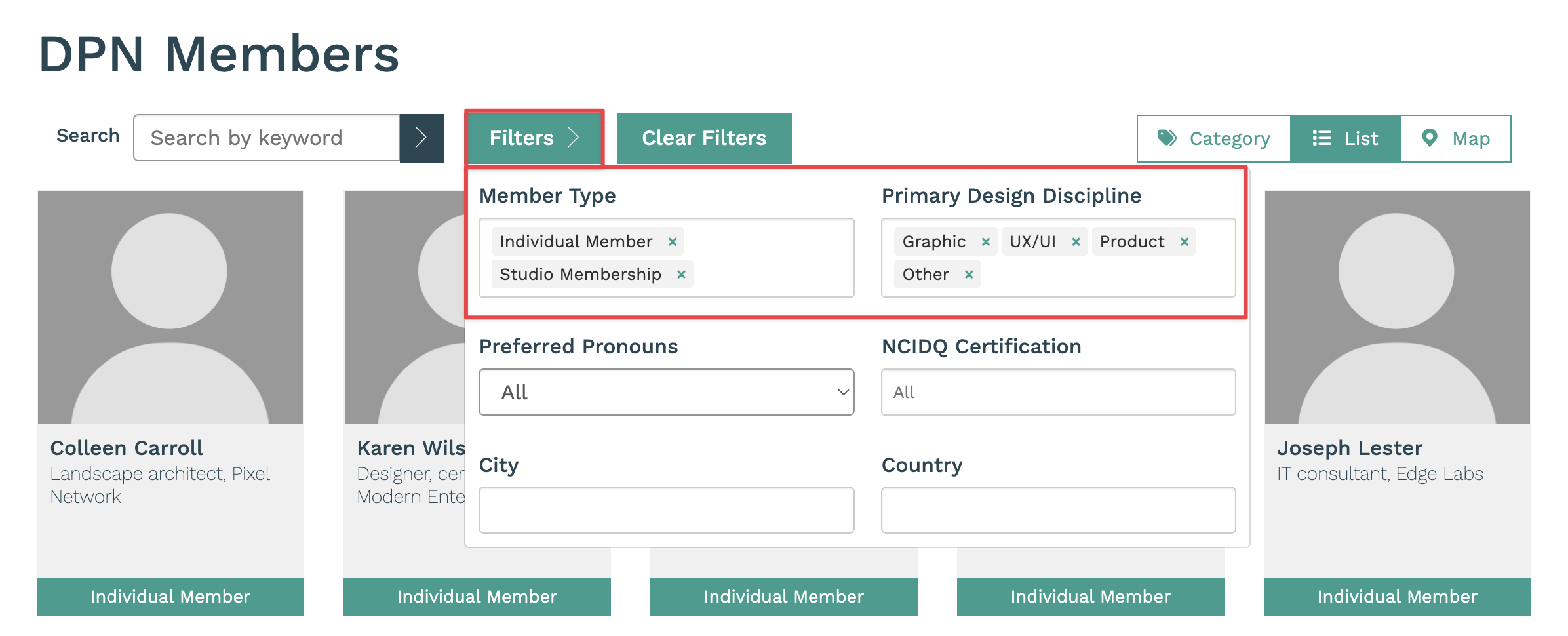
If the field also powers your Category View: Each value becomes its own category page with dedicated content. That gives you extra space for highlights or sponsorships to drive ancillary revenue.
As an example: Let's say you have a custom field called Service Specialty with values Accounting, HR, IT. From the Category View, you can copy the direct link to the Accounting page. This page could include a short intro (“Find vetted accounting partners”), a sponsor banner at the top (“Sponsored by LedgerLabs”), and 3 Featured profiles – creating a new, recurring revenue stream!
Member Types naming matters: The Member Types filter uses each type’s Display Name for Directories. If two types share the same display name, they’ll appear as a single option and show members from both. To keep them separate, give each member type a unique display name.