Testing Event Registration by Impersonating a Member
Last updated: September 28, 2026
Testing your event registration flow before launch is a great way to confirm that tickets, pricing, attendee forms, and visibility rules are working the way you expect. If you want to see the registration experience through a member’s eyes, you can use impersonation to walk through the frontend registration process.
Tip: Impersonation is especially helpful when you need to confirm what different member types, groups, committees, or staff members can see during registration.
Before You Test
In order to test registration on the frontend, the event and the tickets you want to test need to be available.
The event needs to be Active.
The tickets need to be Active and available within their purchase or registration window.
If a ticket is limited to certain member types, groups, or committees, impersonate a user who should qualify for that ticket.
If the event is inactive, or if the tickets are inactive or not yet available, you will not be able to fully test how those tickets appear in the frontend registration flow.
Keep the Event Off the Frontend Calendar While Testing
If you are still building or testing the event, you can make the event active and keep it from appearing on the frontend event calendar.
Go to the event in the backend.
Open the Settings tab.
In the Event Display Options section, select Hide on frontend calendar.
Use the Novi Registration Link to access the registration page directly while testing.
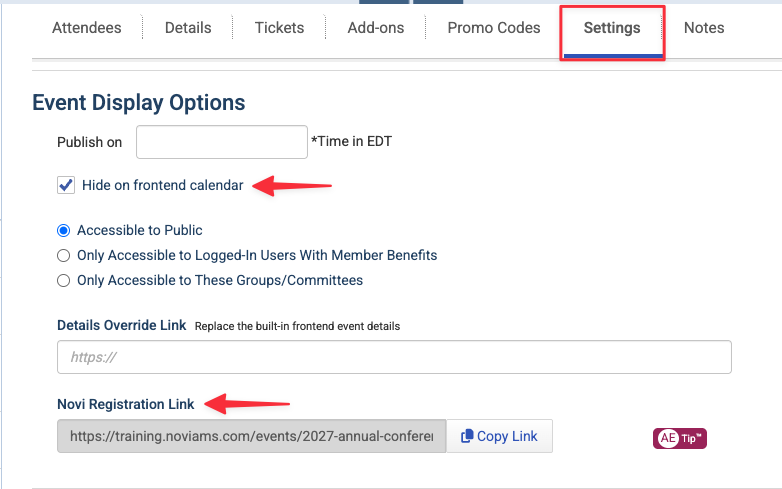
This allows you to test the registration workflow without placing the event on your public calendar during the build or testing stage.
Important Note: Hiding the event from the frontend calendar does not make the event completely private. If someone has the direct event or registration link, they may still be able to access it. If you need to limit access further while testing, consider using the event’s access settings, such as limiting visibility to a staff group or committee.
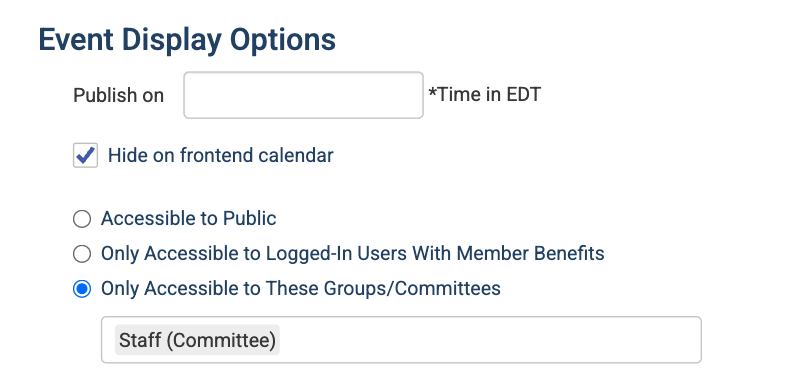
Impersonate a Member to Test Their Experience
Impersonation lets you view the frontend site as a specific member. This is helpful when tickets are restricted by member type, groups, committees, or other eligibility rules.
There are two common ways to start impersonating a user:
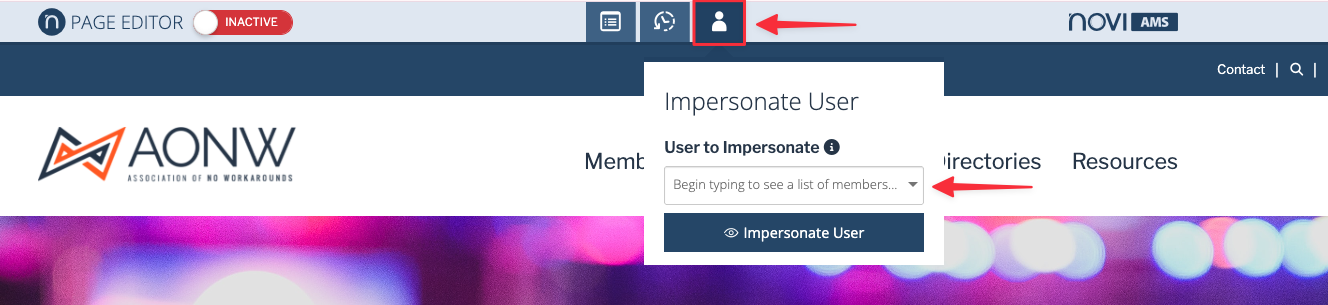
From the frontend admin bar
Log in as an admin.
Go to the frontend of your site.
Select Impersonate User from the admin bar.
Search for and select the member you want to test as.
Select Impersonate User.
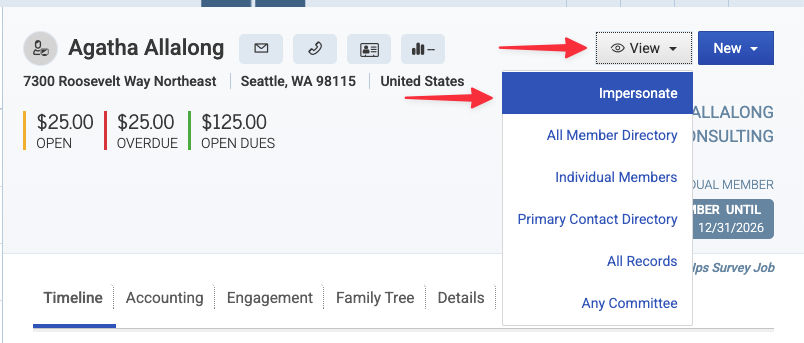
From a backend member record
Open the member record for the person you want to impersonate.
In the top right of the record, select View.
Select Impersonate.
The member must have a user account and cannot be a fellow admin. If they do not meet those requirements, the impersonation option may be grayed out.
Test the Registration Flow
Copy your event's frontend link.
Impersonate a record for testing.
Once you are impersonating a record, open the event’s frontend registration link.
Review which tickets are visible to that member.
Step through the registration process to confirm the attendee selection, ticket selection, attendee form fields, and other registration settings.
Repeat the process with other records if you need to test different member types, groups, committees, or ticket restrictions.
This can help you confirm that the registration flow works as expected and that the correct tickets display properly for the correct people before you open the event more broadly.
What You Can and Cannot Do While Impersonating
Impersonation is designed to let you preview the member experience. Most pages will look the same as they would for the member, but certain actions are blocked for security reasons.
While impersonating, you can:
See the event and registration flow from the member’s perspective.
Confirm whether specific tickets appear for that member.
Review member-only or group-based ticket restrictions.
Walk through most of the registration steps before checkout.
While impersonating, you cannot:
Complete checkout for an event ticket.
Make payments.
Save changes that impact the member’s profile or transactions.
If you need to test the final checkout or payment step, you may need to complete a real test registration outside of impersonation, then void, refund, or clean up the transaction as needed based on your normal accounting process.
After Testing
When you are done testing and are ready to launch the event:
Stop impersonating the member.
Return to the event’s Settings tab.
Uncheck Hide on frontend calendar if you want the event to appear on the frontend calendar.
Confirm the event access settings are correct.
Confirm ticket availability dates, visibility, pricing, and restrictions are ready for members.
Tip: If your event has many ticket types or complex restrictions, test with more than one member so you can confirm each audience sees the right options.
Related Articles
Keywords: test event registration, impersonate member, impersonating users, event tickets, hidden event, hide on frontend calendar, member-only tickets, group restricted tickets, event testing