Using Novi's MCP
Last updated: October 19, 2026
How to connect Novi's MCP to an AI tool such as Claude and ChatGPT.
Novi Connect lets you securely link your association's Novi AMS data to AI tools such as Anthropic (Claude) and Open AI (ChatGPT) so you can ask natural-language questions about your members, events, and more.
While we are working to get our MCP added to Anthropic and OpenAI marketplaces, you can still add the MCP manually.
Enable Novi Connect in Novi AMS
An association admin will first need to enable the Novi Connect MCP from the back end of your Novi site. This will only need to be done one time. Once enabled, it will be accessible for all Association Admins.
Click on the Setting (gear icon) in the upper right corner and select the link to Amplify Settings
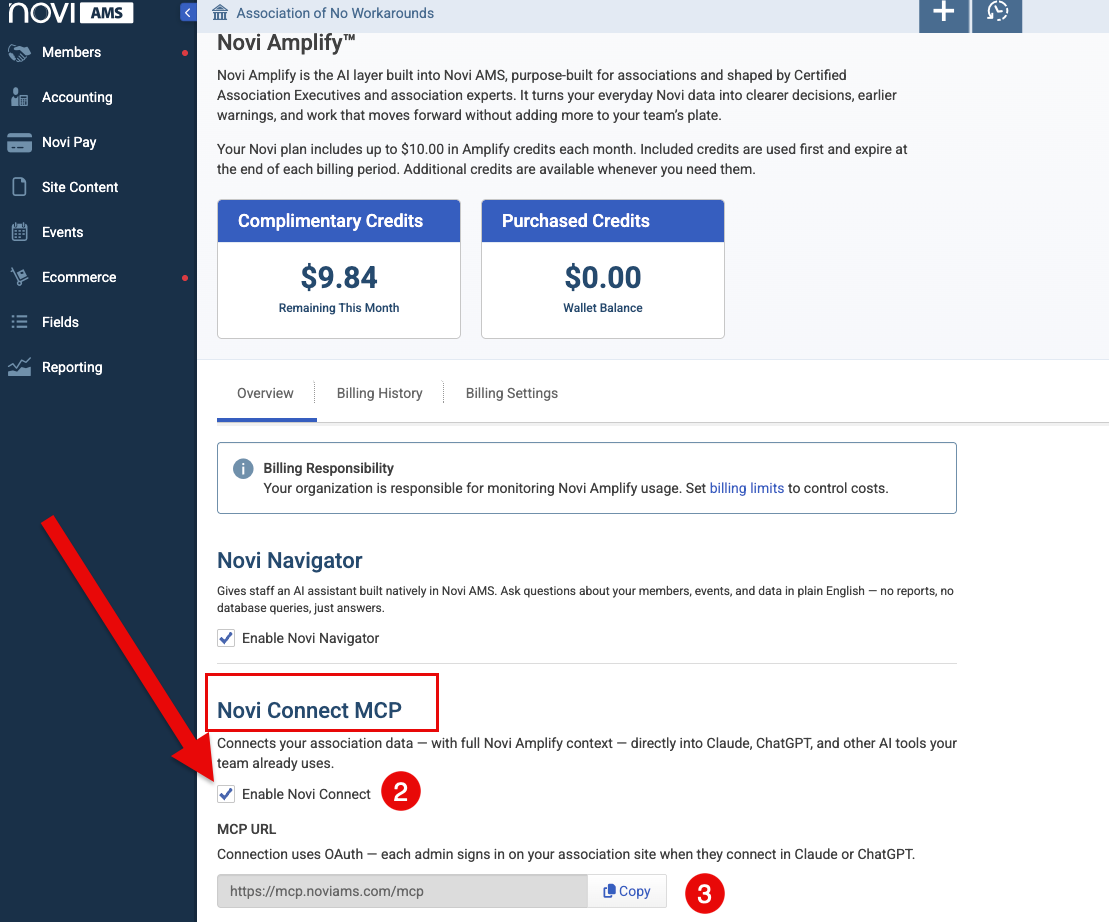
Check the Enable Novi Connect box.
This registers your association with the Novi Connect server so it's ready to authenticate when you connect from your AI tool.
Copy the Novi Connect URL (https://mcp.noviams.com/mcp). You'll need it in the next step.
Manually Connect to Novi's MCP
Using an MCP connection, you can connect your database to any third-party tools that also offer an MCP connection. Two common connectors are Claude and ChatGPT.
While we are working to get Novi added as an app in the Claude and ChatGPT marketplaces, you can still manually add it.
Once enabled in your Amplify Settings, you can add an MCP connection in your third-party tools using this URL: https://mcp.noviams.com/mcp. This page will ask you for your Novi website URL and will use single sign on to authenticate your settings and access.
Example: Manually add to Claude
Note for Claude users: If your Claude account is on a Team or Enterprise plan, only a Claude workspace admin can add custom connectors. If you don't see this option, ask your Claude admin to add it — once it's added, everyone on the workspace will see the connector available to connect to individually. (See next steps below)
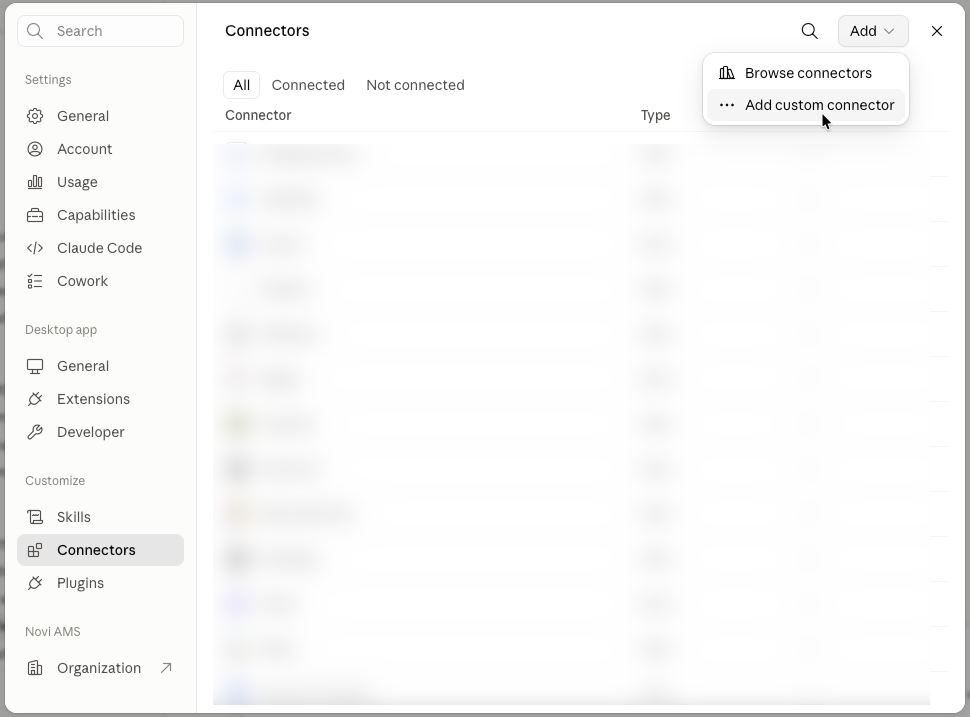
In Claude, go to Settings → Connectors
Click Add custom connector. If given the option between Desktop and Web, select Web
Enter the name of the connector that will help you or your team understand this is the connector to Novi. (Example: Novi)
Paste in the Novi Connect URL (https://mcp.noviams.com/mcp).
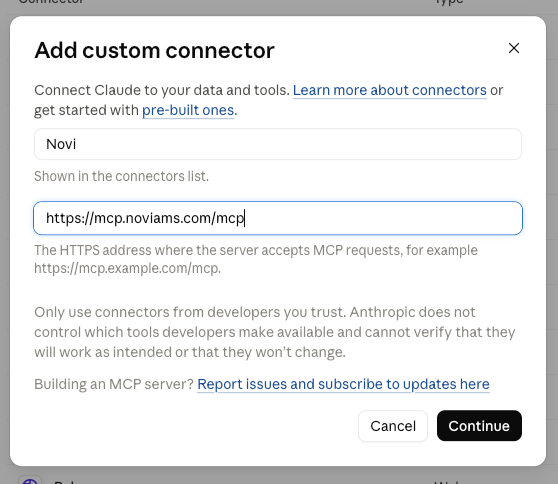
Click Continue. You'll be redirected to the MCP connection page
Follow the rest of the steps starting with Step 2 under Connect Your Association's Site
Example: Add to ChatGPT
Navigate to Settings > Plugins
Click the Add button and select Add MCP server
Set the Type to Streamable HTTP
Enter a Name and the URL you copied from Amplify Settings. This name should help you and your team recognize the plugin as the connector to Novi.
Click Save
Once saved, you and other association admins can navigate back to the Plugins list and select Authenticate to connect to your Novi data. (Start with Step 1 under Connect Your Association's Site)
Connect to Your Association's Site
Find the Novi Connect card in your list of connectors/plugins and click Connect / Authenticate
Enter your association's Novi AMS domain name, yourassociation.org
Note: Do not include https://www
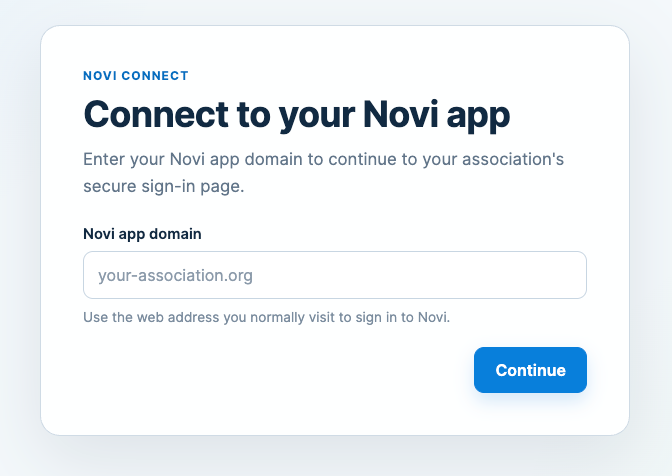
You will be redirected to your association's normal login page. Log in as you normally would (including MFA, if enabled).
When prompted to allow Claude or ChatGPT access to your association's data, click Allow.
You'll be redirected back to the AI tool you just connected, where Novi Connect should now show as connected
MCP Tools Available
Novi's MCP currently offers Read Only tools.
subject to change
get_member — Looks up one specific member and returns a condensed profile, including their admin URL and engagement details. Best for pulling the full picture on a single member.
list_members — Returns a list of members, with optional filters for membership status (current, grace, expired, prospect, and so on), join date, or expiration date. Good for questions like "show me everyone whose membership expires this quarter."
list_membertypes — Lists all the active member types configured in your Novi site. Useful when someone needs to see how membership is structured before digging into member data.
get_event — Retrieves details for a specific event, including registration numbers and related info. Best when you already know which event you're asking about.
list_events — Lists active events, with an optional date range filter to catch events happening in a given window. Good for "what's on the calendar between these dates."
get_membertype — Pulls the configuration and details for a single member type, along with its admin URL. Handy when you need to confirm how one membership tier is set up.
get_id — Resolves a name into candidate Novi record IDs for a given entity type (member, event, etc.). This is the bridge step when you know a name but need the ID that the other tools require.
query — Answers custom, natural-language questions about your association data by running read-only queries across domains. This is the flexible option for analytical or cross-topic questions that the simpler lookups don't cover (like "how many current members do we have," or joining member data with event data). It never changes anything in Novi.
docs_search — Searches the public Novi AMS help documentation. Useful for pointing to how a feature works rather than pulling data.