How to Get Started with Novi Pay
Last updated: October 12, 2026
Apply for Novi's own payment processing service directly within Novi AMS.
Novi Pay® is a credit card processing option for Novi AMS customers. It offers automated batch deposit functionality, world-class security, and cost savings for customers when compared to other payment processors.
>> Click here for 📄 Novi Pay: Overview instead
Novi Pay Application Process
Complete the Novi Pay application
Application Approval
Novi Team Member Activates Novi Pay
Complete Novi Pay Settings
Complete Implementation with Fiserv
1. Complete the Novi Pay Application
A. When you're ready to learn more and complete the application, simply use this link to complete the interest form.
B. Fiserv will contact you as the next step. They’ll give you access to complete your application in their system, CardPointe.
Once you’re approved, they’ll give you instructions for working with Viking Cloud (SecureTrust) on your PCI documentation.
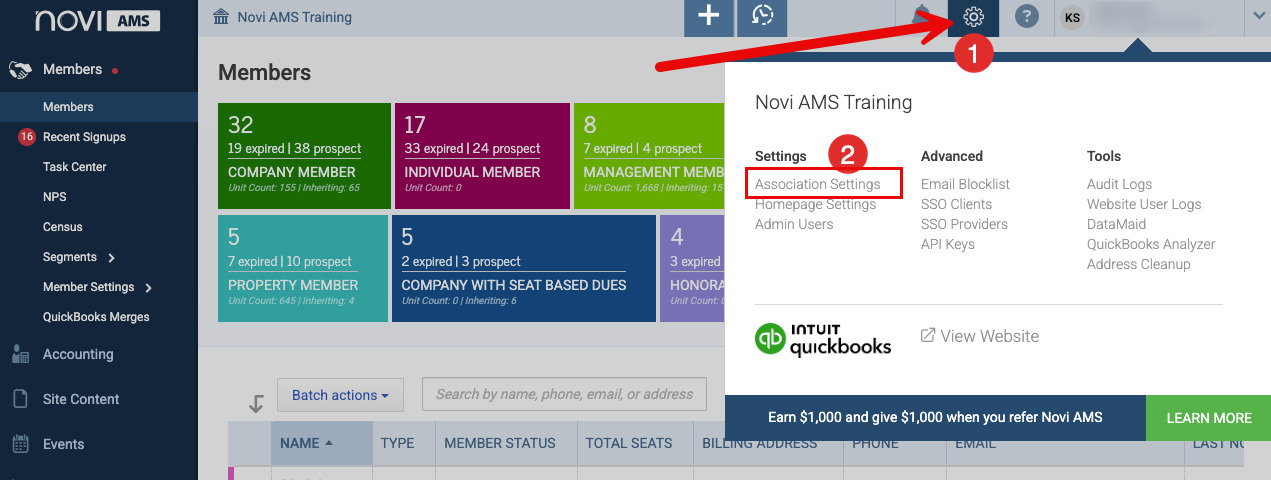
You can also access the interest form link from your Association Settings.
Navigate to Association Settings by clicking the gear icon in the top right near your name
Click Association Settings
Select the Payment Processor tab. The Novi Pay information will be at the top.
Click Get Started

2. Application Approval
Account approval can be nearly instant or take up to a few days to process. If more information is needed for underwriting or there is a delay in processing, you will be contacted via email from Fiserv.
Once approved, the Fiserv team will send you a Welcome Email, cc'ing our team to help turn on Novi Pay. (See step 3)
3. Novi Team Member Activates Novi Pay
As soon as our team receives the Welcome Email from Fiserv, we'll turn it on for your Novi site and then reply to the Welcome Email to let you know it's live and share the next steps.
4. Complete Novi Pay Settings
Once approved, you'll need to configure your Novi Pay settings under Novi Pay > Settings & Documents.
Note: If you used an older version of Novi Pay, you'll see sub-tabs for both Stripe and Fiserv Settings.

Settings include:
Deposit Account
Processing Fees
Notifications
Click here for additional details of the Settings tab for Novi Pay.
5. Complete Implementation with Fiserv
Following the remaining instructions from your Fiserv Welcome Email, you should schedule a call with their Implementation Specialist.
In a quick call, they will walk you through:
Conducting a test transaction (optional)
Accessing the CardPointe Portal
Review notification settings
Review Dispute notifications and actions
Review adding new admins
Review reports
How to get started with PCI Compliance tasks with Viking Cloud (SecureTrust)