Novi Pay: Settings & Documents
Last updated: September 3, 2026
Manage business information, accounts, and refund settings in the Novi Pay® Settings & Documents tab
The Novi Pay Settings & Documents tab gives Association Admins with Special Accounting Privileges built-in access to account information, refund settings, failed transaction fees, and notification settings.
Note: If you were using Novi Pay prior to January 2026, you will have the option to switch between both Stripe and Fiserv processors for settings.
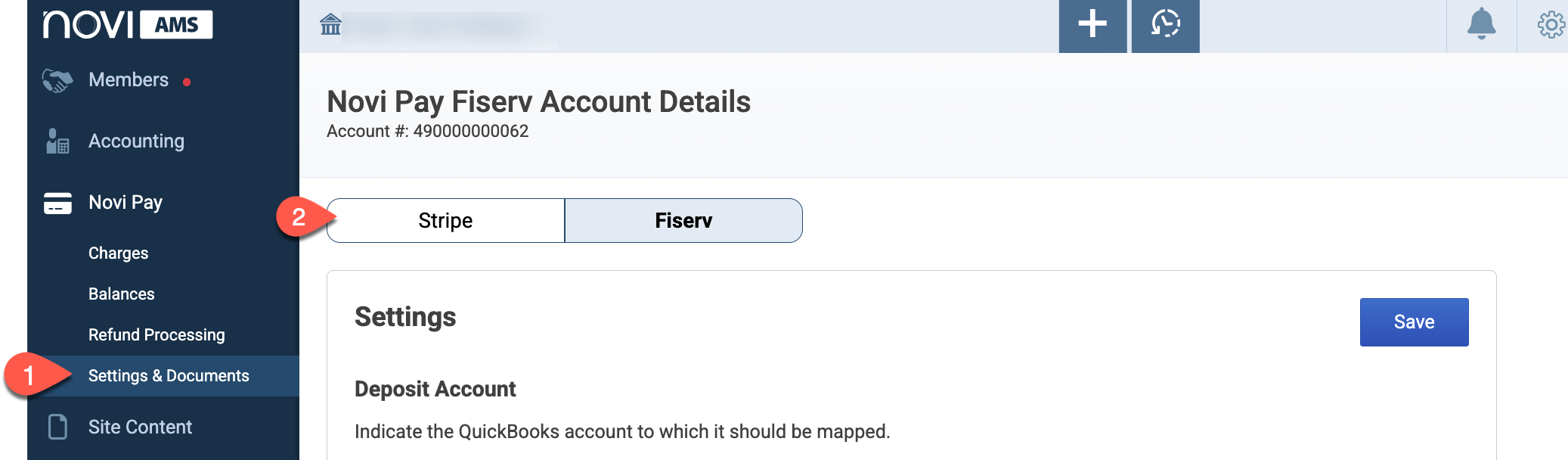
Fiserv Settings
Novi Pay is now powered by Fiserv. If you have not yet migrated, and need to review documentation about old settings with Stripe, you can review them here.
Toggle to Fiserv or Stripe to complete/update your settings depending on the processor you are using. (*See below for additional stripe settings not required on Fiserv).
Deposit Account
This is where you'll map your deposit account to the Corresponding QuickBooks Account.
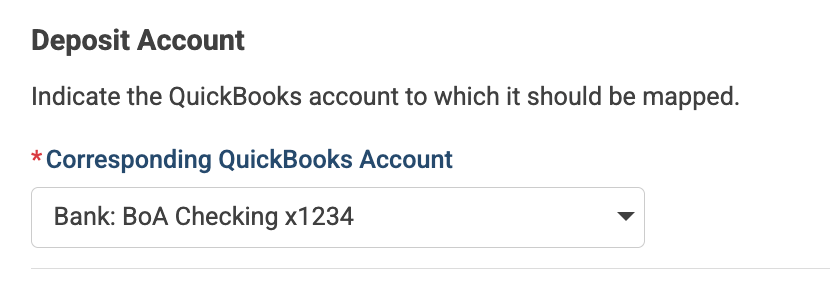
When a payout from Novi Pay - Fiserv is processed, two things will happen:
A deposit will be made to the connected bank account
A batch deposit transaction will be automatically recorded in QuickBooks Online
The deposit transaction will default to the account that was entered in the original application. You can update this account CardPointe.
Fee Accounting
Novi Pay will automatically deduct fees from your payouts. The Fee Accounting section is where you determine the QuickBooks General Ledger Account and Class where the processing fees should be recorded.
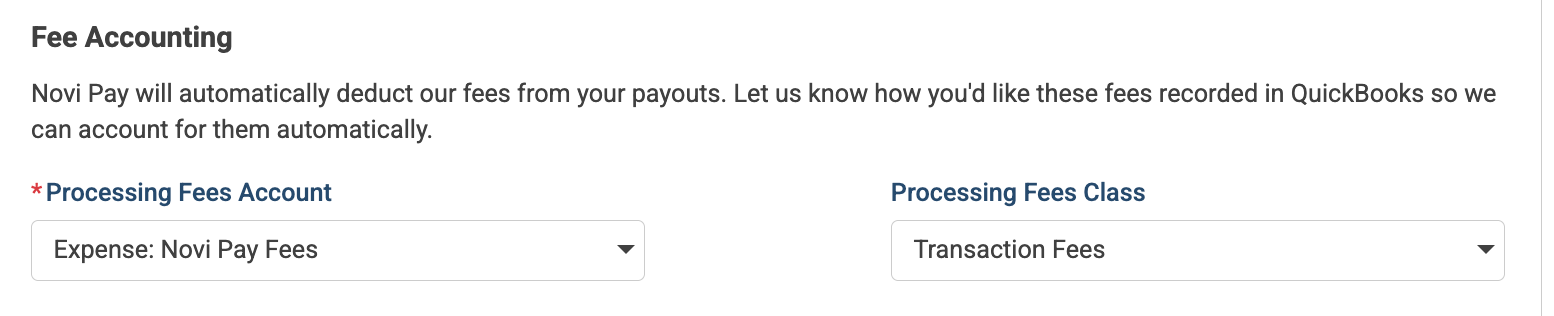
The processing fees will be included in the recorded QuickBooks batch deposit for easy reconciling.
Encourage Members to Update Payment Methods
Novi Pay runs concurrently with your legacy payment processor if you moved to Novi Pay from another processor. This allows a gradual transition without any disruption to your members or your incoming revenue.
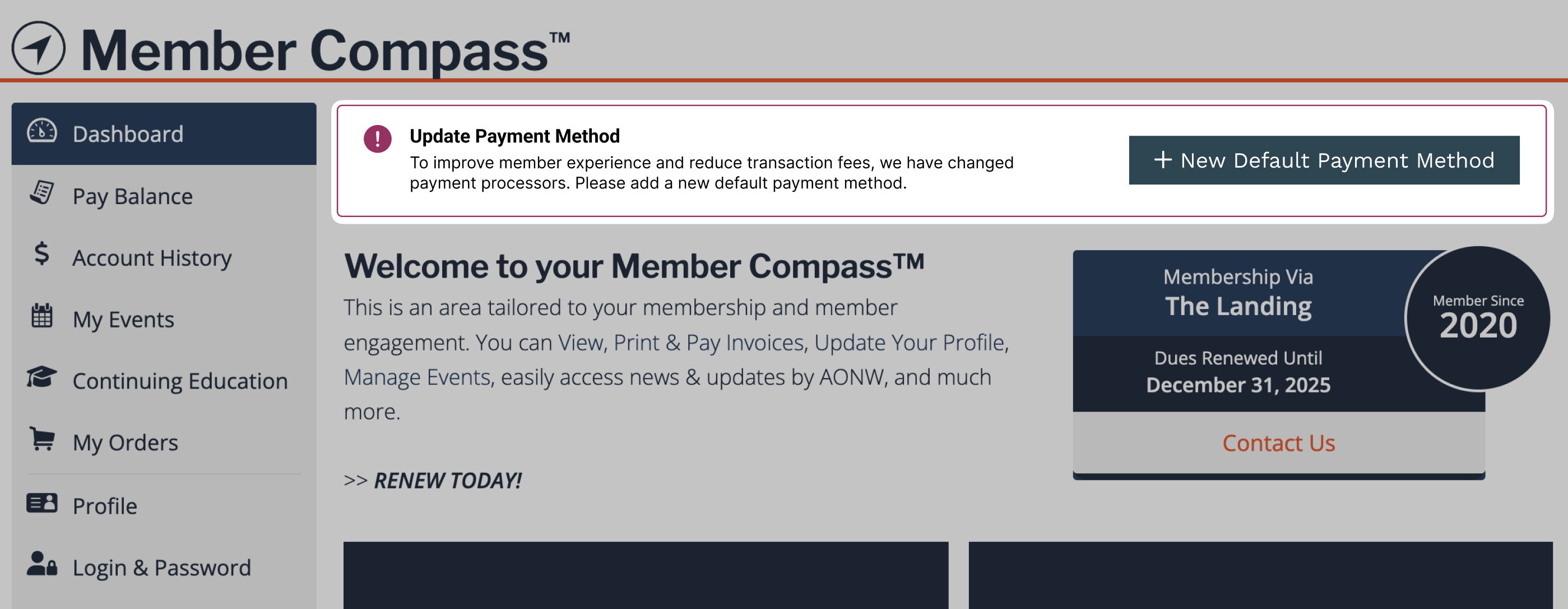
Previously stored payment methods will continue to be offered to users and will run through the legacy processor they were stored with. New/updated payment methods will be stored in Novi Pay and removed from the legacy processor. You can also encourage your members to update their stored payment method to expedite moving everyone to Novi Pay.

Members will receive a notice in their member compass prompting them to add a new default payment method.
Novi Pay Email Notifications
Determine which emails will receive Novi Pay notifications and what notifications they will receive.
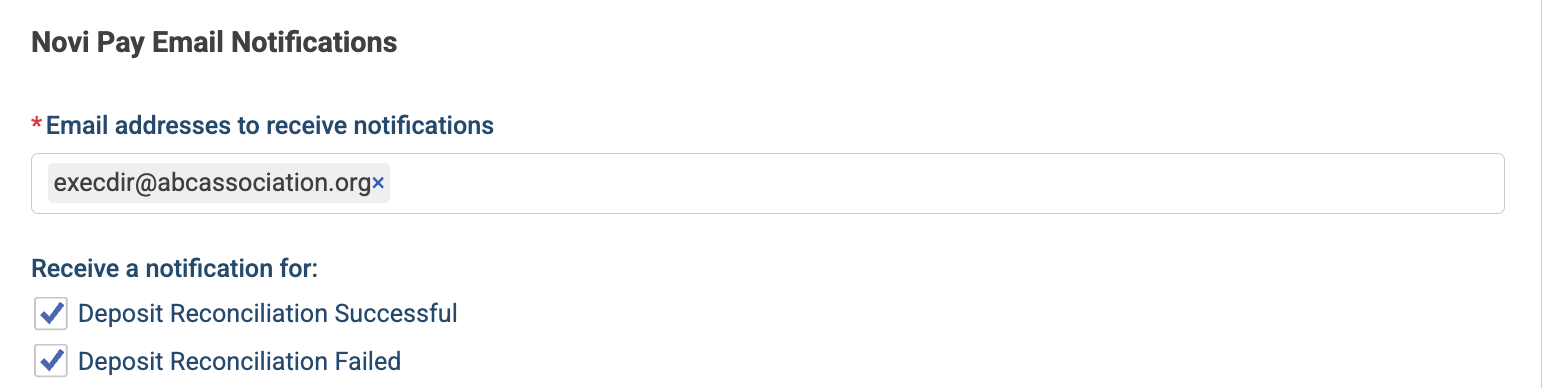
Association Admins with Special Accounting Privileges will automatically be added to the list of email addresses to receive notifications. Additional emails can be manually added.
For those who want to setup inbox rules, we've included the subject line for each email notification too.
Deposit Reconciliation Successful
Email Subject: Novi Pay - Deposit Reconciliation Successful for
Deposit Reconciliation Failed
Email Subject: Novi Pay - Deposit Reconciliation Failed for
Note: You will have additional Notification Settings in CardPointe.