File Upload Custom Field Types
Last updated: October 1, 2026
Along with the other custom field types that Novi supports, you can create custom fields that allow your members to upload documents. File upload custom fields are a powerful way to manage files associated with user records, event registrations, and e-commerce transactions.
For a list of all of the accepted file types, see: 📄 A Complete List of Acceptable Novi File Types
Prefer to watch a video? Watch our File Uploads demo:
📄 Roundtable Recap: Exploring File Uploads – A New Custom Field Type
Key Features
This file type is available in member records, event registrations, and e-commerce purchases, available on both the back-end and front-end.
Files are securely managed, with access limited to admins, the user, or individuals with management permissions.
A new Files tab has been added to member records, events, and e-commerce orders for easy organization and retrieval of files.
Files featured on directory profiles can be downloaded.
File Upload Custom Field Setup
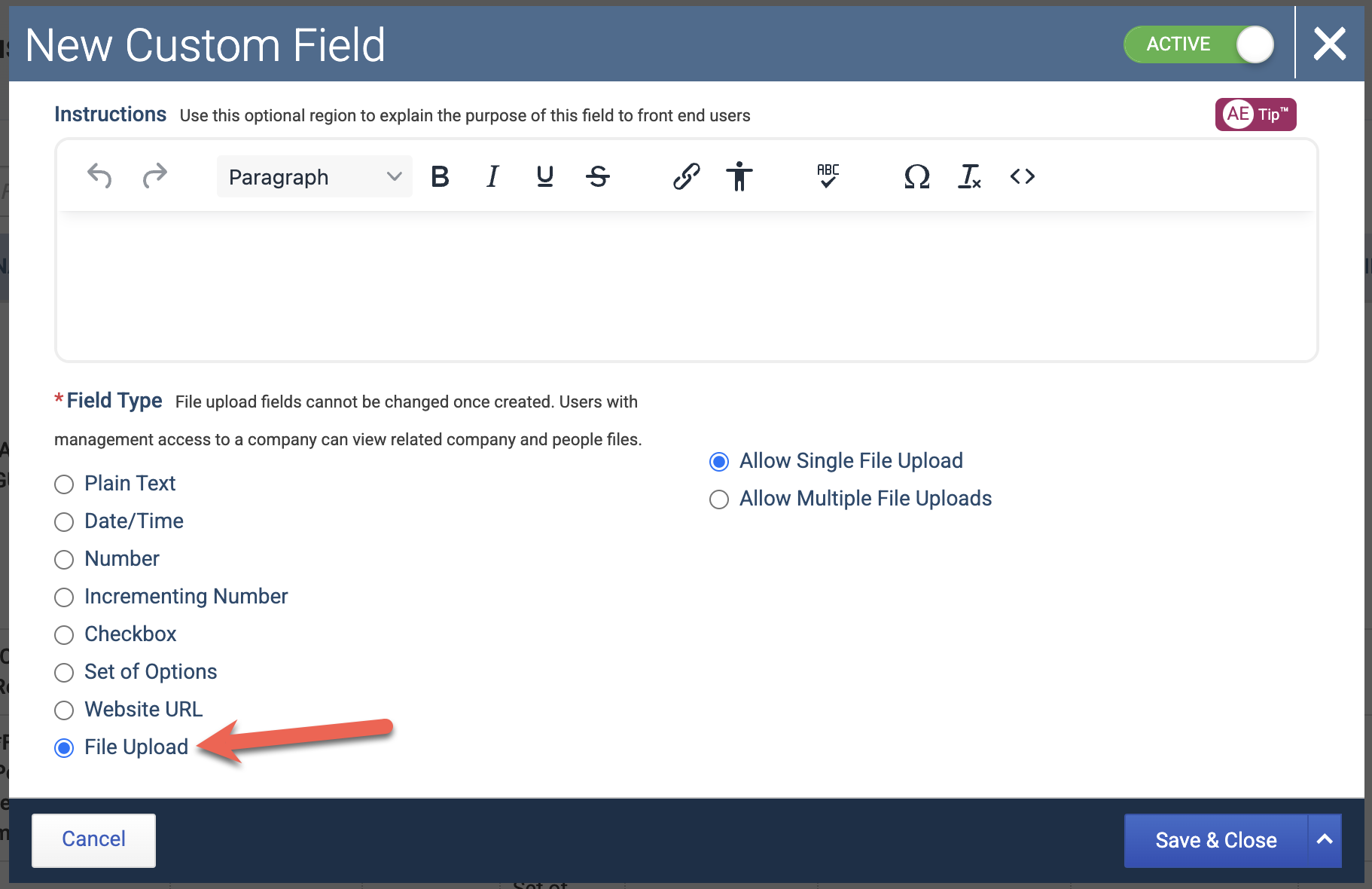
New Option: A new "File Upload" option has been added to custom field types.
File Limits: Users can configure fields to allow single or multiple file uploads (maximum 25 files, 20MB per file).
Tip! The more files you allow, the longer a save will take for users. Consider limiting your custom field to a max number of files needed for your field.
Flexible Settings: Standard custom field settings apply, including options for required fields and admin-only visibility.
Broad Usability: The file upload field can be used in member records, event registrations, and e-commerce product listings.
Downloading Files from Member Profiles in the Directory
If a File Upload custom field is included in a public member directory, visitors can download the file directly from the member’s profile page. This makes it easy to access documents like logos, certifications, and other relevant materials.
Access Rules:
Files shown in the public directory are accessible to any visitor, even if they’re not logged in.
Files not shown in the public directory follow the standard privacy settings — they’re only visible to authorized users (like admins or the member themselves).
Member Records
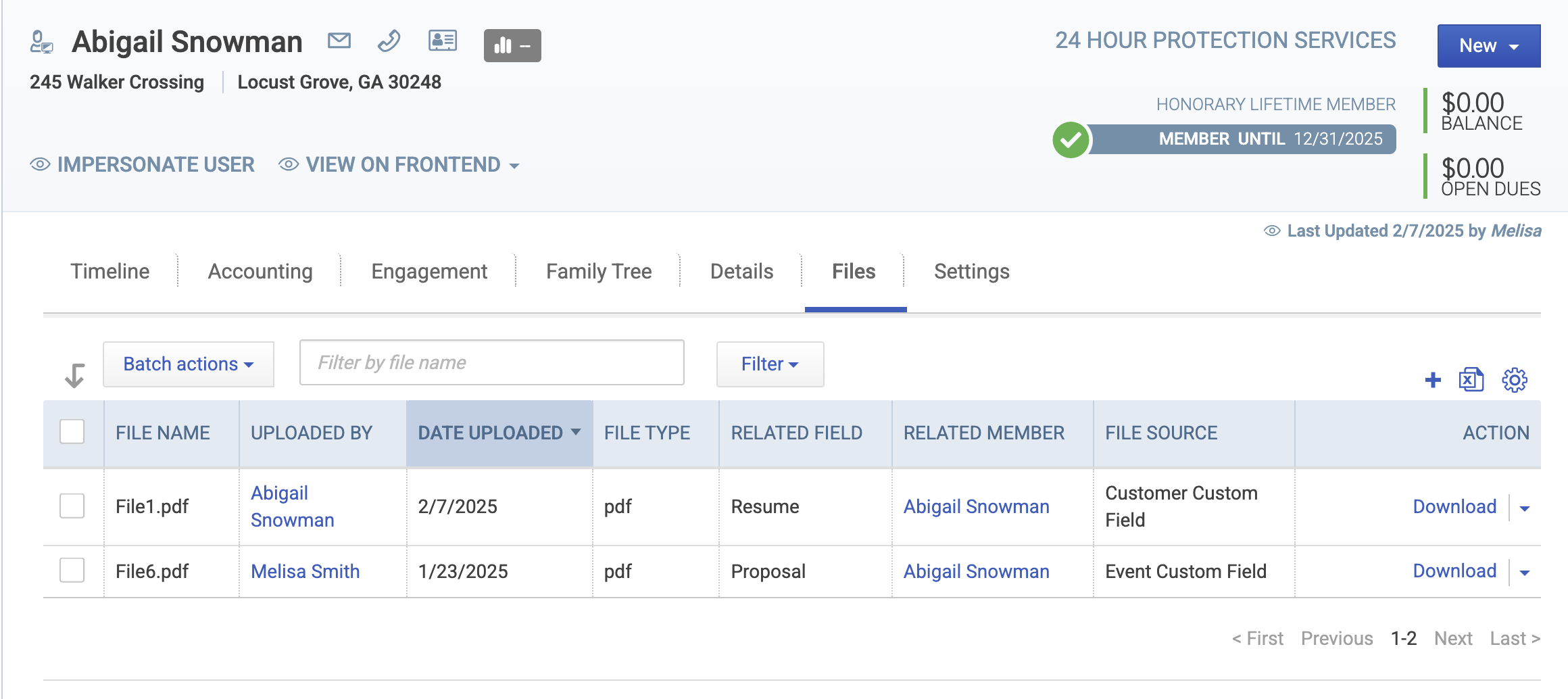
File Visibility: Uploaded files appear in both the Details tab (in relation to their custom field) and the Files tab on member records on the backend. They appear under a users Profile in the member compass in relation to the custom field.
Batch Actions: Admins can perform bulk actions, such as downloading or deleting multiple files at once. Downloading multiple files at once will save them in a zip file.
Filters: Filter the Files tab by:
File Type - Type of file uploaded
Uploaded By - User who uploaded the file
Related Field - Custom field the file was uploaded to
Relationship Type - See files within a family tree
This may be helpful when looking at a company record. You'll be able to view files uploaded by any person under the company, for example.
Source Type - See whether a file was uploaded in bulk by an admin, from a member custom field, an event custom field, an ecommerce custom field, or is a headshot/logo.
Date Uploaded - Filter through a range of dates to see files uploaded in a specific time period
Batch Upload
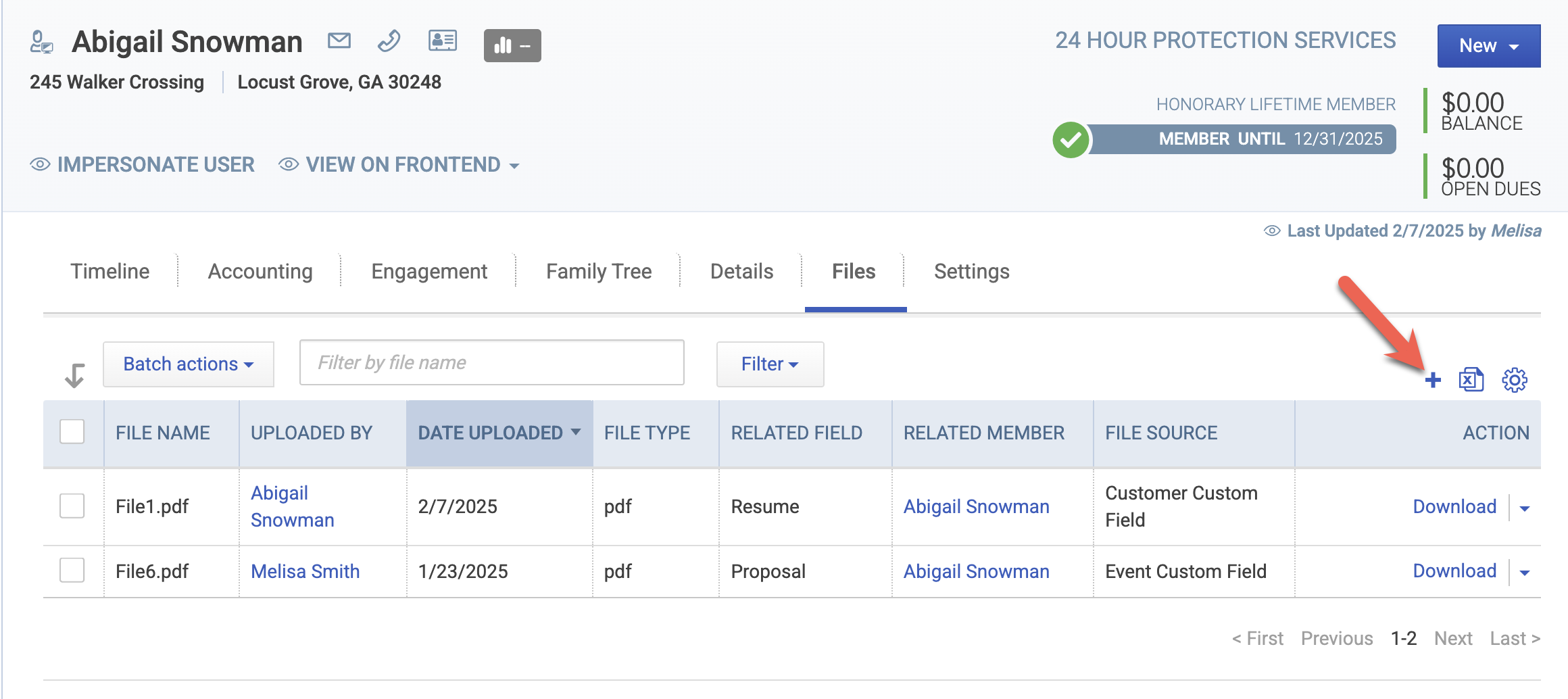
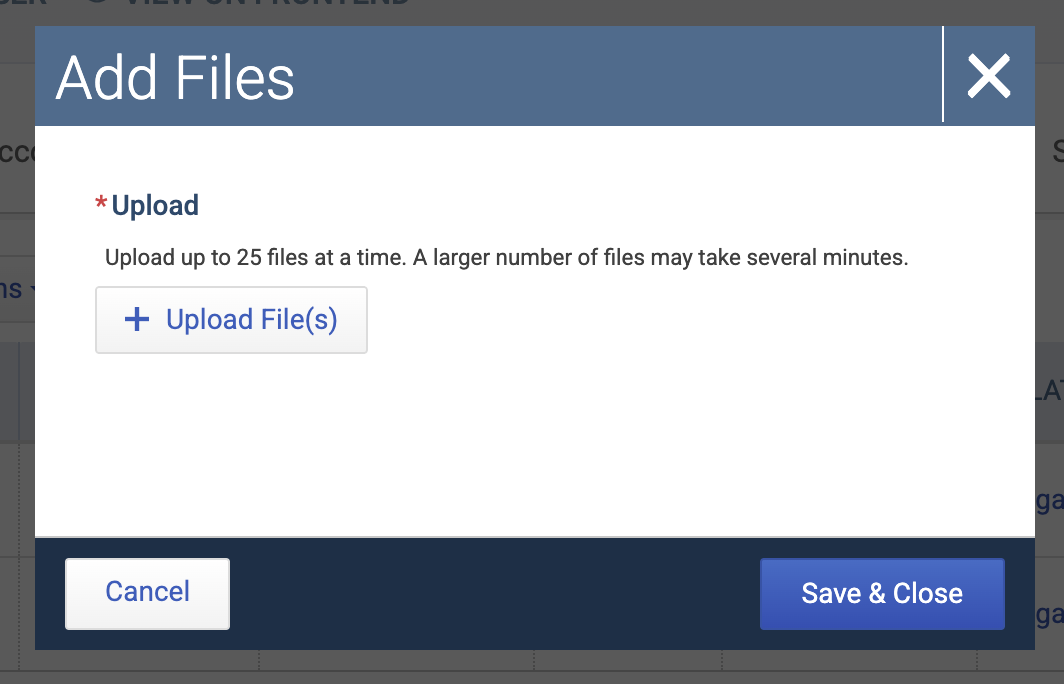
For uploads to member records that don't belong to a custom field, admins can upload multiple files at once from the Files tab:
Ecommerce Products
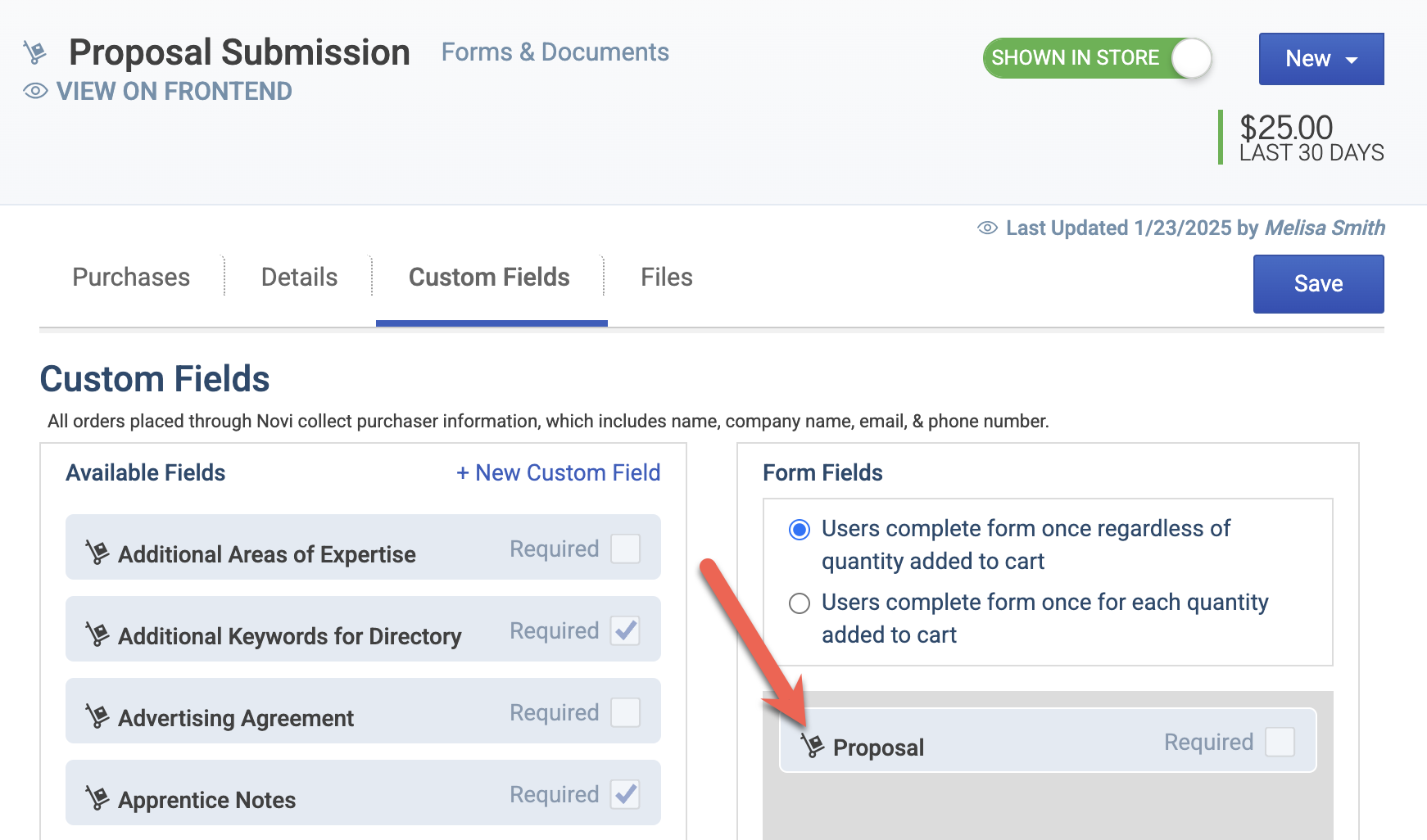
Custom Product Fields: File upload fields can be added to e-commerce products, allowing customers to upload files during the purchase process.
Files Tab: Files are accessible through the Files tab on both product pages and individual order details.
Event Tickets
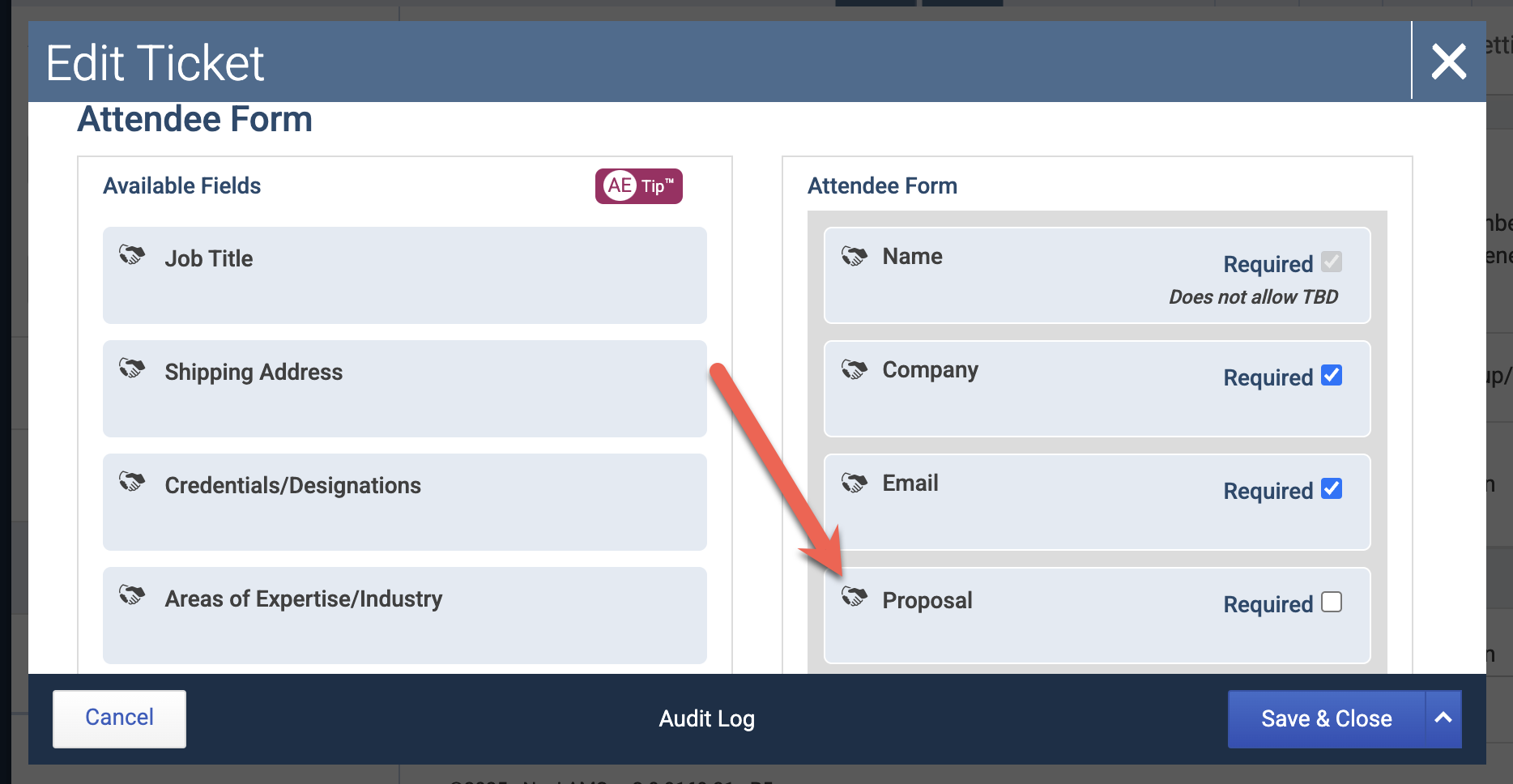
Tickets & Add-Ons: File upload fields can be included for both event tickets and e-commerce add-ons.
Files Tab: The Files tab on event pages provides a view of all uploaded files.
Attendee-Specific Files: Files uploaded by attendees are visible within the attendee edit modal.
Security and Access Controls
Restricted Access: Once uploaded, files are accessible only to admins, the user who uploaded them, or management access users of companies.
Those with management access to a company can view the company's profile custom fields, as well as connected staff members' profile custom fields.
Secure URLs: File URLs are designed to prevent unauthorized access.
Permission Limits: Limited admins cannot rename or delete files, to maintain file integrity and security.
Best Practices
File Limit Considerations: Set appropriate file number limits for each upload field based on usage needs.
Field Descriptions: Provide clear guidance in field descriptions about acceptable file types and sizes.
Member Education: Inform members about the file size limit of 20MB per file to ensure smooth uploads.
Watch the demo & roundtable recap exploring file uploads here: 📄 Roundtable Recap: Exploring File Uploads – A New Custom Field Type