Company Membership with Seat-Based Dues: Member Experience in Member Compass
Last updated: September 14, 2026
This article explains how people related to company members can join under a seat-based membership, and how users with management access can add, remove, or reassign seats from the frontend in Member Compass.
This workflow applies to member types with a Member Type Category of Companies with Individual Seat Dues. To confirm this setting, go to the Details tab of the Member Type on the backend.
Joining from the Frontend with Seat-Based Dues
When a member type is available for frontend registration, prospective members can view the available options at:
https://yourassociation.com/membership-information
After selecting the member type that best fits their needs, they can click Join to begin the membership application.
Overview of the Frontend Experience
User selects the member type
If the selected member type is set up as Companies with Individual Seat Dues, the user will follow the seat-based join flow described below. This type of membership can use a traditional dues rule, plus two additional seat-based dues rule options: Incremental Pricing and Tiered Pricing. You can learn more about all available dues rule types in the Dues Rules article.
User creates their personal User Account Login
After clicking Join, the person completing the application creates a User Account Login. This allows them to sign in again later, even if they do not complete the full join process right away. Because they are adding a new company member to the database, this person will automatically be assigned as the company’s Primary Contact.
User enters personal and company Key Information
On the next screen, the user completes any fields set as Key Information. The first section collects information about the person completing the form. The second section collects information about the new company.
User reviews checkout
After the user submits Key Information, Novi looks at the dues rules and shows the checkout cart. The cart can include a quantity field for the number of seats, applicable charge(s), and available payment option(s).
In checkout, the user may see one of these seat-based dues rule types:
Incremental Pricing
Tiered Pricing
If you are still setting up dues rules, review the Dues Rules article to learn more about Incremental Pricing and Tiered Pricing.
Example: Incremental Pricing
Individual Seat Dues with Incremental Pricing
Before reviewing the frontend experience, let’s look at the backend setup. In this example, the member type has two dues rules:
Dues Rule #1: Company based dues

Dues Rule #2: Individual seats with incremental pricing
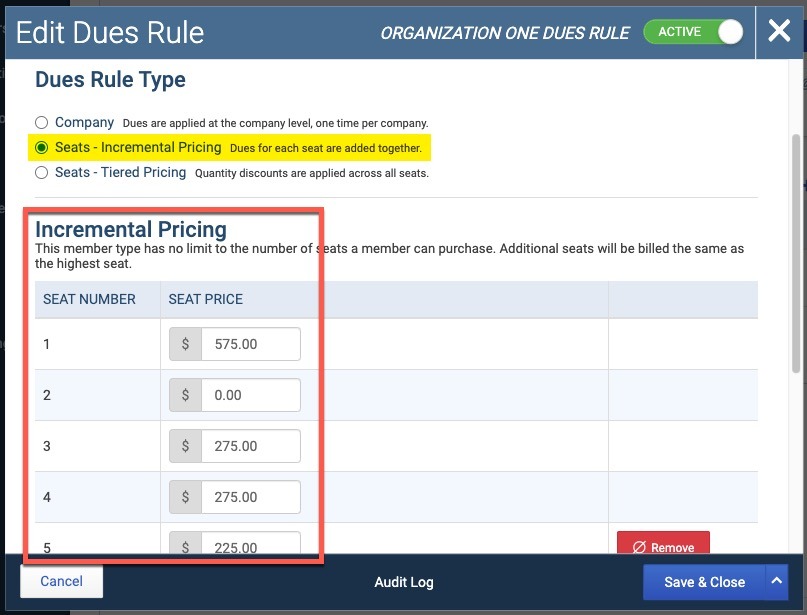
Based on those dues rules, this is what the prospective member will experience when joining on the frontend.
1. User selects the member type
Example member type description for incremental pricing:

2. User creates their personal User Account Login
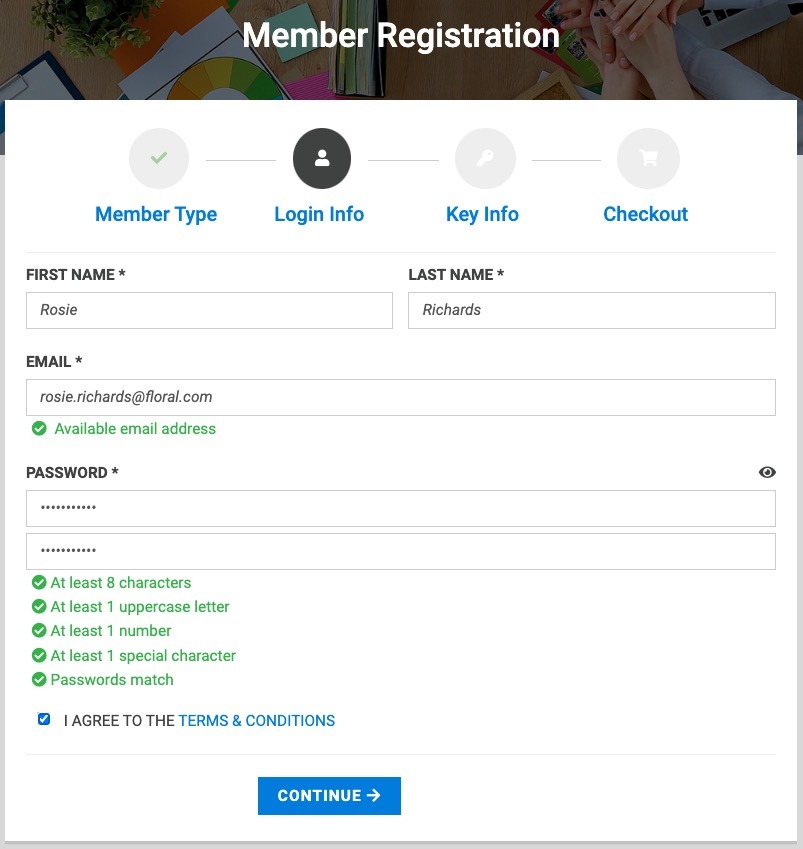
3. User enters personal and company Key Information
4. User reviews their checkout cart
With the initial default quantity of 1 seat, the cart shows the applicable seat dues.
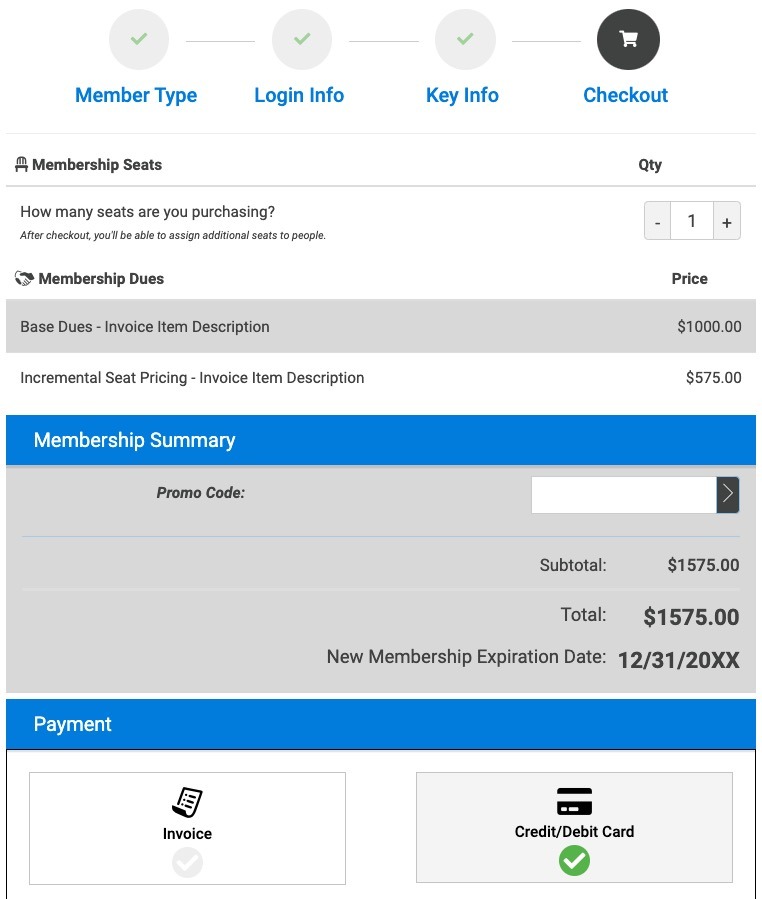
If the quantity is increased to 2 seats in this example, the total seat price remains $575 because the second seat is priced at $0.
If the quantity is increased to 3 seats, the seat dues total is $850. In this example, that total is calculated as $575 for seat 1, $0 for seat 2, and $275 for seat 3.
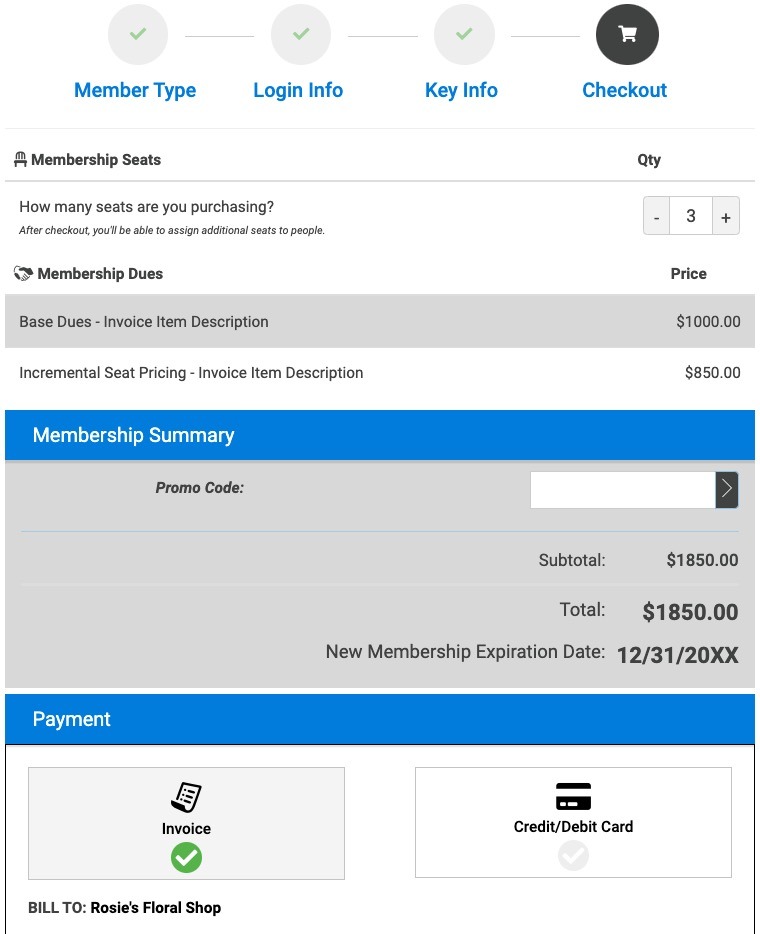
After choosing the number of seats and selecting a payment method, the user clicks Complete Checkout.
Next, the user is asked to verify their email address. After verifying, they land in their Member Compass.
Example: Tiered Pricing
Individual Seat Dues with Tiered Pricing
In this example, the member type has two dues rules:
Dues Rule #1: Company based dues
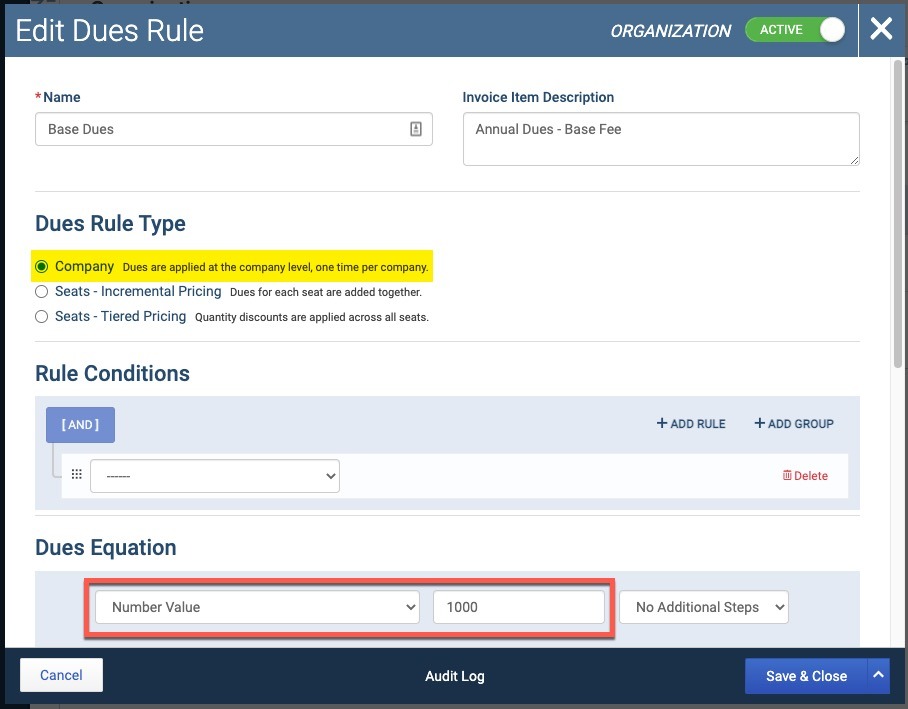
Dues Rule #2: Individual seats with tiered pricing
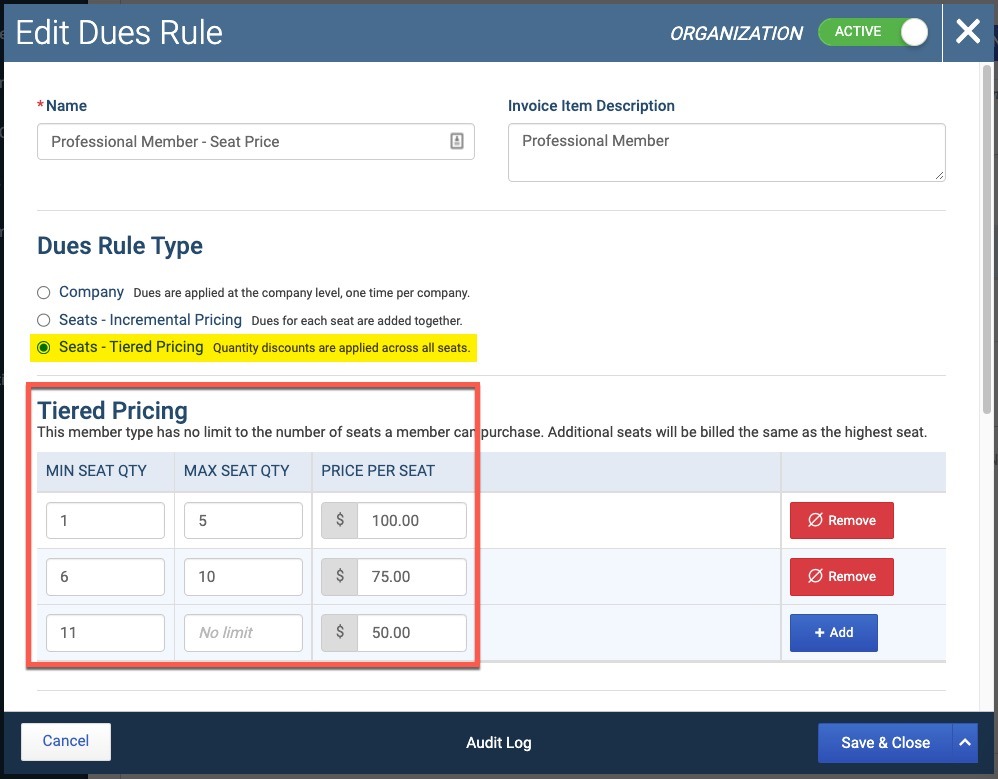
This is what the prospective member will experience when joining if the seat dues rule is set up as Tiered Pricing.
1. User selects the member type
Example member type description for tiered pricing:

2. User creates their personal User Account Login
3. User enters personal and company Key Information
4. User reviews their checkout cart
With the initial default quantity of 1 seat, the seat falls in the first tier at $100 per person.
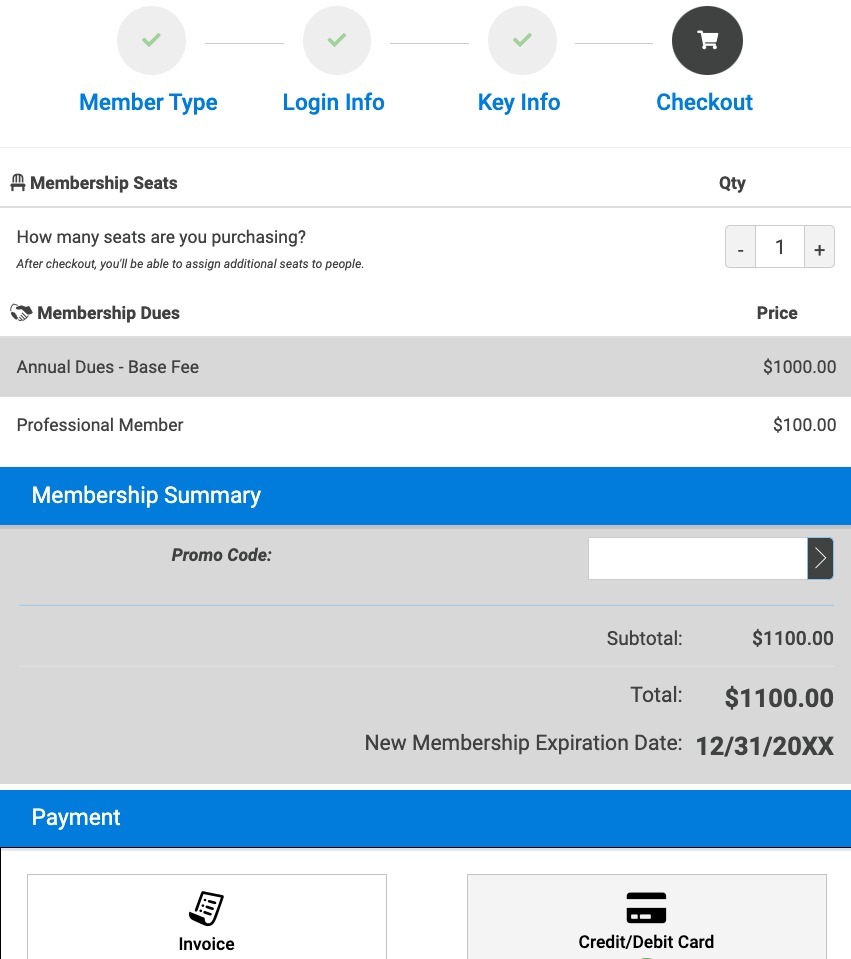
If the quantity is increased to 4 seats, the seat line item still falls in the first tier at $100 per person, for a total of $400.

If the quantity is increased to 15 seats, the seat line item falls in the third tier at $50 per person, for a total of $750.

After choosing the number of seats and selecting a payment method, the user clicks Complete Checkout.
Next, the user is asked to verify their email address. After verifying, they land in their Member Compass.
What Members Can See About People Under Their Company
When logged into Member Compass, the Primary Contact, Billing Contact, or a person with management access can view the People list for their direct parent company. These users can see:
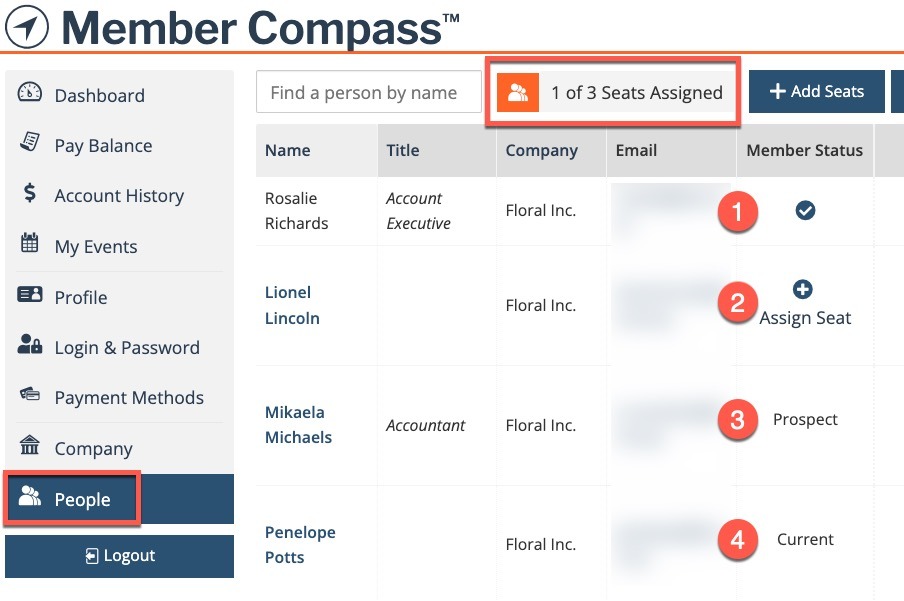
The total number of seats available and how many have been assigned.
Each person’s membership status, including whether they have a seat.

If any seats are unassigned, users will also see an alert on the Member Compass Dashboard. Clicking the # Unassigned Membership Seats tile takes them to the People tab so they can assign the available seat(s).

Possible Member Statuses on the People Tab
Checkmark = Inheriting
Individuals with a checkmark are assigned a seat and are receiving benefits from their company. These people do not pay their own dues. They inherit benefits from the parent company while the company’s status is Current or Grace Period.
Plus Sign with “Assign Seat” = Non-Member
Individuals with a plus sign are not currently receiving benefits from their company, but an available seat can be assigned to them. After the seat is assigned, their status changes to the checkmark described above.
Prospect
Individuals marked as Prospect have an individual-based member type assigned to their record, but they have not joined yet. If they join, they would pay their own dues if their individual member type has dues rules. They would remain prospective members even if they were removed from the company’s family.
To give this person a seat so they can inherit benefits from the company, an admin must first remove the individual member type from the person’s record. Then a seat can be assigned by an admin or by a frontend user with management access.
Current
Individuals marked as Current are receiving benefits from their own personal membership. They pay their own dues if applicable, and they would remain members even if they were removed from the company’s family. These individuals do not count toward the number of people receiving benefits from the company because they already have their own individual memberships.
Blank = Non-Member
Individuals with a blank status are not receiving benefits from the company, and there is not an available seat that can be assigned to them. They also do not have an individual member type of their own, so they do not fall under one of the statuses above.
Example of Member Statuses on the People tab:
Learn more:📄 Deep Dive: Membership Status Types in Novi AMS
Managing Seats for an Existing Company Membership
Users with management access can add seats, remove seats, and reassign seats for people associated with their company from the People tab in Member Compass.
Add Seats
To add more seats to a current company’s membership, a user with management access can go to the People tab in Member Compass and click Add Seats at the top of the list.
They can also click the link in the Member Status column if there is already a person listed who does not have a seat assigned.

If unassigned seats are already available when the user clicks to add more seats, they will see a warning message.

The add seats screen allows the user to select the additional number of seats they would like to purchase.
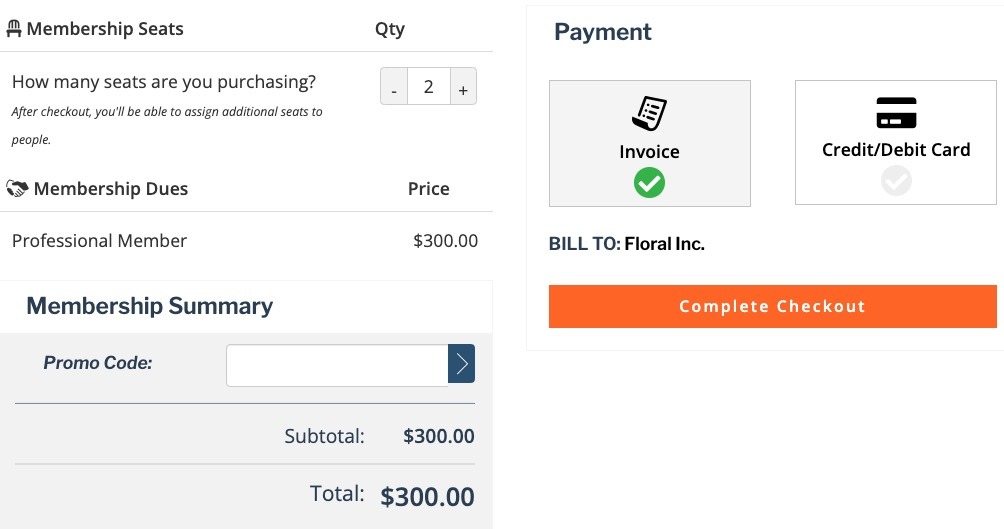
If the transaction is an invoice, it is due on receipt. The transaction date and due date on the invoice will both be the date the invoice is created.
Remove Seats
To remove seats from the company’s membership, a user with management access has two options:
From the People tab in Member Compass, click Remove person and unassign seat in the Action column. This removes the person from the family. The person will still have a non-member record in the database, but they will no longer be connected to this family of records.
If the user wants to reassign the seat without removing the person from the People list, they need to contact association staff. An admin can make that change on the backend.

Please note: Members on the frontend cannot remove benefits from another individual while keeping that individual on the People list. This safeguard helps prevent benefits from being moved between people for repeated member-price purchases, such as event registrations.
Reassign Seats
To reassign a seat from one person to another person in the family, a user with management access can:
Go to the People tab in Member Compass.
Remove the first person and unassign their seat using the steps above.
Find the new person who should have the seat, then click Assign Seat in the Member Status column.
Reduce the Total Number of Seats
Members must contact association staff to reduce the total number of seats on their company’s membership. This also applies to edits on open dues invoices. Only admins can remove seats or people from a dues invoice.
Viewing and Paying Dues Invoices for Multiple Seats
A user with management access can go to the Account History tab in Member Compass to view historical transactions. For a dues invoice, they can click View & Print or Pay.

Pay the Invoice
When the user clicks Pay, the payment screen opens in a new browser tab.
Example of the frontend payment screen for a dues invoice:

View and Print the Invoice
When the user clicks View & Print, the dues invoice opens as a PDF in a new browser tab. The available view, download, and print options depend on the user’s internet browser and are not controlled by Novi.
Remove Seat(s) from an Open Dues Invoice
Members must contact association staff to reduce the total number of seats on their company’s membership. This includes edits to open dues invoices. Only admins can remove seats or people from a dues invoice.