Enable and Manage Payment Plans
Last updated: September 21, 2026
Payment Plans offer your members the flexibility to pay invoices in smaller installments over time instead of all at once. This improves the member experience, makes billing more predictable, and reduces time spent following up on large invoices.
Set the plan's terms, attach plans to dues, events, products, or individual invoices, and manage everything from the backend. Members can view and manage their plans directly in the Member Compass.
A payment plan is a structured way to spread payments toward a single invoice. Instead of paying the full balance upfront, members make scheduled installments that apply toward the original invoice.
When a member enrolls, the first installment is due immediately, along with any items ineligible for a payment plan that must be paid up front. The invoice's due date is automatically updated to match the final installment date.
Ready to set yours up? Let’s get started!
Review Association Settings
Before we dive into the main setup steps, we'll first want to look at few related, overarching payment plan settings in Association Settings.
First, navigate to Association Settings → Accounting & QuickBooks tab → Payment Plans section:
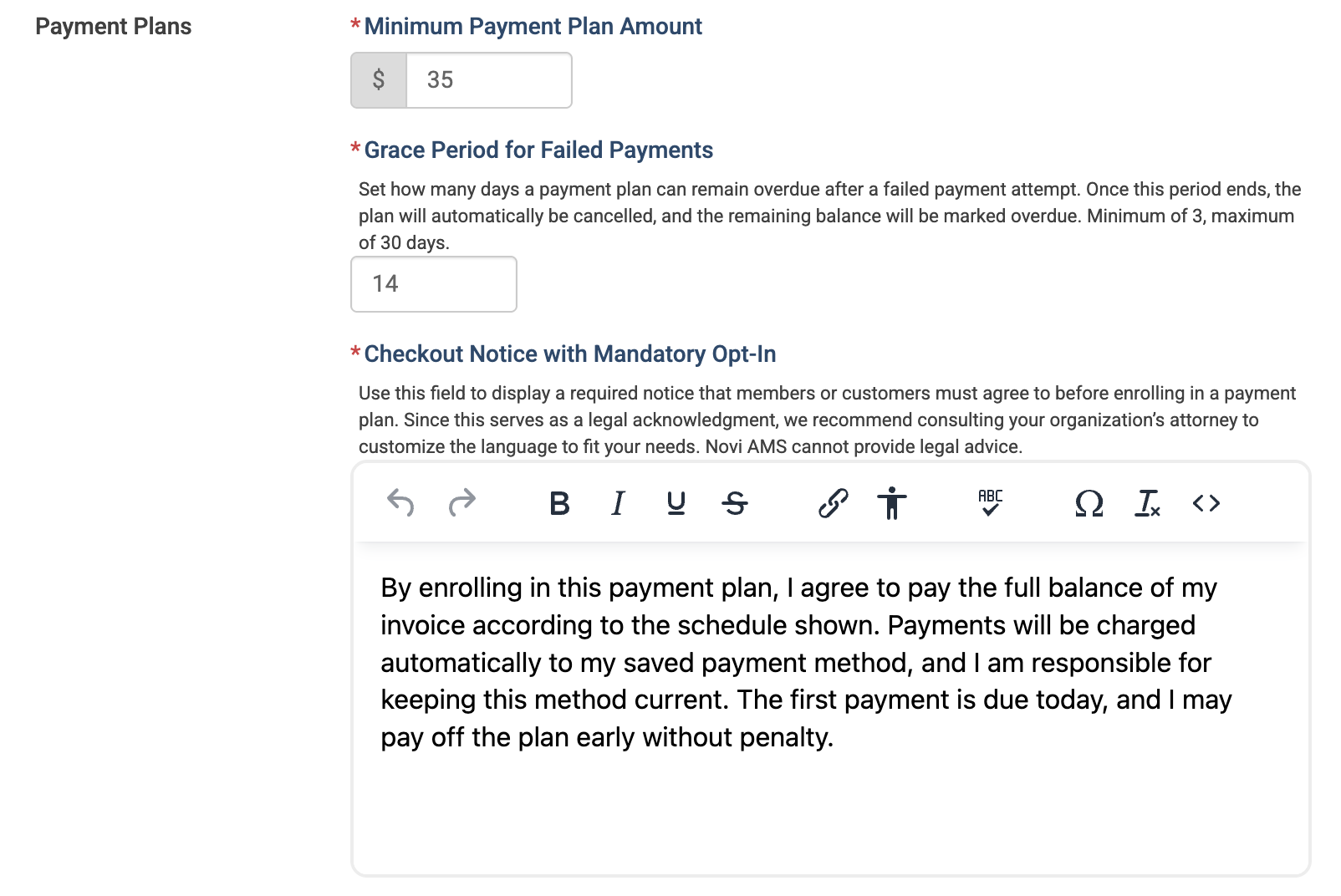
Minimum Payment Plan Amount
The minimum total dollar amount (for eligible items) required at checkout for the payment plan option to appear. (Default: $35)
Grace Period for Failed Payments
The number of days a payment plan remains active after a failed installment (e.g., declined card). If the payment is not resolved within this period, the plan is automatically canceled, and the remaining balance of the original invoice becomes immediately due and overdue. (Range: 3 to 30 days)
Checkout Notice with Mandatory Opt-In
This is the mandatory disclosure users must accept during checkout before they can enroll in a payment plan. Since this acts as a legal commitment, please consult your attorney to customize the text as needed. We are unable to provide legal advice.
Default Text:
By enrolling in this payment plan, I agree to pay the full balance of my invoice according to the schedule shown. Payments will be charged automatically to my saved payment method, and I am responsible for keeping this method current. The first payment is due today, and I may pay off the plan early without penalty.
Creating Payment Plans
Now we're ready to begin setting up payment plans!
First, navigate over to the Accounting tab → Payment Plans
From there, you'll see the Payment Plans list view, which provides a high-level overview of the current plans. This is also where you can set up new plans as needed.

To create a new plan, click the blue Create Payment Plan button at the top right of the Payment Plans list view. In the modal that appears, choose the settings for your new plan.
Let's create an example offering a plan of 12 monthly installments below.
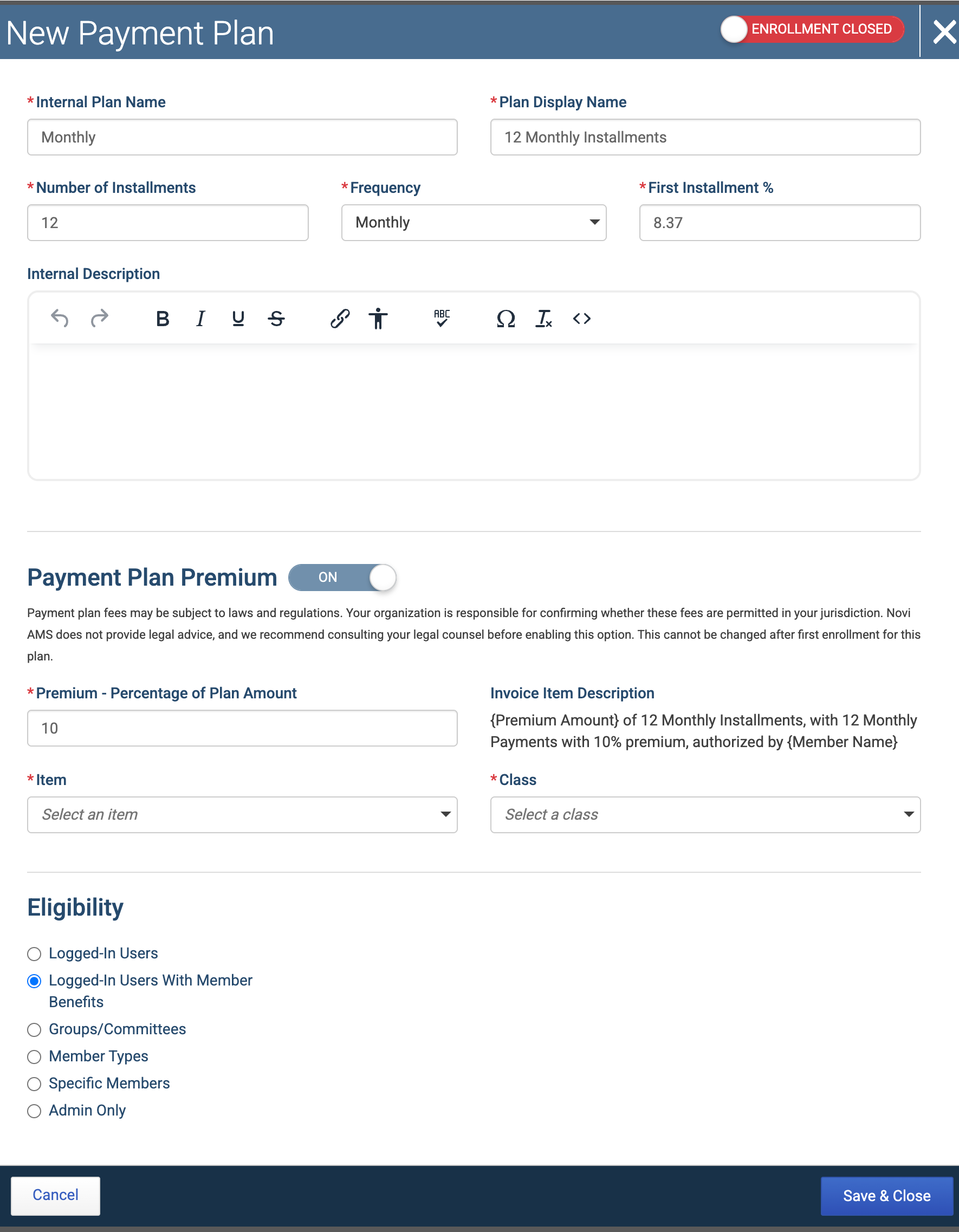
Internal Plan Name
The name of this payment plan - only shown on the backend to admins. In our example, we'll call this "Monthly".
Plan Display Name
The name of this payment plan - shown on the frontend to users during checkout and in the Member Compass. In our example, we'll call this "12 Monthly Installments".
Number of Installments
The number of installments charged for a particular plan. This setting goes hand in hand with the Frequency setting. In our example, this number is 12.
Frequency
The cadence for when installment payments are charged (Weekly, Monthly, Bi-Monthly, Quarterly, Semi-Annually, or Yearly). This setting goes hand in hand with the Number of Installments setting. In our example, the frequency is monthly.
First Installment %
The percentage of the first installment amount due upfront. By default, this will be calculated for you using your Number of Installments and Frequency settings. However, you can also choose to set the percentage higher to require a larger down payment for the first installment.
Internal Description
This is a section to add relevant information about the payment plan for your internal team - users won't see this description on the frontend.
Payment Plan Premium
A premium lets you add a percentage-based fee to a payment plan to help cover the additional costs of managing multiple installments instead of a single payment. This fee is automatically factored into the installment amounts.
For regular checkouts, the payment plan premium is included in the original invoice total. When enrolling in a payment plan for an existing Smart Invoice, the premium is issued as a separate invoice, and the first installment goes toward paying this premium before the rest of the plan applies to the original invoice.
Eligibility
The eligibility determines who is able to opt-in to this plan. In any case, a user must be logged in in order to opt into a payment plan. The options are:
Logged-In Users
Any logged in user regardless of status, including non-members. Our recommendation is to use this option sparingly, since it may introduce a bit of financial risk to allow non-members agree to pay in the future.
*Logged-In Users With Member Benefits - default
The default recommended setting. Allows anyone who is logged in, and with member benefits to opt into the plan.
Groups/Committees
Only current members of a group or committee are shown the option to use this plan.
Member Types
Only members with a status of Current, Inheriting, or Grace Period in a member type are shown the option to use this plan.
Important Note: Do not choose this option if planning to enable the payment plan for new memberships. In that scenario, the user isn't yet in the member type, so they would not be eligible. You can choose which member type to enable a payment plan for within the member type's settings.
Specific Members
This option is for specific scenarios where only a handful of members are eligible to use this plan, wherever it is enabled.
Admin Only
For use in specific cases where you must enroll a specific invoice for this payment plan to be an option.
Activating Payment Plans
Prior to enabling the use of payment plans you need to activate the payment plan itself. There are two ways to do this.
First: In the Payment Plan modal you can toggle the Enrollment Closed slider to Enrollment Open.
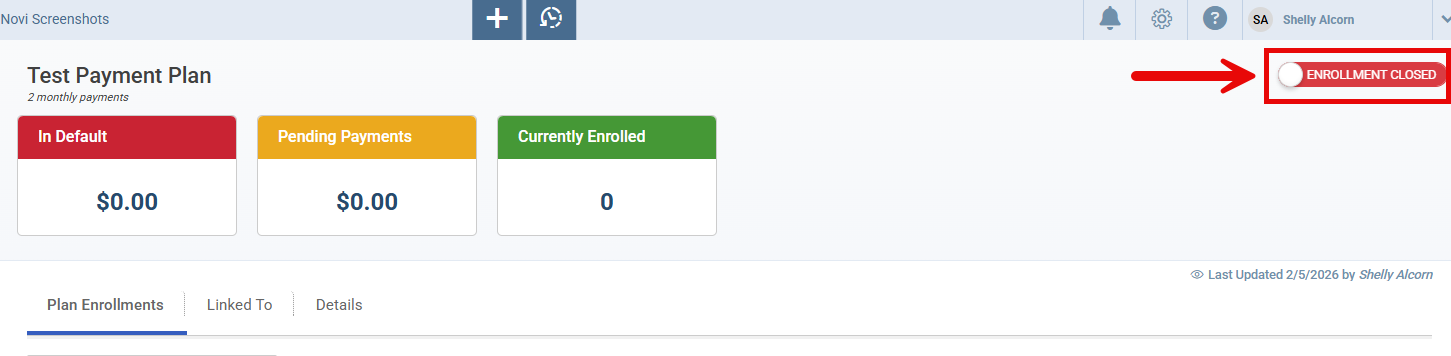
Second: You can go to the list of Payment Plans, select the plan you are interested in activating, and click the red circle in the Enrollment Status column. It will be replaced by a green checkmark and your plan will be live.

Enabling Payment Plans
Once your payment plan is created, enable it on the member types, ecommerce products, event tickets, and/or specific invoices where you want it to appear. When enabled, the plan will show up as a payment option at checkout for eligible users.
Member Types
Navigate to your specific member type under Members → Member Settings → Member Types, then the Settings tab.
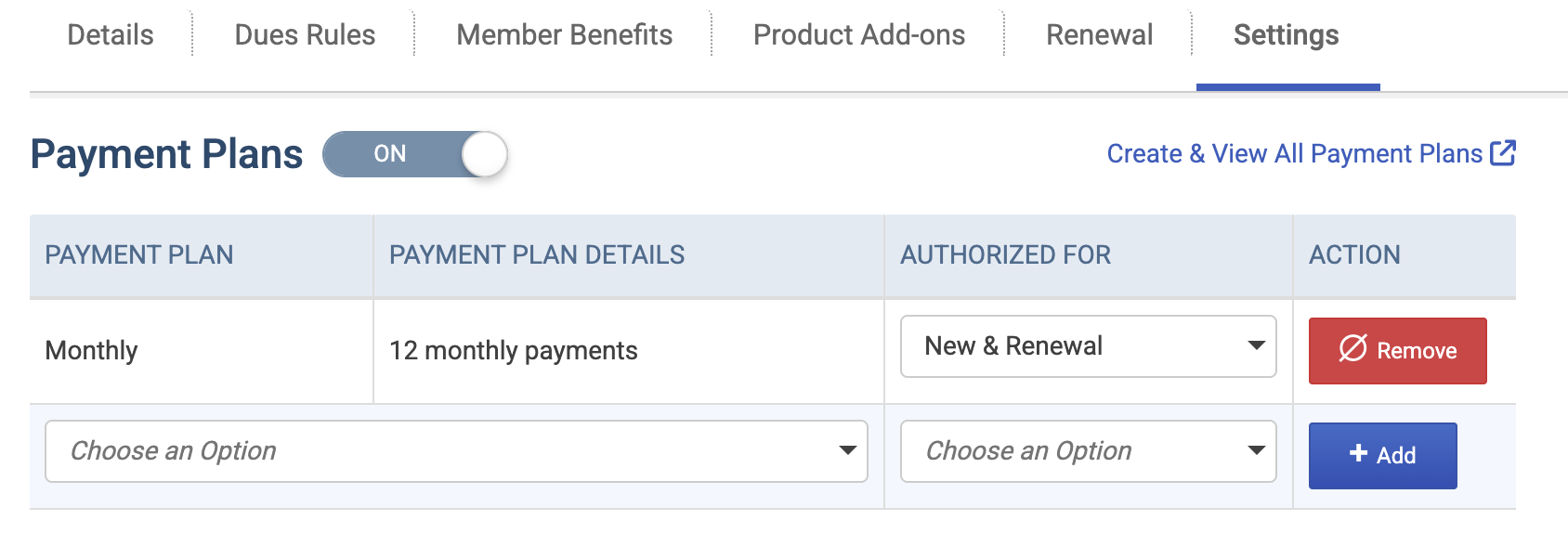
Scroll to the Payment Plans section and select the payment plan(s) that you'd like to enable for this member type. Finally, save the member type.
For member types, you can decide whether a payment plan should be available for new or renewing members, or both.
Event Tickets
To enable payment plans for specific events, first navigate to your event, then the Tickets tab. Within the ticket edit modal, choose the applicable payment plans. Then, save the ticket settings.
NOTE: If a registration includes a mix of tickets that are and are not eligible for a payment plan, only the eligible items will be a part of the plan and the remainder will be due up front.
Ecommerce Products
To enable payment plans for specific products, first navigate to your ecommerce product, then the Details tab. Scroll to the Payment Plans section and select the payment plan(s) that you'd like to enable for this product. Finally, save the product.
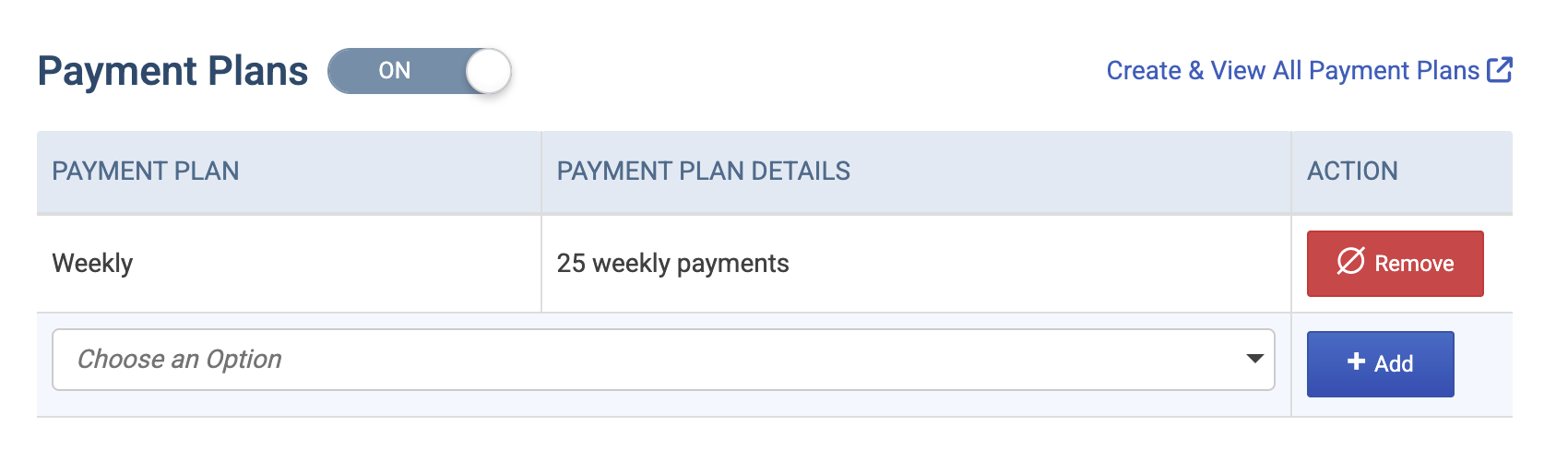
Specific Invoices
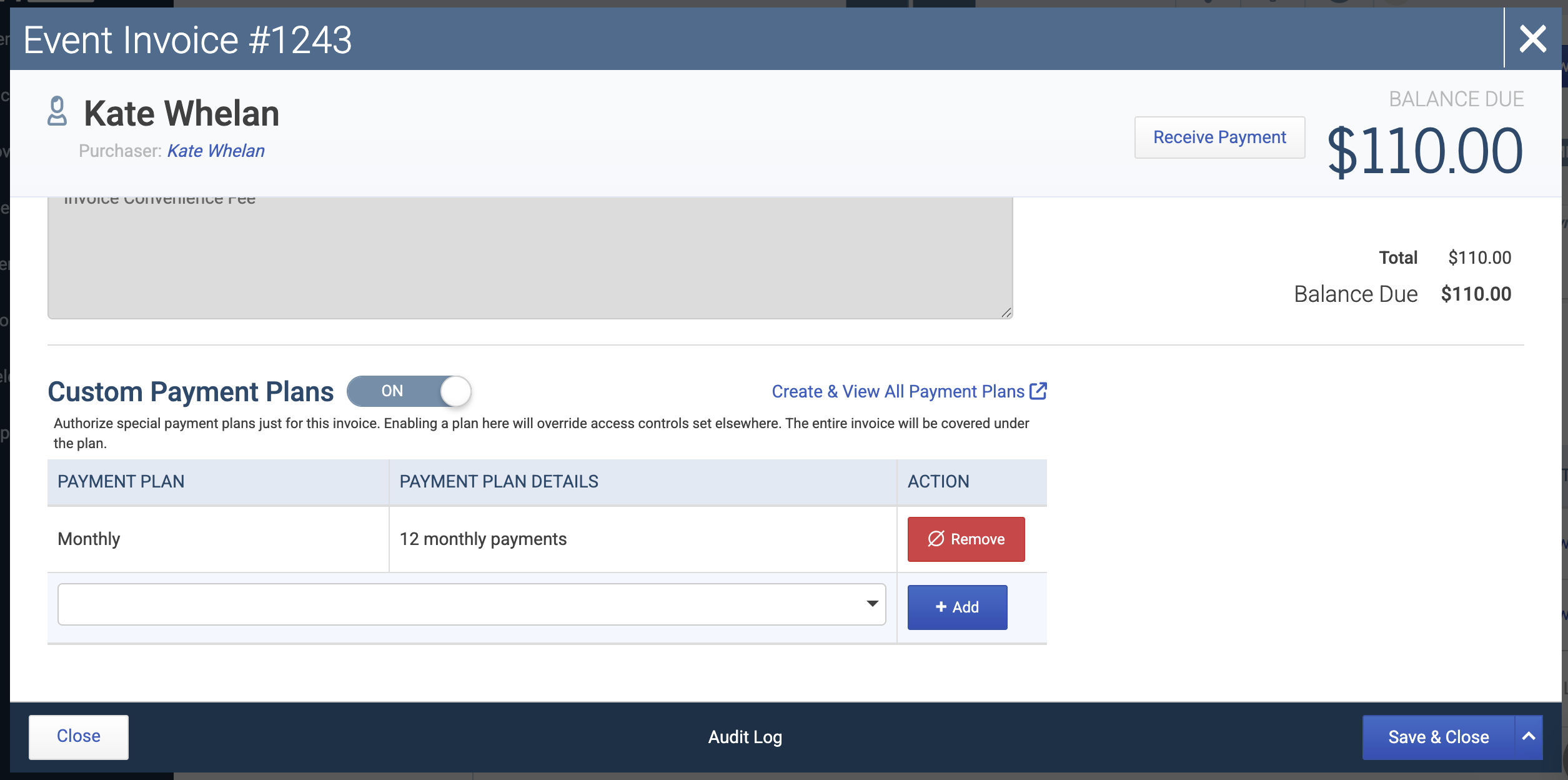
If you prefer not to enable payment plans for an entire member type, event, etc. but rather for a single invoice, you can enable a plan on a one-off basis, giving just that member the option to use a plan at checkout.
Enabling a payment plan at the invoice level will override any eligibility settings on the payment plan itself.
Member Enrollment & Management
Enrolling During Checkout
When applicable at checkout, the user will see a Pay Over Time option. This option shows them the breakdown of payments, including any premiums, and shows the enrollment agreement that they must check to proceed with the plan.
Note: If the cart includes both plan-eligible and non-eligible items, the non-eligible amount is due up front, along with the first installment.

Enrolling While Paying Smart Invoices
If a user is paying an existing Smart Invoice in Novi, the payment plan process works the same way as described above.
The only difference is when a premium percentage is involved. Instead of being added as a line item on the original invoice, the premium amount is placed on a new, separate invoice.
The first installment is applied to this premium invoice first, ensuring it’s paid upfront so you’re not left collecting only the premium at the end of the plan.
Member Compass
In the Member Compass, users can see and manage their payment plans in the Payment tab → Payment Plans section.

They can see and change the credit card used for installments, make additional payments toward the invoice, and see their history of previous payment installments.
Members will also automatically receive a payment receipt from QuickBooks Online each time an installment payment is made.
Important Note: You can manage these receipt emails in your QuickBooks Online account. To review or update your settings, click the Gear icon in the upper-right corner in QBO, then navigate to Account and settings > Sales > Online delivery. From there, you can configure options such as including a PDF attachment with payment receipts.
In the Member Compass → Pay Balance → Full Balance & Overdue Balance tabs, payment plan amounts are not included, and the following message is shown:

Admin Management
Payment Plans List View
On the Accounting tab → Payment Plans list view, see a quick overview of all of the plans you've set up. Under the gear icon, additional columns are available such as # of Installments, Frequency, Premium, and Internal Description.

Payment Plan Tabs
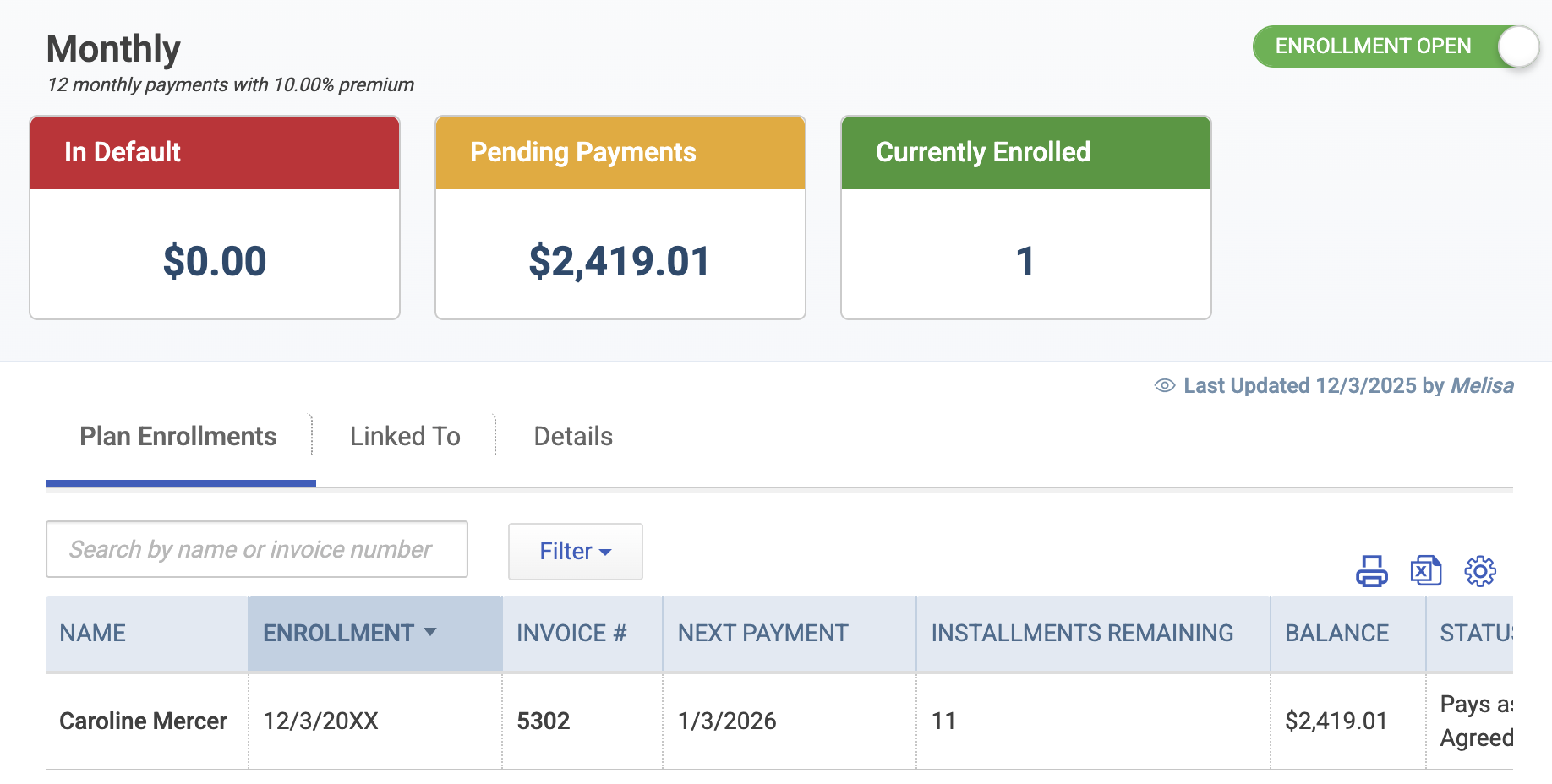
Clicking into a plan on the list view reveals more detailed information about that specific plan, including quick numbers on the amount of pending payments, plans in default, and # currently enrolled.
Plan Enrollments
This tab lists out the users who have enrolled in this plan, as well as details about their next payments, and actions for you to take on those enrollments for this specific plan type.
Linked To
This tab shows you all of the event tickets, ecommerce products, member type dues rules, and specific invoices this payment plan is available for.
Details
These are the same details you filled out when creating the payment plan. However, keep in mind that certain details, such as the # of Installments, Frequency, First Installment %, and Premium details, cannot be changed after the first enrollment has come in for that plan.
Payment Plan Enrollment Tab
On the Accounting tab → Payment Plan Enrollment list, you can view and manage enrollments for all payment plans in one place - similar to the Plan Enrollments tab on a specific plan, but consolidated.
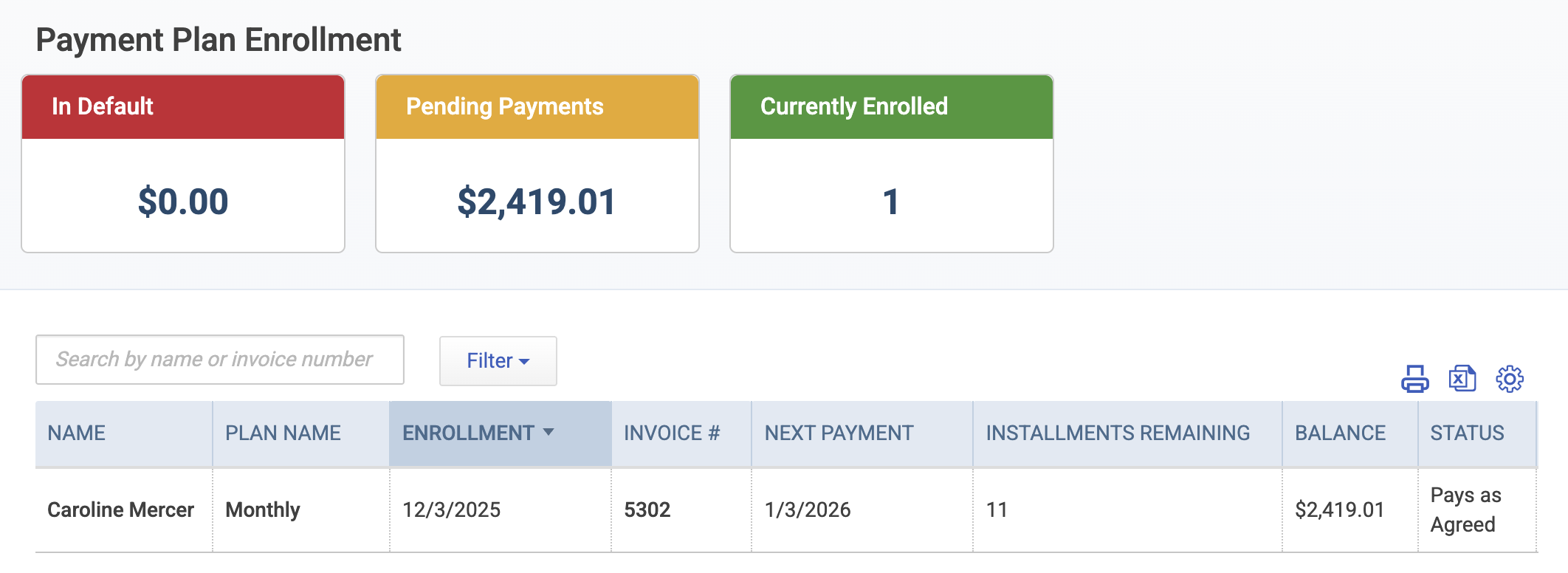
See and view important details about each plan, including invoice #s, plan status, opt in details, and more available columns under the gear icon, and filter by plan status, # of installments remaining, or balance amount.
View Invoice Details
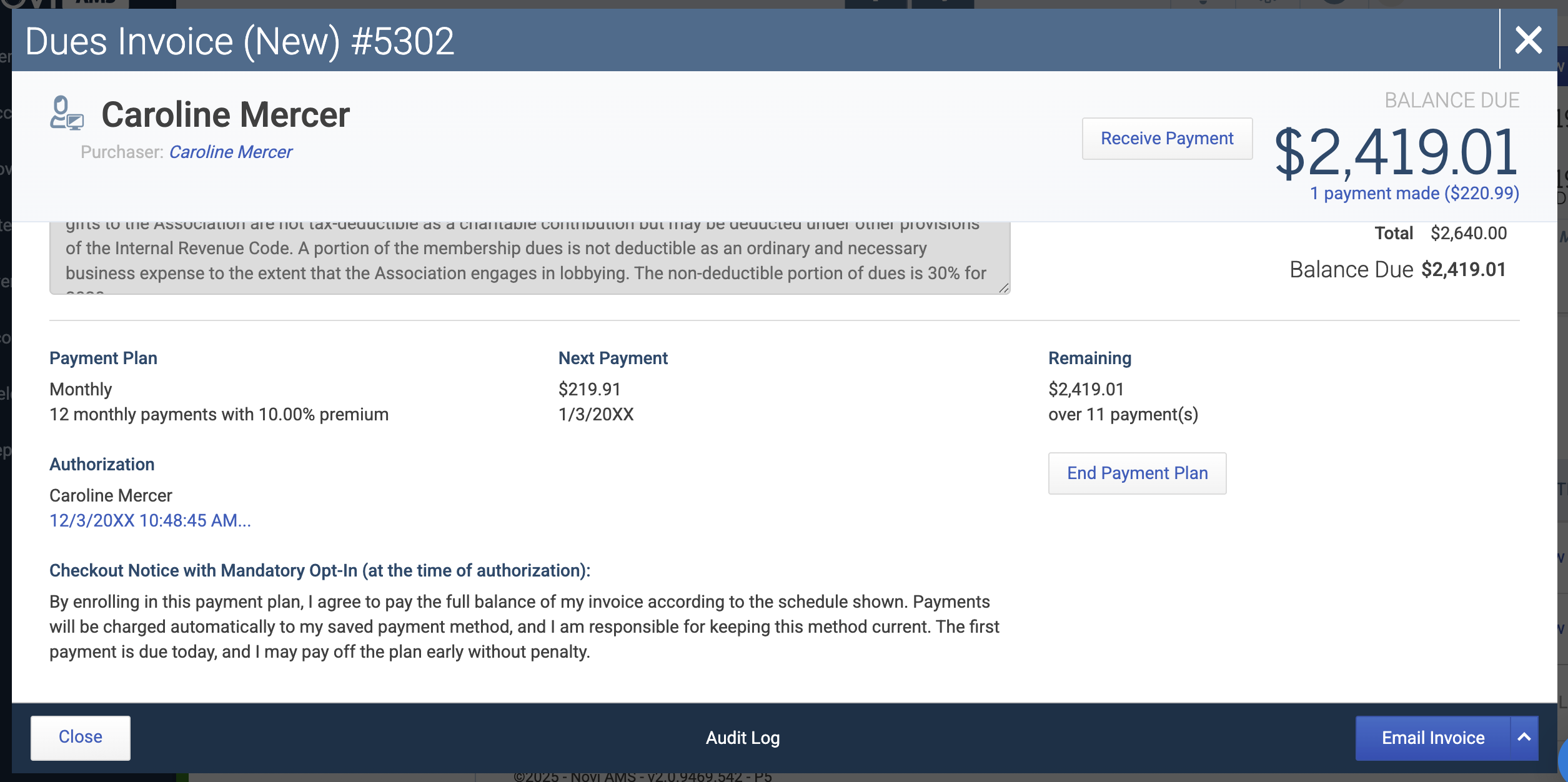
When an invoice is enrolled in a payment plan, the details of the plan are available for admins to view at the bottom of the invoice modal, including the checkout notice they agreed to while enrolling in the plan.
Prevent A Single User From Enrolling
Suppose there is a single person you'd like to prevent from enrolling in a plan, for example - maybe they aren't in good financial standing. In that case, you can navigate to their record's Settings tab and look for the "Prohibit Payment Plan Enrollments" option. This prevents the user from seeing the "Pay Over Time" option at checkout entirely.
This is set on the individual level since people are logged in, not companies.

Ending Plans
What happens when a plan is in default, i.e. someone's installment card declines?
We'll retry that failed card 2 more times. The first attempt is on the installment date. If this fails, we try again the next day. If that fails, we do not try again until the last day of your "Grace Period for Failed Payments" setting in Association Settings. If that final attempt fails, the plan will be changed to a status of Ended in Default and the invoice due date will be changed to overdue.
The only caveat is if the card fails because of an unspecified QuickBooks error and not a specific reason, like a decline. These can indicate a transient error, so we will attempt the card a total of 3 times that first day.
If you choose to manually end a plan early, you can do so from the Payment Plan Enrollment tab → Action column.

End Plan & Write Off Balance
This option will credit the remaining amount of the invoice, and end the plan. If the invoice was for membership, the membership will be non-renewed and credited.
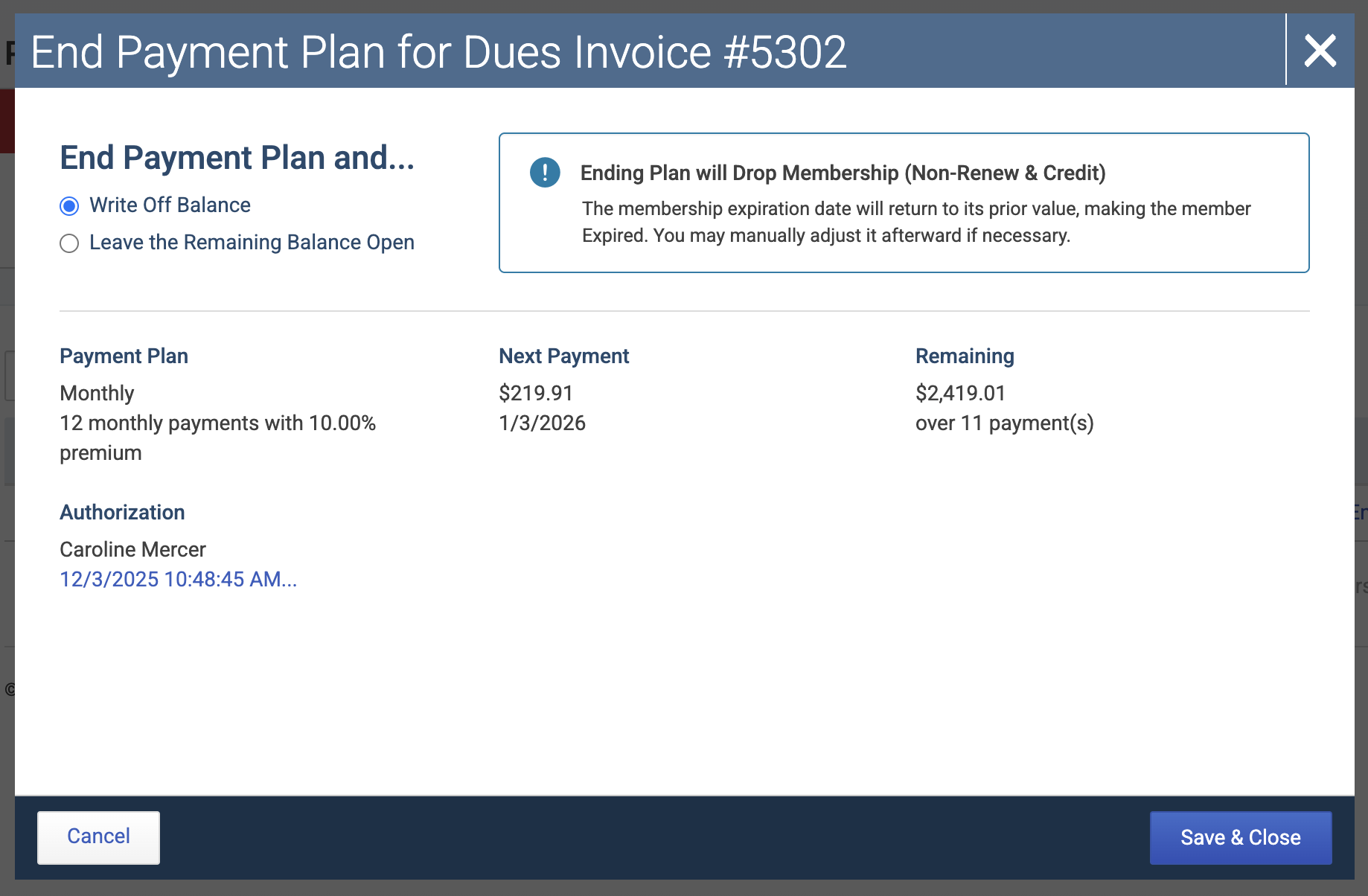
End Plan & Leave Balance Open
This option will end the plan, but the remainder of the invoice will still be due.

If a user defaults on a payment plan, both you and the user are notified.
In the Daily Digest, you'll see either "Failed Payments on Payment Plans" or "Payment Plan Ended in Default". The user will receive an email letting them know about the failure, and their Member Compass dashboard shows the following message:

FAQs
How do credit card fees tie into payment plans?
Credit card convenience fees are not applied to payment plans. We recommend building any fees into your payment plan premiums. However, if a user checks out with a combination of payment plan eligible AND non-eligible items, the non-eligible price + their associated card fees will be due upfront, along with the first payment plan installment.
Is ACH available for payment plan installment payments?
Payment plan installments are limited to credit card payments only. ACH payments carry a unique risk: if a customer disputes an ACH charge, their bank can immediately pull the funds back, and you may have no ability to challenge or reverse the dispute - even when the payment is valid.
Because payment plans involve multiple scheduled installments, this creates too much financial and operational risk. A single disputed transaction could disrupt the plan, cause unexpected losses, and require manual cleanup.
To keep payment plans predictable and protect your organization, ACH isn’t supported for payment plans.
Can an admin enroll someone in a payment plan from the backend?
No, payment plans must be enrolled by the user as they need to agree to the legal notice. While admins can choose which items are eligible for payment plans, they may not authorize a payment plan for a user.
Can a user make a payment toward the plan early?
Yes! Users can make a partial or full payment on the invoice enrolled in a payment plan. If partial, the amount will go toward the balance and installments will continue to run at the pre-set amount until the full amount has been paid.
This updates the Payment Plan Enrollments list view details accordingly.
Note: If a user attempts to pay an invoice enrolled in a plan, they will see the following message in the payment section:
"This invoice is currently subject to a payment plan. The next payment of $xx.xx will be automatically charged on xx/xx/xxxx. You are welcome to pay the remaining balance today with no prepayment fee."
Once a membership renewal invoice is enrolled in a payment plan, will subsequent renewals automatically be enrolled in a plan?
No, each new invoice needs to be enrolled in a new payment plan.
What happens if a member is set to auto-pay their membership and enrolls in a payment plan?
If the member enrolls the invoice in a payment plan between the time the invoice is created and the date auto-pay is set to run, auto-pay will be skipped for that particular invoice. Once the payment plan is complete, auto-pay will run on the next renewal cycle unless another payment plan is selected.
How does rounding work when installment percentages include decimals?
Because rounding each installment to two decimals can leave a small shortfall, the first installment is adjusted to ensure the full amount is collected. For those interested in the math behind the logic, see below.
Let's look at a $2400 plan with a 10% premium ($240), for a total of $2640.
When dividing the payment into 12 monthly installments, 100 ÷ 12 equals 8.333…%, but rounding (8.33%) won't collect the full 100% total.
8.33 (%) x 11 (installments) = 91.63 (%), which leaves 8.37 (%) to be collected. The first installment becomes 8.37%.
8.37% x $2640 = $220.968 → $220.97 becomes the estimated first installment amount.
$2640 (total) - $220.97 (estimated first installment) = $2419.03 (remaining balance)
$2419.03 is divided into the next 11 installments. However, this needs to rounded again, because the total is $219.91181... per installment → $220.91 becomes the remaining installments' amounts.
But there's a problem when you add the remaining installments + the estimated first installment: ($220.91 x 11) + $220.97 = $2639.98. You're 2 cents off from your total $2640.
Therefore, we add that 2 cents to the first installment. So, we end with a first installment amount of $220.99 and subsequent installment amounts of $220.91.