Send a Direct Email to Multiple Members at Once
Last updated: September 16, 2026
Send Direct Email lets you send a quick note to a committee, a board, or a small group of members without exporting email addresses.
Send Direct Emails lets you select the group you need, right from a Novi list view, and load those email addresses into your own email service provider – no CSV, no copy-pasting, no separate tool needed.
📌 Important note: Since this email is composed and sent from your own email account such as Gmail or Outlook, not Novi, you won't find it in the Transactional Email Log afterward. If you need to track email deliverability for large groups or marketing, learn more about syncing your list to Mailchimp or Constant Contact.
When Should I Use Send Direct Email?
Send Direct Email is made for quick, internal-style communication with your board, committees, or a small project team.
This may be a good fit if you are sending:
Sharing a document with your board
Coordinating logistics with a committee
Following up with a short attendee list.
This may NOT be a good fit if you are sending:
Newsletters
Event promotions
Renewal campaigns
Emails going to a broad or growing list
Where to find the Send Direct Email Option
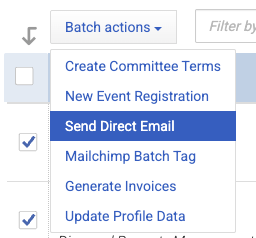
You'll find Send Direct Email as a batch action on:
Groups → Members list
Member Details → Family Tree list (people and sub companies)
Committees → Members list
Events → Attendees list
Accounting → Transactions list
How to Get Started
Go to the list view and select the records you want to email.
Click Batch Actions, then Send Direct Email.
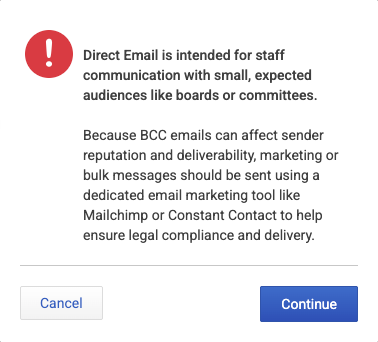
Before proceeding, Novi shows a quick reminder; then click Continue.
Your default email client opens with To and Bcc already filled in. The To field will contain your email and the BCC field will contain your recipients' emails. Add a subject and your message, and send it like any other email.
Which Email Address Is Used?
The email address Novi grabs depends on which list view you are sending from:
Committee Members, Group Members, Family Tree: the record's contact email address. If there is no contact email address, then the user account email address will be used.
Event Attendees: whichever email address shows in the attendee list. This is the attendee's own email if the ticket collects one, or the purchaser's/contact's email if it doesn't.
Transactions list: the billable party's email address. This is the invoice's billing contact, if set, or the company's main email.
📌 Important Note: Looking to send the transaction itself? Use the Email Transactions batch action to send invoices individually or in bulk. Send Direct Email opens a blank message addressed to the billable party, but it does not attach the transaction or invoice.
Learn more about How to Email Dues Invoices from Novi AMS
Troubleshooting
What if my emails open in a browser instead of my email desktop app?
Mailto links only work if your computer or browser knows which email app to use. Desktop apps like Outlook or Apple Mail usually handle this on their own.
If you check your email through a browser instead of a desktop app – Gmail, Outlook Web, Yahoo – you may need to set that as your default handler first.
Google Chrome or Microsoft Edge: go to Settings > Privacy and security > Site settings > Additional permissions > Protocol handlers and make sure handlers are allowed. Then visit your webmail (Gmail, for example), click the handler icon in the address bar, and choose Allow.
Firefox: go to Settings > General > Applications, search for mailto, and pick your email service from the dropdown.
Windows: open Settings > Apps > Default apps, search mailto, and set your preferred app.
📌 Important Notes:
To protect your email deliverability, Direct Emails cannot be sent to more than 50 addresses.
The Mailto links are limited to 2,000 characters. If 2,000 characters are exceeded, remove some selected records before trying again.
Related articles
Keywords: bcc members, email a committee, email a group, mailto, staff email