Issue Full or Partial Refund from your Payment Processor
Last updated: September 3, 2026
Learn how to issue a full or partial refund directly in your payment processor portal.
Depending on your organization, you may be using one of these three processors (or multiple) and need to issue a manual refund. The first step is to identify the processor the transaction was processed through.
Open up the sales receipt or payment that you need to refund and locate the payment processor name and Payment ID or Charge ID in the memo line of the transaction:

Now that you have identified your payment processor, you can process your refund.
Jump to your payment processor:
If using Novi Pay
If a customer has made a payment to your organization using Novi Pay and you need to issue a manual refund, you can issue a refund from the Novi Pay Charges tab directly in Novi. Here, you can search the Charge ID number (found in the memo section as mentioned above) and click the dropdown arrow under the action column and select refund. From there, you can choose to process a full or partial refund.
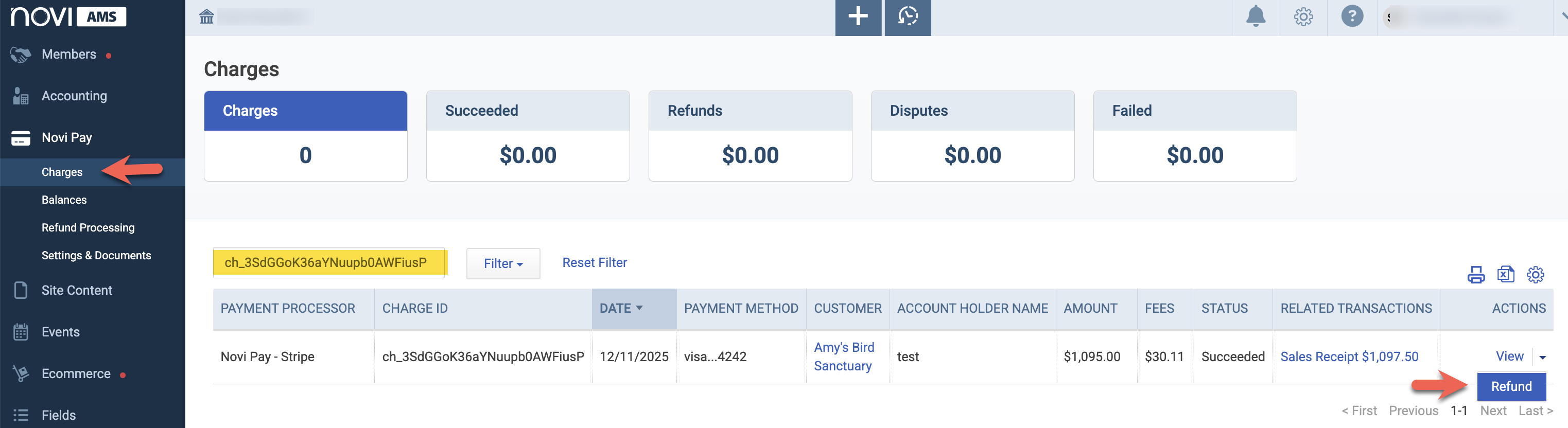
Once processed, Novi Pay will refund to the original payment method and create a refund receipt to reflect this on the members profile.
*Partial refunds aren’t available while a payment is still processing. While processing, only a full refund option is available. After a charge has settled, a partial refund will be available, if needed. After a refund is submitted, the funds are returned to the original payment method and may take several business days to appear, depending on the customer’s bank or card issuer.
If using QuickBooks Payments
If a customer has made a payment to your organization using QuickBooks Payments, you can issue a refund from the QuickBooks Payments Merchant Center.
Go to your QuickBooks Online account.
Go to your merchant account by clicking the gear ⚙️ icon in the top right corner and select Account and Settings.
Go to the Payments tab and click the green button that says Manage Accounts. (Note: This page can take a while to load.)
Once logged in, click Activities & Reports > Transactions.
Find the original transaction (use filters like date, name, or amount)
Click on the transaction, then choose Issue Refund.
Click Submit to process the refund.
The refund will go back to the customer’s original payment method within 5–7 business days.
There are multiple ways you can do this within the QuickBooks Payments Merchant Center so this QuickBooks Help Article will walk you through the steps if any processes have changed with QuickBooks. Void or refund transactions in QuickBooks Payments
When issuing refunds from QuickBooks payments, you will also need to create a manual refund receipt on your members account in QuickBooks Online to reflect that refund.
Click the + New button in the upper left corner.
Under the "CUSTOMERS" section, click Refund receipt.
On the Refund Receipt Page, fill in the:
Customer: Select the customer who is receiving the refund from the dropdown menu.
Refund Receipt date: Enter the date the refund is being processed.
Payment method: Select how the refund is being processed (e.g. check, or credit card typically).
Make sure to uncheck the “process credit card” box.
Refund from: Choose the account from which the money for the refund is being withdrawn.
Product/Service: Add the product or service the customer originally purchased.
Rate: Input the price of the product/service.
Click Save and Close.
Now you should see the refund reflected on your members profile in QuickBooks Online.
This video from QuickBooks going over the refund process.
If using Stripe
If a customer has made a payment to your organization using Stripe, you can issue a refund directly from your stripe dashboard. This Stripe help article will help walk you through the refund process.
After processing the refund in Stripe, you will need to create a refund receipt in QuickBooks Online to reflect that change on your members profile.
In QuickBooks Online:
Click the + New button in the upper left corner.
Under the "CUSTOMERS" section, click Refund receipt.
On the Refund Receipt Page Fill in the:
Customer: Select the customer who is receiving the refund from the dropdown menu.
Refund Receipt date: Enter the date the refund is being processed.
Payment method: Select how the refund is being processed (e.g. check, or credit card typically).
Make sure to uncheck the “process credit card” box.
Refund from: Choose the account from which the money for the refund is being withdrawn.
Product/Service: Add the product or service the customer originally purchased.
Rate: Input the price of the product/service.
Click Save and Close.
Now you should see the refund reflected on your members profile in QuickBooks Online. This will sync over into Novi but let us know if you need help running a manual sync!
Here is a video from QuickBooks going over the refund process.