Managing Transactions in Novi
Last updated: October 6, 2026
The Transactions list in Novi (Accounting > Transactions) works similarly to the Sales page in QuickBooks Online – both allow staff to send individual and bulk transactions by email – but Novi adds several features that give admins more control and visibility. In this article, you'll learn how to view, filter, search, and manage transactions from the Novi Transactions list, including batch actions like Email Invoices and Non-Renew & Credit.
Need more training on the Novi Transactions section? Join or watch our complimentary Transactions Training.

The Transactions Stage
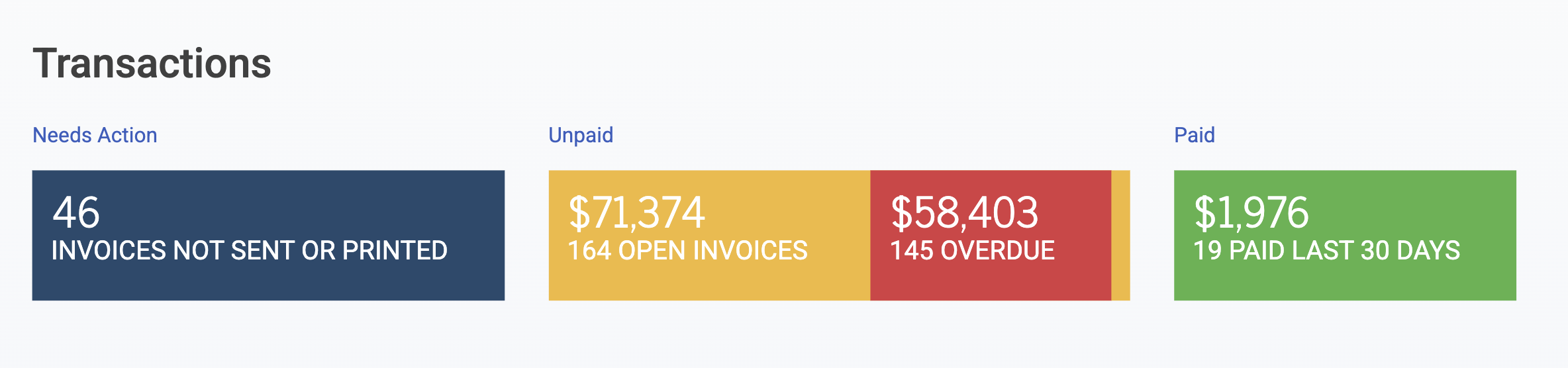
At the top of the Transactions list, the Stage tiles give you a quick snapshot of transaction statuses:
Invoices Not Sent or Printed — transactions that haven't been communicated to members yet
Open Invoices — invoices with an outstanding balance
Overdue Invoices — open invoices past their due date
$ Paid Last 30 Days — the total dollar amount of recently received payments
Each tile is clickable and filters the transactions list below it.
Filtering and Searching
Novi has an extensive filtering system to help you find exactly the transactions you need.
Search Bar
Use the search bar to find transactions by transaction number or record name.

Filter Button
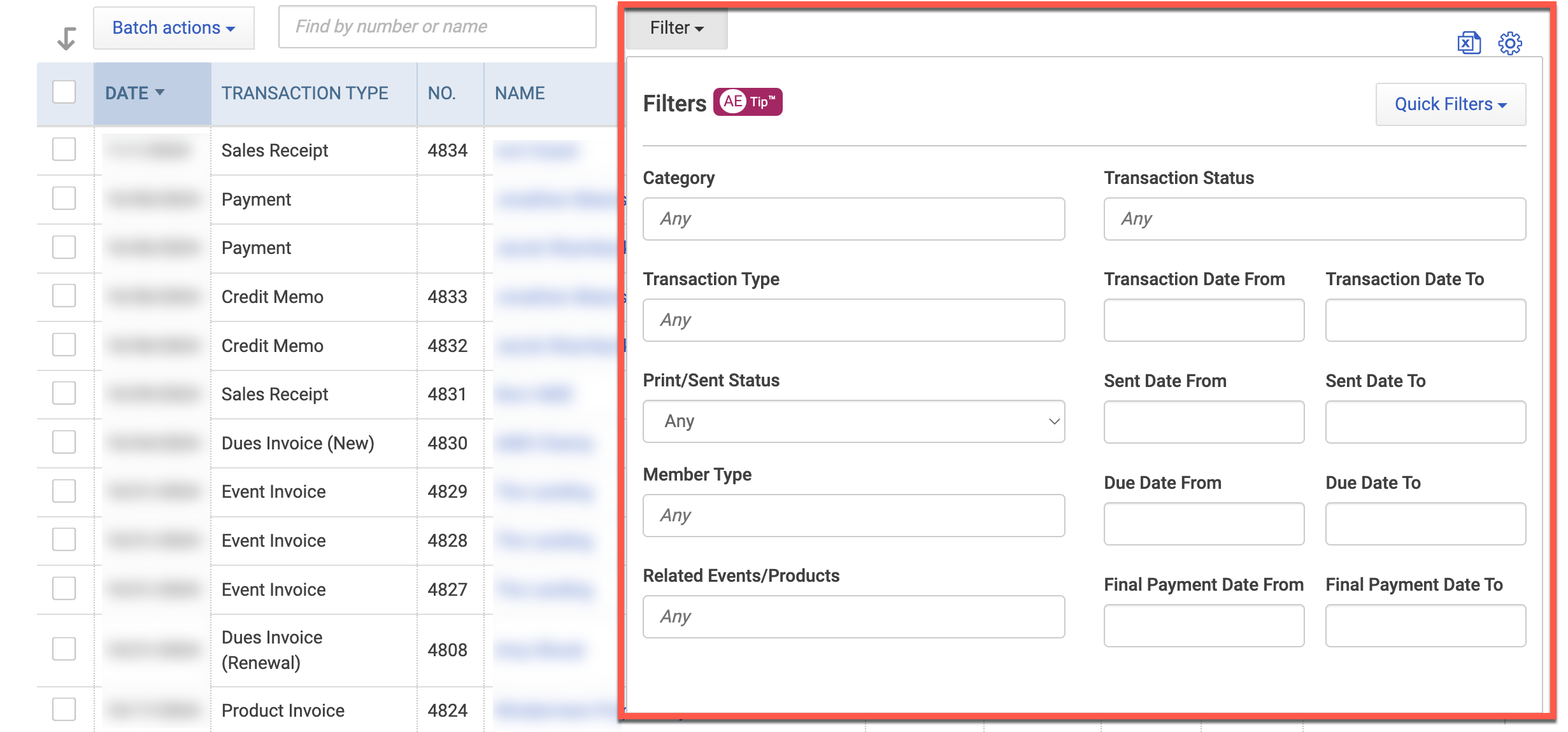
Click the Filter button to narrow the list of results by:
Category
Dues (All/New/Renewal)
Events
Ecommerce
Convenience Fee
Custom
Transaction Type
Invoice
Sales Receipt
Payment
Credit Memo
Refund
Journal Entry
Check
Print /Sent Status
Any
Not Sent or Printed
Not Sent
Sent
Not Printed
Printed
Member Type
Related Events/Products
All active products and events starting within 366 days or in the future
When an event registration or ecommerce order is refunded, the refund is related to the same event or product(s) as the original transaction.
Transaction Status
Open
Overdue
Paid/Closed
Recently Paid
Partially Paid
Voided
Non-Renew
Transaction Date From/To
Sent Date From/To (Based on the Last Sent Date)
Due Date From/To
Final Payment Date From/To
Tips:
Use the Category filter to select Novi-identified transaction and revenue categories.
Use the Transaction Type filter to select the QuickBooks-identified transaction type.
Note that some filter combinations will return no results because they're logically impossible. For example, filtering by Category = Events and Transaction Type = Payment will return nothing, since payments don't have categories.
Quick Filters
For commonly used filter combinations, click the Quick Filters button inside the filter modal.
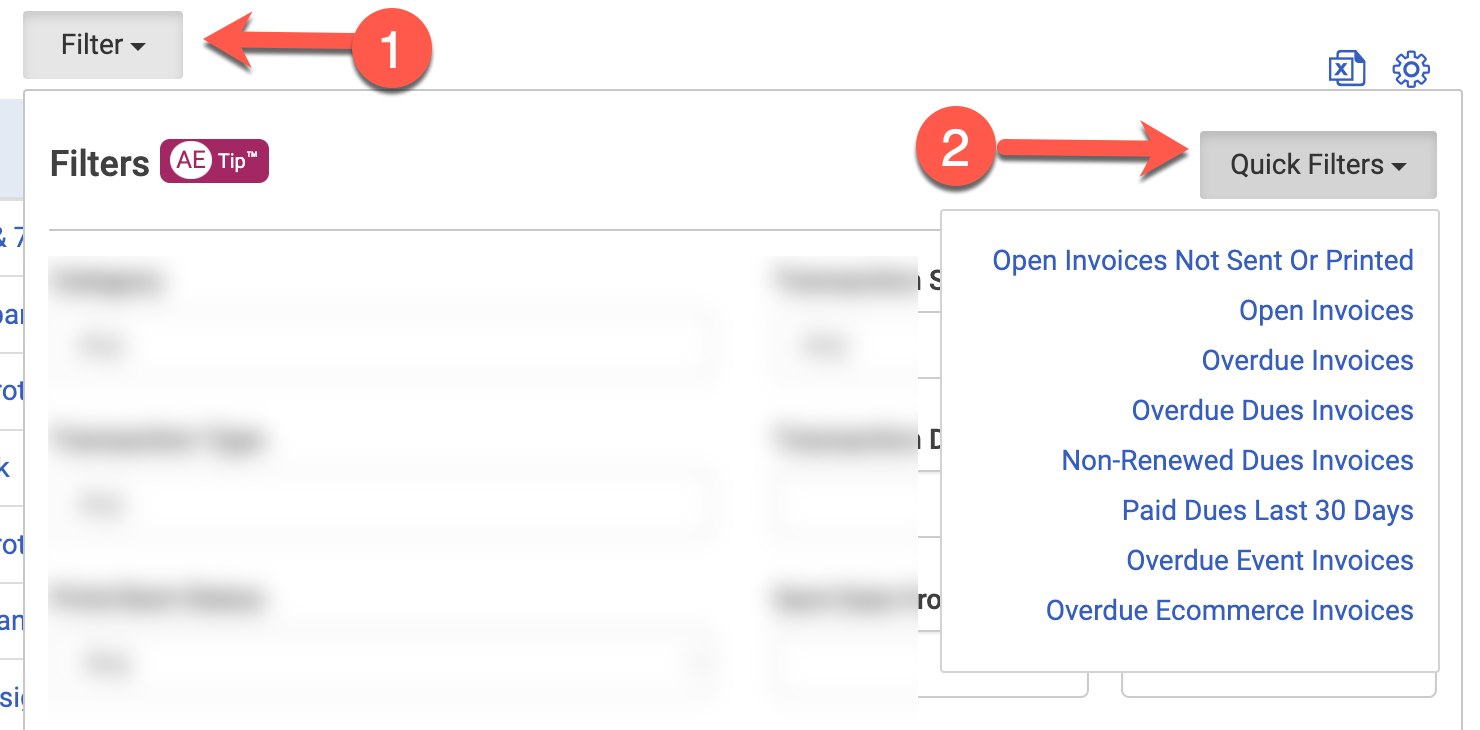
Options include
Open Invoices Not Sent or Printed
Open Invoices
Overdue Invoices
Overdue Dues Invoices
Non-Renewed Dues Invoices
Paid Dues Last 30 Days
Includes Sales Receipts or Invoices with a Final Payment Date within the last 30 days
Overdue Event Invoices
Overdue Ecommerce Invoices
Display Columns
The default columns on the Transactions list are: Date, Transaction Type, No., Name, Due Date, Balance, Total, Status, and Action.
Action Column
Use the Action column on the far right to take an action for the specific transaction on that row. This includes:
View
Receive Payment (if the invoice is open/unpaid)
Print
Send
Copy Direct Link
Copies a direct link to the frontend member checkout screen for this transaction

Adding Columns
Click the gear icon in the top right above the Transactions list to add additional display columns.
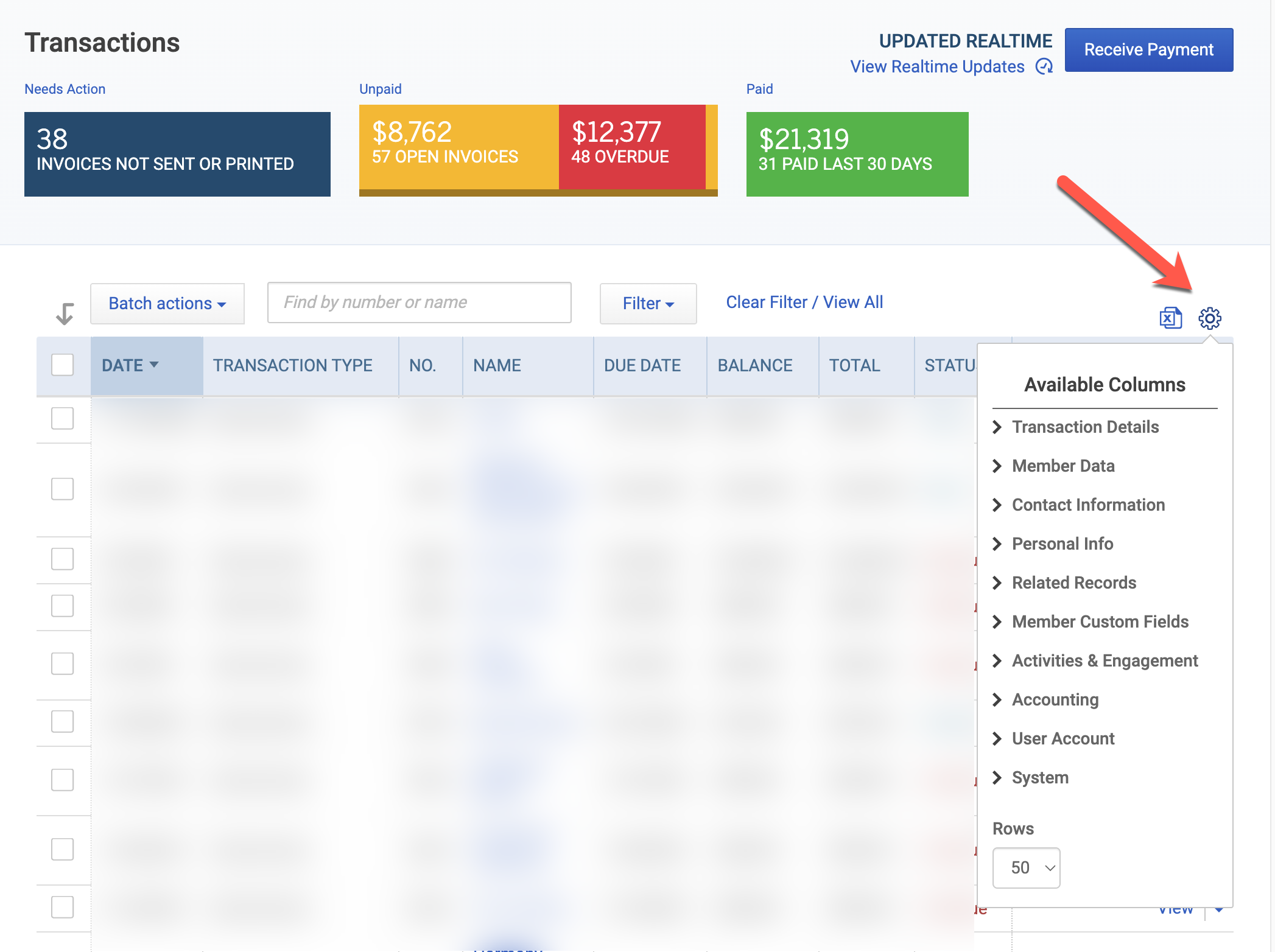
The Transaction Details section in particular contains helpful additional columns like...
Last Sent Date – The last date that the transaction was emailed
Payment Dates – The date(s) that payment was received for the transaction
Final Payment Date
Pending Non-Renew – Indicates the scheduled automated drop date when automated drops are enabled
Related Event – Indicates the event registration related to the transaction.
Refunds for event registrations are connected to the same related event as the original transaction.
Related Products – Indicates the ecommerce products related to the transaction.
Refunds for ecommerce orders are connected to the same related product(s) as the original transaction. Refunds for a multi-product order will display all original products.
Order Number
Auto-Pay Status
Pending – Transactions will show as Pending if an Auto-Pay Renewal Notice Email has not been sent. This will show next to Open invoices that are not opted into auto-pay.
Scheduled – The invoice is scheduled for auto-payment on the date indicated.
Paid – This will display alongside all invoices paid via auto-pay
Failed – Either the payment attempt did not succeed, or something prevented it from being scheduled correctly.
For a complete list of all available columns, see: Available Columns in List Views & Exports
Tip: The Transactions list doubles as a built-in report. Configure your filters and display columns to show exactly what you need, then click the Excel icon to export your visible fields as a CSV.
You can also share your configured view with any colleague who has admin access. Just copy and paste the URL. The URL updates automatically as you adjust filters, so what they see will match exactly what you see.
Sending Transactions Through Novi
Sending transactions through Novi gives admins more control than sending directly from QuickBooks Online:
Novi follows billing rules. It looks for the billing contact on a company record first, then falls back to the company's main email address if no billing contact is found.
All staff members can send transactions without needing access to QuickBooks Online.
Filters make it easy to find exactly which invoices need to be sent.
The Last Sent Date lets admins see if and when a transaction was sent to the member.
→ Learn More: 📄 Sending Transactions from Novi AMS & QuickBooks
Sending Individually
Scroll to the Action column on the right side of the transaction you want to send.
Click the arrow icon, then select Send.

A modal appears with a preview of the transaction. Click Send and Close.

Sending in Bulk
Use the Batch Actions menu. See the Batch Actions section below.
Batch Actions
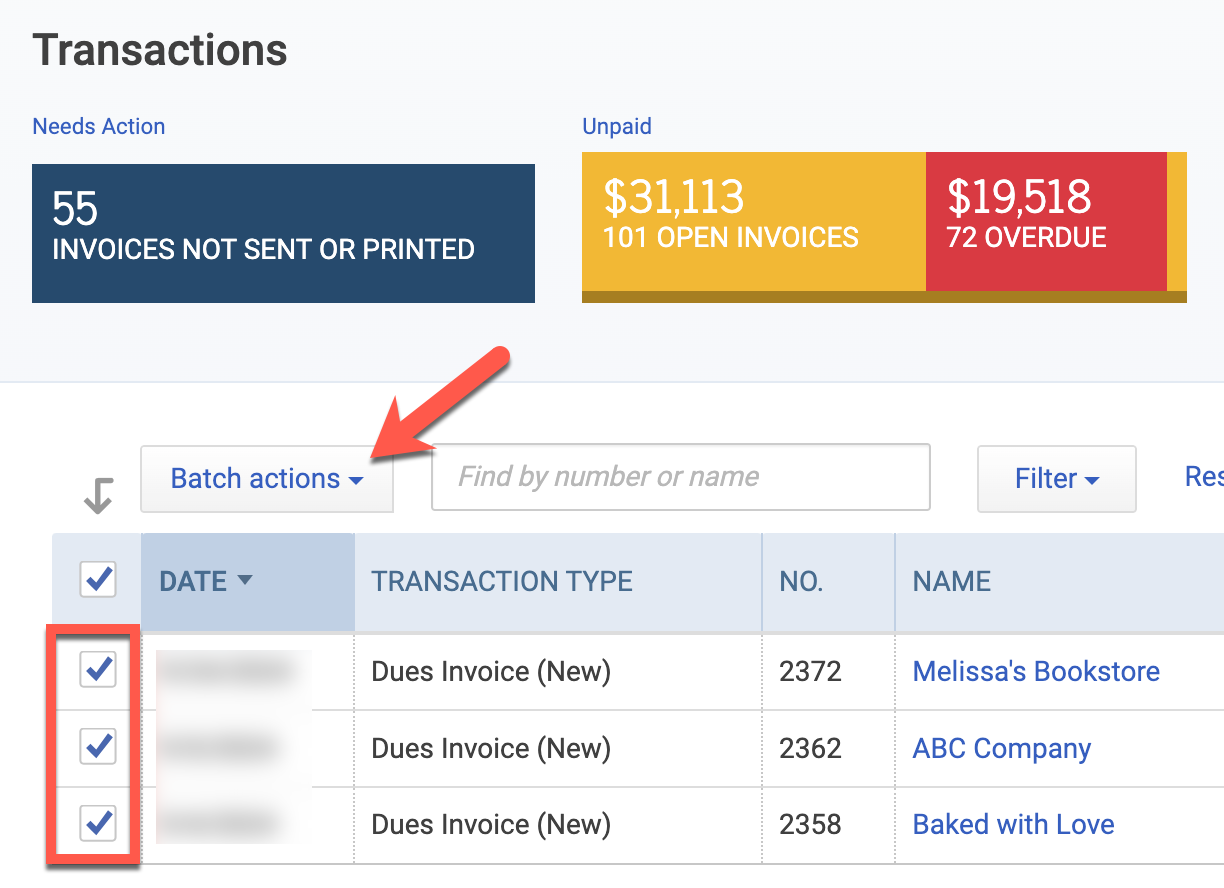
The Batch Actions button makes it easy to take action on multiple transactions at once.
To get started:
Confirm that your filters are set to show only the transactions you need to act on.
Select transactions. You can select several or all by clicking the checkbox at the top left corner of the list.
Click the Batch Actions button for a dropdown of options.
Available Batch Actions
Print Transactions
You will be asked to confirm whether you want to mark the transaction as printed
Email Transactions
Non-Renew & Credit: Specific to open dues invoices. Creates a credit memo and rolls back the member's expiration date in a single action. This is how admins manually drop members for non-payment.
Receive Payment: Apply a payment to one or more open invoices. This should only be used when the same payment method covers all selected invoices.
Important Note: It's also possible to receive payments on individual invoices within the Transactions list and throughout other areas of Novi. Learn more: 📄 How to Receive a Payment in Novi AMS
Recalculate Invoices: Specific to open dues invoices that have not been manually edited in QuickBooks Online. Use this when a dues invoice needs to be updated based on adjustments made to dues rules or to fields that determine dues for a member.
Learn more: 📄 Recalculate and Update Open Dues Invoice
Snooze Non-Renew: Specific to open dues invoices scheduled for automated drop if left unpaid. This action allows an admin to snooze the scheduled non-renew and credit. The snooze date cannot be more than 60 days in the future, and no invoice can be snoozed for more than 180 days total.