Reviewing & Managing Census Responses
Last updated: September 16, 2026
Learn how to review Census responses, manage existing Census requests, mark a census as complete on a member's behalf, and approve or archive member submissions from the backend.
Once a Census has been sent, members can respond through email or directly in their Member Compass. Admins can then review, approve, and manage those responses on the backend.
Census responses can be collected without requiring members to log in, though login can be required for added security.
Viewing and Managing Existing Census Requests
Indicator
Much like Recent Signups and tasks, you will see a notification in your navigation menu when there are census responses that need attention. This covers all available census responses. Open the Census dashboard and view the Needs Review column to see details.

Main Census Page
From the menu within the backend → Open the Members tab → Census.
Here you’ll find past, current, and future Census requests, with details such as:
Census name
Response count
Date sent
Status (Draft, Open, Closed, or Archived)
Due date
Additional columns are available under the gear icon at the top right of the list.

Action Column
Edit → open the Census settings or responses
Archive → prevent further modifications (archived responses remain visible)
You can also archive one or more Census' by selecting multiple and then using the Batch Action button.
Delete → completely remove a Census from your database
⚠ Warning: Archiving is permanent on the admin side and can only be undone by the Novi team.
Use the Search field and Filter button to narrow down the list by Census Name, Census Status, Last Sent Date From, and Last Sent Date To.

View & Edit Existing Census Requests
To edit an existing Census:
Navigate to the admin side of your site > Members tab > Census
Click the Edit link in the Action column, or click on the name of the Census.
Within the Census, there will be two tabs:
Members Tab: View Census responses and approve updated values when applicable. More details below.
Settings Tab: Adjust any of the original settings. More details above.
Note: if the Census has already been sent, you will not be able to edit the Census Recipients.
Reviewing & Approving Census Responses
For field-based Census requests (not Staff Roster), admins can review and approve member submissions from the Members tab within the specific Census on the backend.
For Staff Roster Census requests tied to companies, there is no admin review step. Updates to staff rosters are applied immediately in real time as the member completes the Census.
Example of the Members Tab of an Active Census:

Members Tab
This tab within the Census is where the list of recipients can be viewed and managed by admins.
Within a specific Census, the Members tab shows all recipients and their response statuses:
Not Sent – request couldn’t be delivered
Not Complete – request sent, but no response yet
Needs Review – response received, waiting for admin approval
Completed – response submitted and reviewed/approved (if required)
At the top, you’ll see overall totals for each status plus the Census’ status (Draft, Open, Closed, Archived).
List View & Actions
Customize visible columns (including submitted field values). If any Census fields are displayed, the new values submitted via the Census will appear for a quick view.
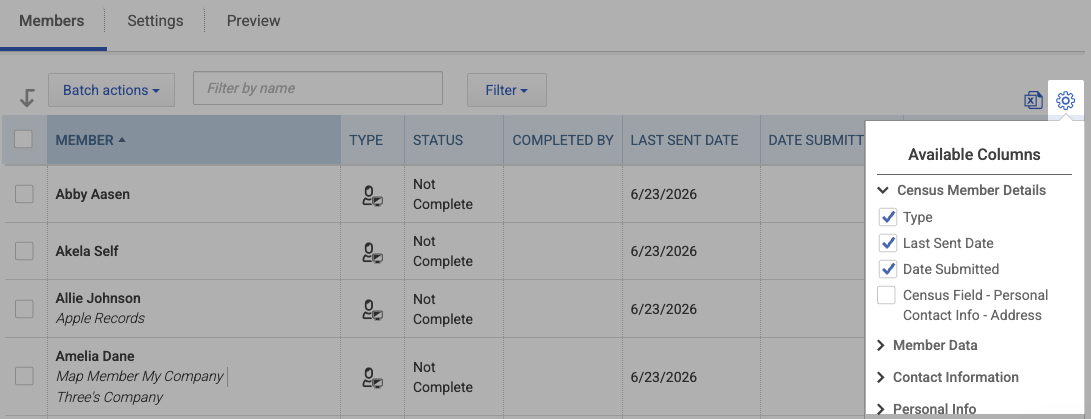
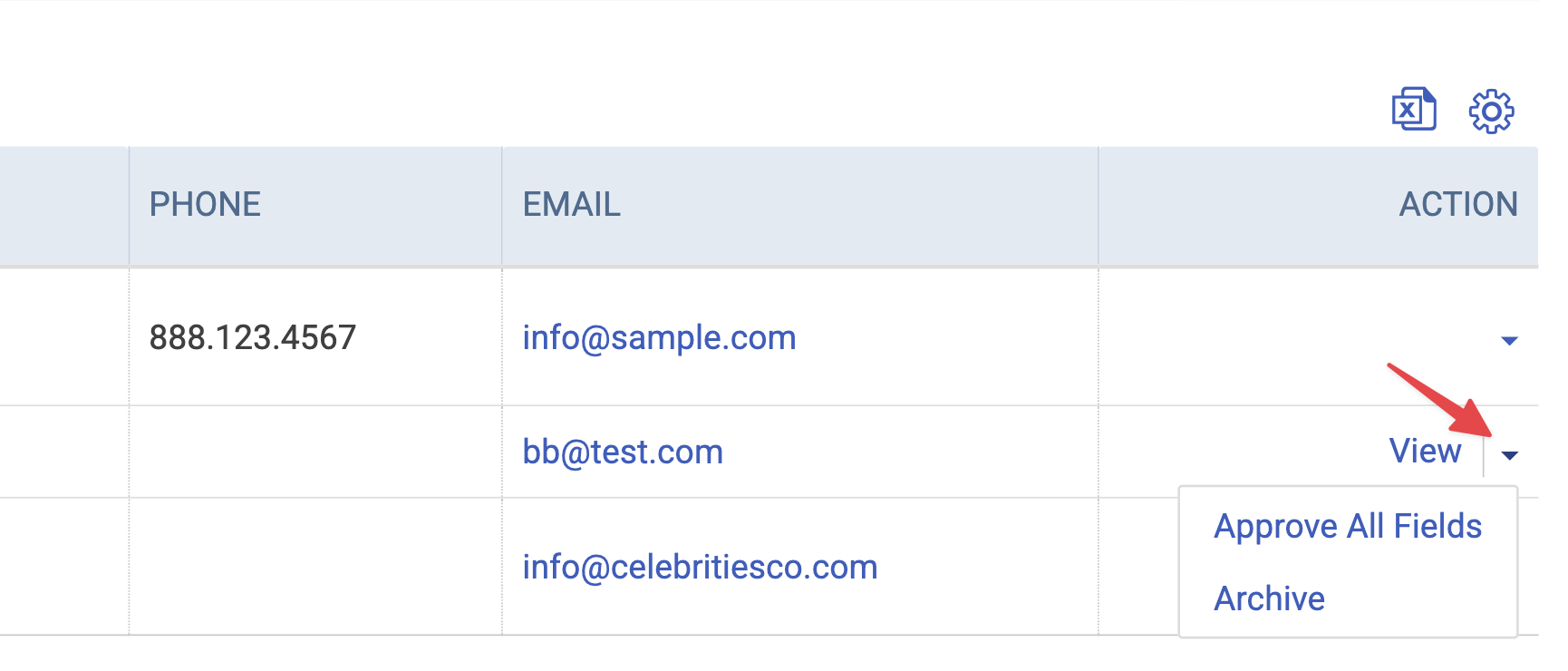
Use the Action column on the right for each member. The options displayed depend on whether the member has submitted a response.
If the member has submitted a response:
View – See the response in detail and approve required fields.
Approve All Fields – Accept all changes in bulk.
Archive – Remove the member from active processing.
Note: These options appear for fields-based Census updates only; not Staff Roster updates.
If the member has not submitted a response:
Admin Manually Completed – Available in the action dropdown for members who have not yet submitted a response. This allows you to mark a census as complete on a member's behalf – for example, if a member called in and you updated their record manually.
Once selected, the member's status is set to Completed, your name appears as the person who completed it, and the action is recorded in the audit log. Using this option will prevent the member from receiving further Census reminders.

Batch Actions
Select one or more records within the Census Members list, then use the Batch Action button to:
Approve All Fields – Approve all fields for all selected members without opening each individual detail page.
Archive – Archive the selected members.
Resend Census Email - Resend the census email to selected members.

Company List View
When a Census is sent to a company, two additional columns appear on the Members tab:
Sent To – Displays all company contacts with Management Access who received the Census email. This can include Primary, Billing, or standard Management Access contacts, depending on which recipients were selected. If no valid email is on file, this field will display "N/A."
Completed By – Shows the name of the person who submitted the Census.
If the member was logged in, their name will display.
If they were not logged in, the original recipient's information will display, since the system cannot identify exactly who completed it.
If Admin Manually Completed was selected, the name of the association admin who marked it complete will display.

Search & Filter
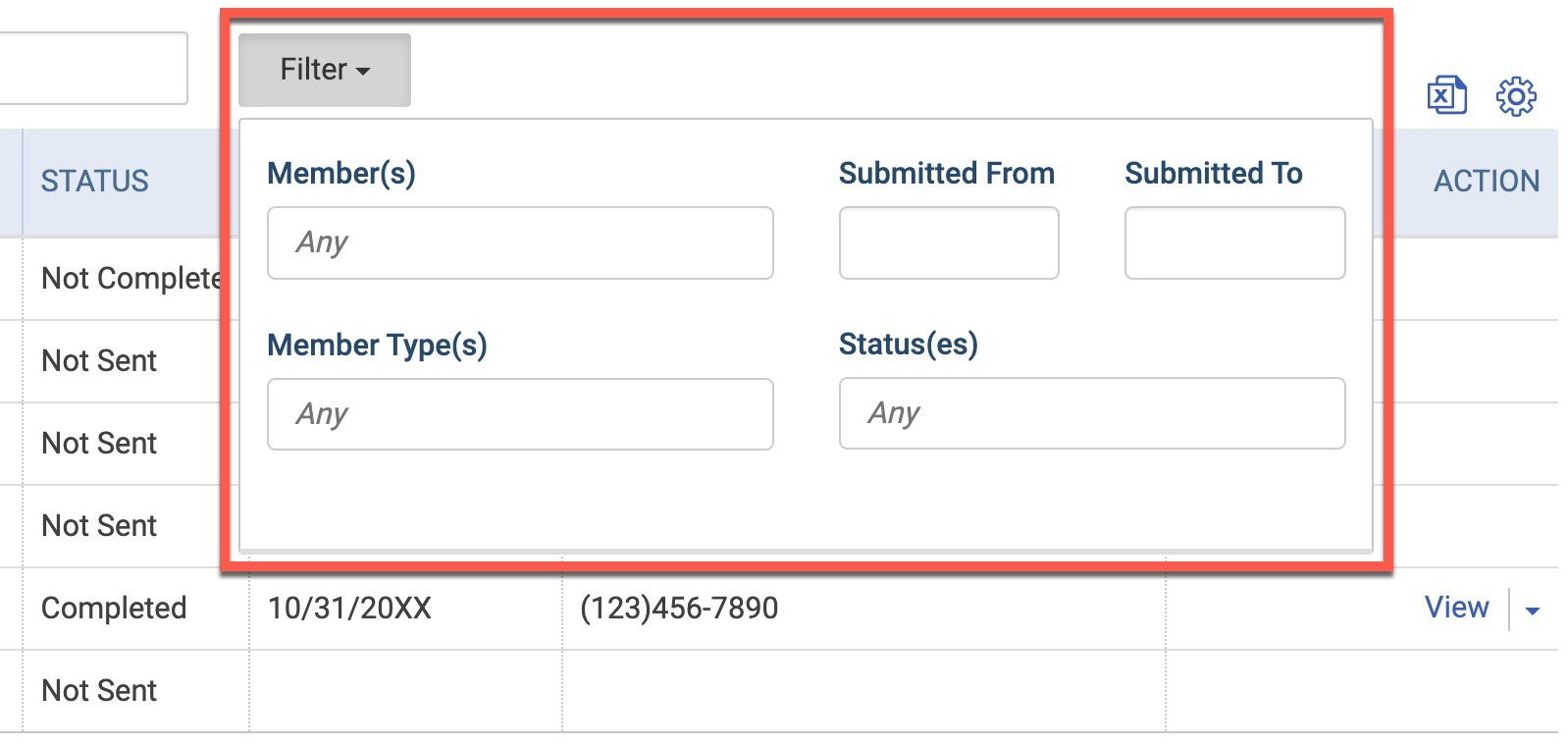
Use the Search field to search by name, or use the Filter dropdown to filter the list by:
Member(s) – Specific records
Member Type(s) – Specific member types
Submitted From / Submitted To – Date range for when members submitted their responses
Status(es) – Not Sent, Not Complete, Needs Review, Completed, and Archived
Approving/Accepting Field Values
When a field requires admin approval:
Member-submitted values appear in a New Value column.
The previous record value shows in an Original Value column.
Admins can approve fields individually, use Accept All & Next to quickly approve all changes for one member, or edit/reject values directly from the response view.
When a value is rejected, the new member-submitted value is not applied and the original field value stays intact.
💡 Tip: Use the Needs Review filter to view only those awaiting an action for faster processing
Example of a Census Detail Page for a Specific Member's Response:

📌 Important Notes
Admin Manually Completed is only available for members with a Not Complete status. It appears in the caret dropdown in the Action column – not as a primary action button.
Archiving a Census or census member record is permanent on the admin side and can only be undone by the Novi team.
For Staff Roster Census requests, there is no admin review step. Roster updates are applied immediately in real time.
Once a Census is sent, the recipient list is locked and cannot be modified.