Editing or Updating Event Registration Details in the Member Compass
Last updated: September 17, 2026
Allow purchasers and attendees to update event registration details directly from the Member Compass.
When enabled, purchasers and attendees can update event registration details (such as attendee names, contact information, and custom fields) directly from the Member Compass after completing their initial registration.
This is especially helpful for events where plans are still coming together after registration. For example:
Someone registers a golf team with TBD attendees and fills in player names as they confirm
An attendee wants to update their meal selection before the event
A purchaser needs to swap out attendee information after checkout
The result: fewer staff touch points, more flexibility for members, and a smoother registration experience.
[optional] Step 1: Enable Default Attendee Registration Edits
To turn it on as a default for all events going forward:
Navigate to Association Settings > Events > Registration
Check the box for "By default, allow purchasers and attendees to update event registrations after initial purchase.”
Set the default number of days before an event that updates are allowed.
Click Save
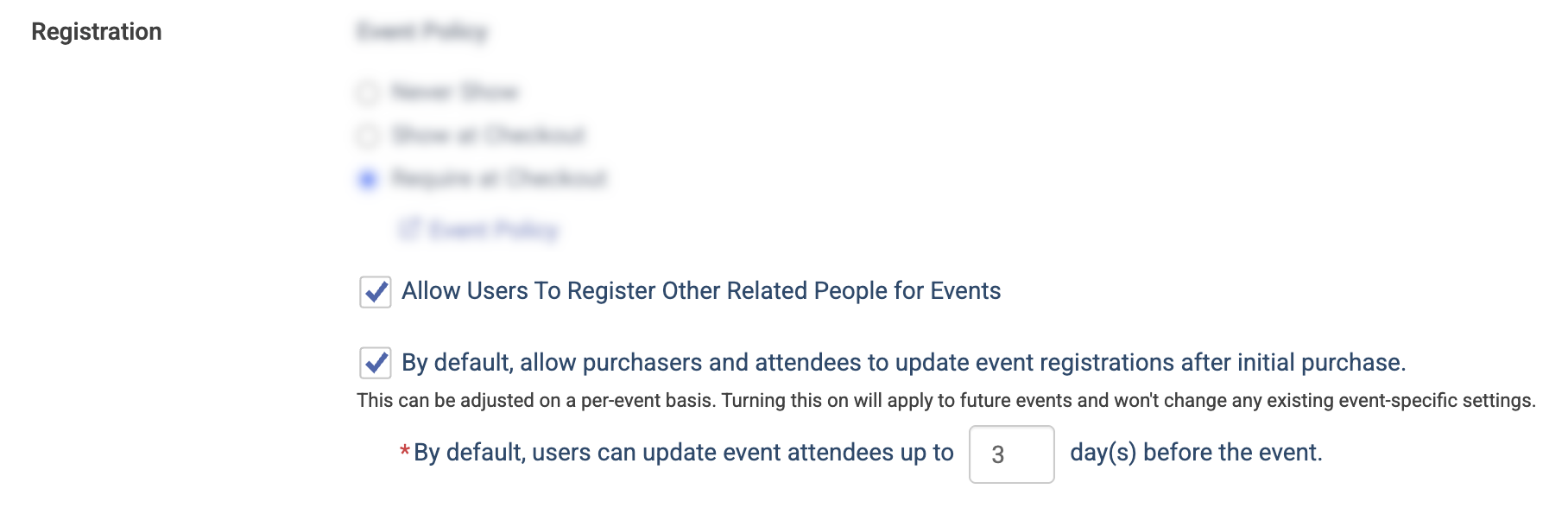
💡 Tip: This setting is only available if Allow users to register other related people for events is also enabled in Association Settings. If you don't see it, check that setting first.
Step 2: Enable Registration Edits for a Specific Event
Open the event you’d like to allow edits on and navigate to the Settings tab
Locate the Registration Edits section and the toggle to allow attendee edits
Set the Users Can Update Event Attendee Until date and time
Click Save

💡 Tip: Allow yourself enough buffer time before the event begins for preparation and final attendee review, especially for things like printing name badges or giving final details to vendors.
How Members Edit Their Registration
If registration edits are enabled and the edit window is still open, attendees will see an Edit Registration option from the My Events section in the Member Compass.
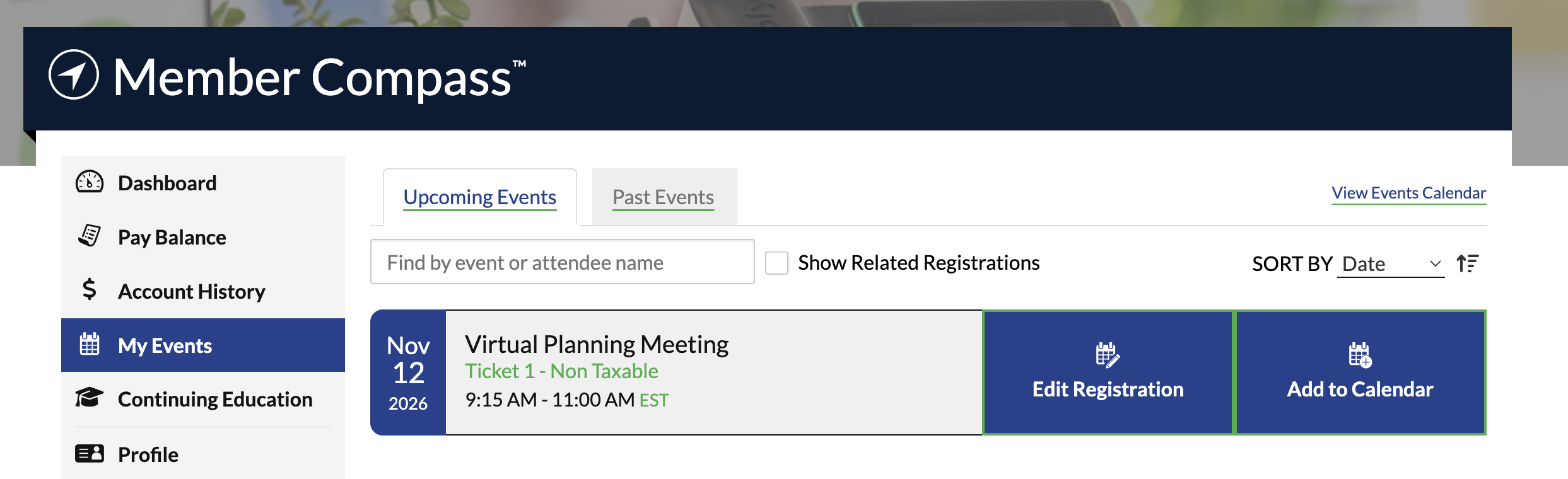
From the Edit Registration form, they can:
Update attendee name and contact information
Update custom field responses tied to their ticket(s)
Review all tickets tied to the attendee within the same event.

Filling In A TBD Attendee
If any attendees are marked as TBD, purchasers will also see a Missing Attendee Information section at the top of My Events prompting them to complete the missing details. Click Edit Registration to open the same edit form.
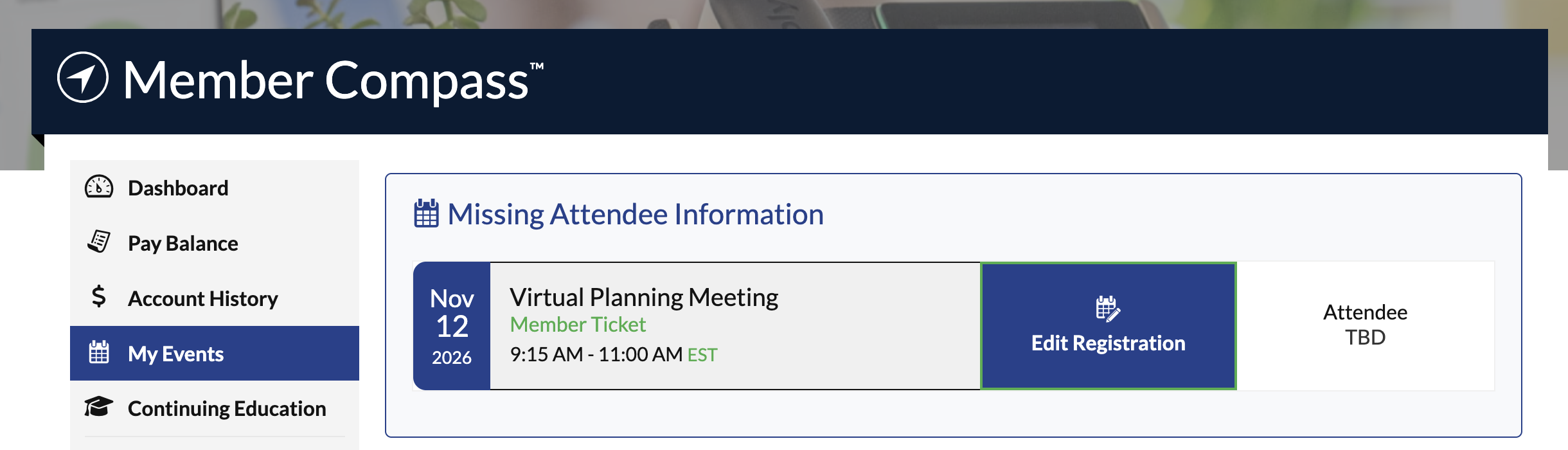
The section only appears while the edit window is open. Once the deadline passes, it no longer displays.
What Members See When Edits Are Not Available
Members will see different messages on their registrations depending on the event's settings:
Within the edit window: "Edit Attendee Details Until [date/time] [timezone]" — clicking opens the edit form
After the edit window closes: "Edits are No Longer Allowed for This Event."
Edit not enabled for this event: "Edits are Not Allowed for This Event."
Event has ended: Edits are never available once an event has passed.
Who Can Make Edits
Both the purchaser and the attendee can edit a registration. Attendee changes follow the same family tree access rules as initial registration, only people within the purchaser's family tree can be assigned as attendees.
Ticket eligibility rules also apply. If the new attendee is not eligible for a ticket due to access settings or other restrictions, the system will validate and prevent the update.
📌 Important Note
The default edit window is 3 days before the event starts — and if you change an event's start date or time, the deadline adjusts automatically to stay relative to the new start time.
If your association was using Novi before this feature released, the setting defaults to off. New associations default to on. Enable it manually in Association Settings to use it.
Both the purchaser and the attendee can edit a registration — not just the original ticket buyer.
Edits are not available once an event has ended, or once a virtual event has been joined by the attendee.
Edits made through this feature do not affect transactions. If a registration change involves a financial adjustment, an admin will need to handle that separately.
Related Articles
Keywords: edit registration, update attendee, change attendee name, edit event attendee, TBD attendee, fill in attendee, Member Compass registration, registration edit window, frontend registration edit, registration changes