Getting Started with Amplify
Last updated: September 9, 2026
This article covers Amplify™ by Novi AMS, your intelligent AI layer woven directly into your Novi database, shaped by CAEs and association experts. Explore what each tool does and how to manage billing.
What is Amplify?
Amplify is purpose-built AI that understands your members, your data, and the way associations actually operate, designed specifically for associations, with input from Certified Association Executives (CAEs) and other association experts. It takes the data already in Novi and turns it into clearer decisions, earlier warnings, and work that keeps moving, without adding anything to your team's workload.
Predict
Know What's Coming. Member Health® identifies members needing attention before renewal.
Ask
Conversation with Your Data. Novi Navigator™ lets staff ask questions and get clear answers.
Connect
Bring Novi to Any AI Tool. Novi Connect™ links your data to Claude, ChatGPT, and more via MCP.
Act
Turn Insights into Action. Novi Actions™ brings agentic AI to turn limited time into progress.
Amplify Settings
To navigate to Amplify settings and opt in or out of AI features:
Click the Gear Icon at the top right of your admin side of the database.
Select Amplify Settings under the Settings section.

Novi Navigator
Novi Navigator is an AI assistant built directly into Novi AMS. Ask questions about members, events, and data in plain language, with no reports or database queries required. → Learn More: Explore Your Data with Novi Navigator
To enable:
On the Overview tab, find the Novi Navigator section.
Turn on the Enable Novi Navigator switch.

Novi Connect
Novi Connect is an MCP connection that brings your association's data, with full Novi Amplify context, into AI tools your team already uses, such as Claude and ChatGPT.
To enable:
On the Overview tab, find the Novi Connect MCP section.
Turn on the Enable switch.
Add a new MCP connection in your Third-Party application → Learn More: Using Novi AMS MCP
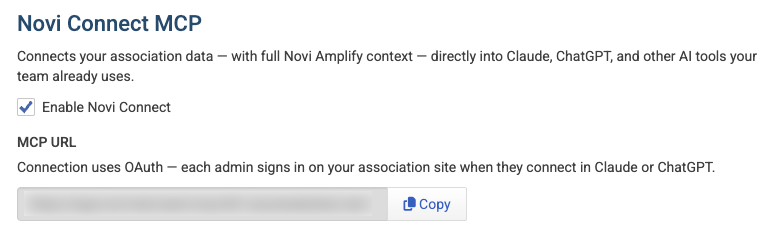
Important Note: Turning on Novi Connect doesn't grant every admin instant access in your third-party tools. Each admin who wants to use it completes their own sign-in the first time they connect.
How Novi Amplify Billing Works
Novi Amplify runs on a prepaid wallet.
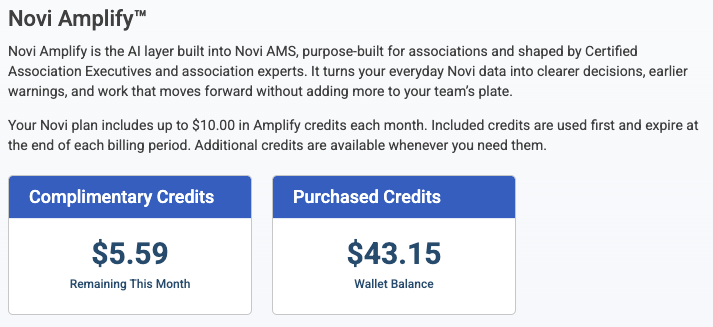
Your Novi plan includes up to $10.00 in Amplify credits each month. Included credits are used first and expire at the end of each billing period.
You can optionally add additional funds to your association's wallet that are deducted as staff use Novi Navigator or Novi Connect. Both tools draw from the same balance, so usage from either one counts against the same total.
Your Current Balance (complimentary credits and purchased credits) appears in your Amplify dashboard.
Viewing Your Billing History
You can view a complete list of your association's billing history from the Billing History Tab. This includes:
Date
Description
User
Type of Usage or Credit
Amount
Complimentary Balance Remaining
Wallet Balance Remaining
Use the Excel icon to download the table, or the Gear icon to choose which columns are visible and how many rows show per page.

Managing your payment method, billing alerts, and auto-refill
The Billing Settings tab holds your payment method, billing alert threshold, and auto-refill preferences.
Billing Settings are shared teamwide. Each person does not need to manage their own wallet or credits.
📌 Important Note: Your organization is responsible for monitoring Novi Amplify usage. Set billing limits to control costs.

Adding or Updating Your Payment Method
Navigate to Billing Settings.
In the Payment Method card, select Update Card.
Enter your card details in the window that opens, and confirm.
To remove a stored card, select Remove in the Payment Method card.

Setting a Billing Alert
Navigate to Billing Settings.
Under Limits & Alerts, enter a dollar amount in Alert me if my monthly bill exceeds. The default is $100.
Add one or more addresses in Send email to.
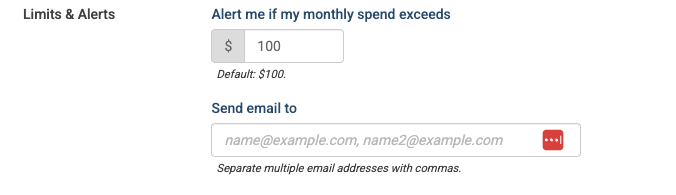
📌 Important Note: The email to alert you when your monthly bill exceeds the set amount will only get sent once per month. If the amount is exceeded multiple times in that time span, only one alert email will be sent.
Adding Funds Manually
Instead of automatically reloading your wallet, you can also add funds manually on a one-off basis.
Navigate to Billing Settings.
Under Add funds, select Add Funds.
Confirm the amount using your saved payment method.

Turning on Auto-Refill to Add Funds Automatically
Auto-refill adds funds to your wallet automatically once your balance drops below a threshold you set, so Novi Navigator and Novi Connect don't switch to read-only.
Navigate to Billing Settings.
Turn on Auto-Refill Enabled.
Enter the balance that should trigger a refill in Refill when the balance falls below. The default is $10.
Choose how much each refill should add: $10, $25, $50, $100, or Custom for a different amount.

💡 Tip: If usage varies month to month, auto-refill keeps Novi Navigator and Novi Connect running without you having to check the balance manually.
Novi Amplify FAQ
What are Complimentary Credits?
Your Novi plan includes up to a $10 monthly complimentary credit to use in Novi Amplify. Complimentary credits are used first before purchased credits and expire at the end of each billing period.
Why can't I access the Amplify Settings?
Amplify Settings is available for users with Association Admins or Association Admin with Special Accounting Privileges roles. If you need access to these settings, we recommend contacting one of your association admins.
Where can I get a copy of my transaction when I add funds or funds are auto-refilled?
A sales receipt is created when an admin manually adds or auto-refills funds to Novi Amplify. The sales receipts can be viewed from Novi HQ in the Member Compass> Account History tab for anyone assigned the Primary Contacts, Billing Contacts, and Management Access role for the association.
Why is my balance showing negative?
Because a single question or task can occasionally cost slightly more than what's left in the wallet, your balance can briefly go a small amount negative before the next top-up brings it back above zero.
Why can't I send new messages to Novi Navigator?
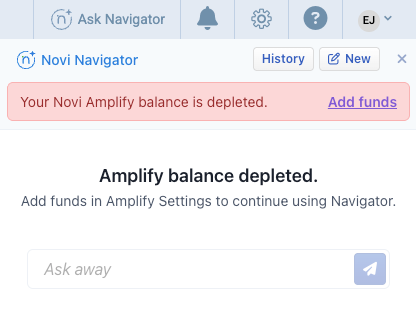
If the wallet balance reaches zero and auto-refill is NOT turned on, Novi Navigator switches to read-only, where staff can view past conversations but can't send new messages until funds are added.
Keywords: AI billing, Novi wallet, Novi Navigator, Novi MCP, Connect MCP, Connect Novi Navigator, auto refill, auto-refill, add funds, monthly billing