How to Receive a Payment in Novi AMS
Last updated: September 15, 2026
Receiving a payment on an invoice in the backend of your website.
There are a few different places within the backend of Novi where you can receive a payment:
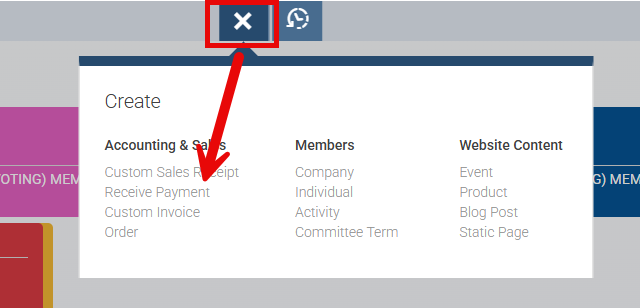
Quick Create
The Quick Create button (looks like a plus sign until you click it and it turns into an "X") in the top center, accessible almost everywhere on the backend.
Transactions List
There are multiple places within the Transactions list where you can receive a payment against one or multiple invoices.
Receive Payment Button
Go to Accounting > Transactions > click the Receive Payment button (top right)

Action Column
Go to Accounting > Transactions > find the invoice in the list > click Receive Payment in the Action column underneath the caret symbol.
This is applicable in both the Accounting > Transactions list and within the Accounting tab for a specific member record.

Batch Actions button
Select one or multiple open invoices from the transactions list
Click Batch Actions to apply a payment to all selected invoices
This should only be used when the same payment method is being applied to all selected invoices.

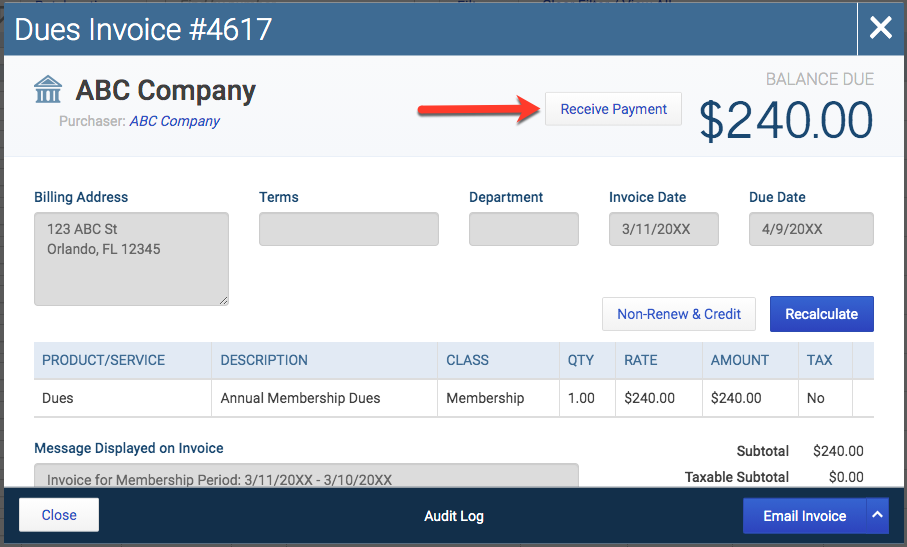
Invoice Modal
When viewing any open invoice, you can click the Receive Payment button in the top right next to the Balance Due.
This is applicable anywhere on the website where you can view an invoice, including the Transactions list, on a specific record, from an event attendee list, etc.
How To Receive Payment
Once you have the Receive Payment modal open, fill out the available fields.
Some of the options above will open a blank Receive Payment screen, while others will open the screen with the particular customer and invoice number already selected.
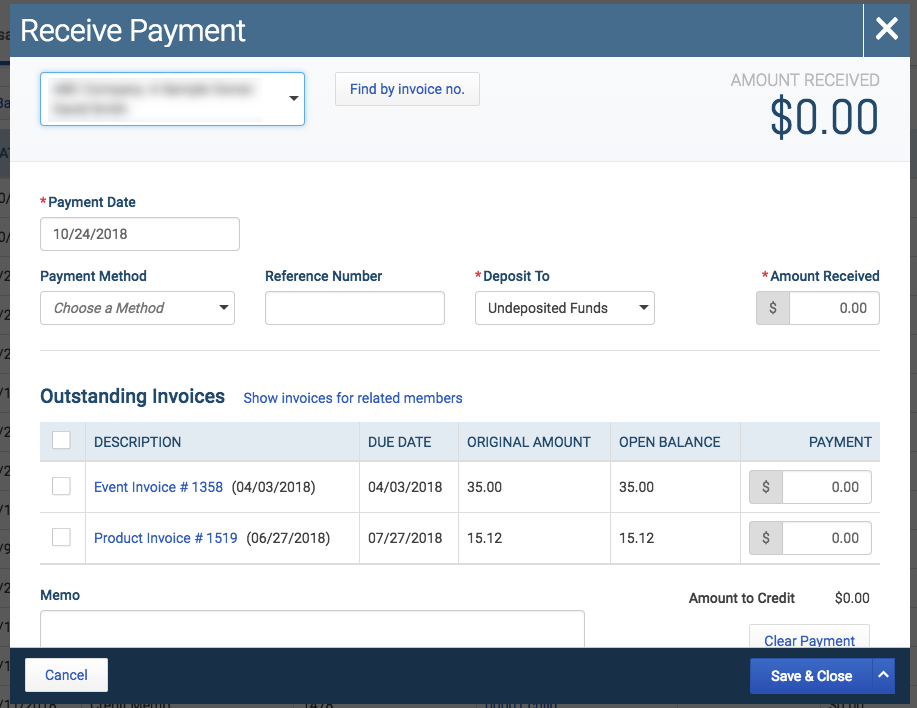
Select your customer in the drop-down, or click the button to Find by Invoice No.
The Payment Date is automatically set to the current date, but you can edit this if needed.
Select the Payment Method - cash, check, card, etc.
Note: Available payment methods pull from the payment methods that are set up in your QuickBooks Online account (learn more). If you would like to delete a payment method you can click this link to read the instructions on how to do so: QuickBooks Online Help article
If receiving payment by credit card, the system will ask for credit card information.
Feel free to include a Reference Number (optional).
The Deposit To field will automatically set to Undeposited Funds. Depending on your QuickBooks, this may say Payments to Deposit. Check out this article to learn why we highly recommend that you use Undeposited Funds.
Enter the Amount Received.
Select the Invoice(s) to apply the payment to (if not already done) by checking the boxes in the first column.
Enter a Memo (optional).
Choose Save & Close or Save & Add New.
When receiving multiple payments, if you select Save & Add New, Novi will remember the Payment Method and Date from the first payment when the modal refreshes.
Note: If you are receiving a payment for multiple invoices, please review this article for further instructions: Receive Payment: Novi AMS vs QuickBooks