Novi Pay: Life Cycle of a Payment
Last updated: October 12, 2026
From the initial credit card purchase to the deposit to your bank, Novi Pay® automates receiving, processing, batching, and depositing, and provides detailed payment information directly in Novi.
A Purchase is Made using Novi Pay
When a purchase is made on your website, from the frontend or backend, using Novi Pay, the payment will be automatically recorded in QuickBooks Online and Novi. A Sales Receipt will be created, or a Payment will be automatically received against the open invoice. Novi Pay automatically adds these entries to keep your books in sync with your credit card processing and bank statements.
→ Learn More: 📄 QuickBooks Online: Payment vs. Sales Receipt
The Payment/Sales Receipt will be visible in:
Accounting > Transactions list view
Accounting tab of the member's record
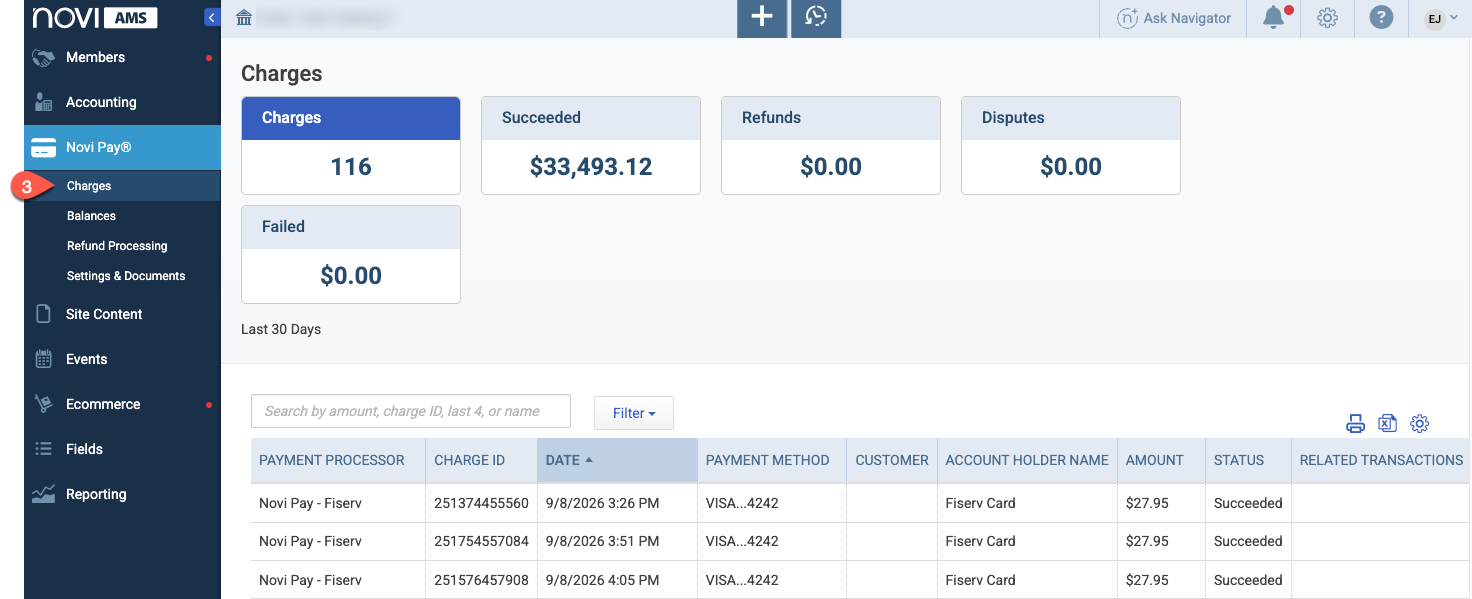
Novi Pay > Charges list view


Batching & Depositing Novi Pay Payments in QuickBooks
Like many payment processors, Novi Pay automatically batches payments together and deposits the funds into your account.
Automatic Batching in QuickBooks:
Novi Pay collects all the payments made to your association throughout the day and "batches" them into a single deposit.
When the day's payments are batched, the processed payments are temporarily located inside of the Bank Deposit screen in QuickBooks (also known as Undeposited Funds asset account) until they are deposited. The timeline from receiving payment to depositing in your bank account is typically 1 day after the payment clears. For credit card, this is usually next day. ACH can take 2 - 4 business days.
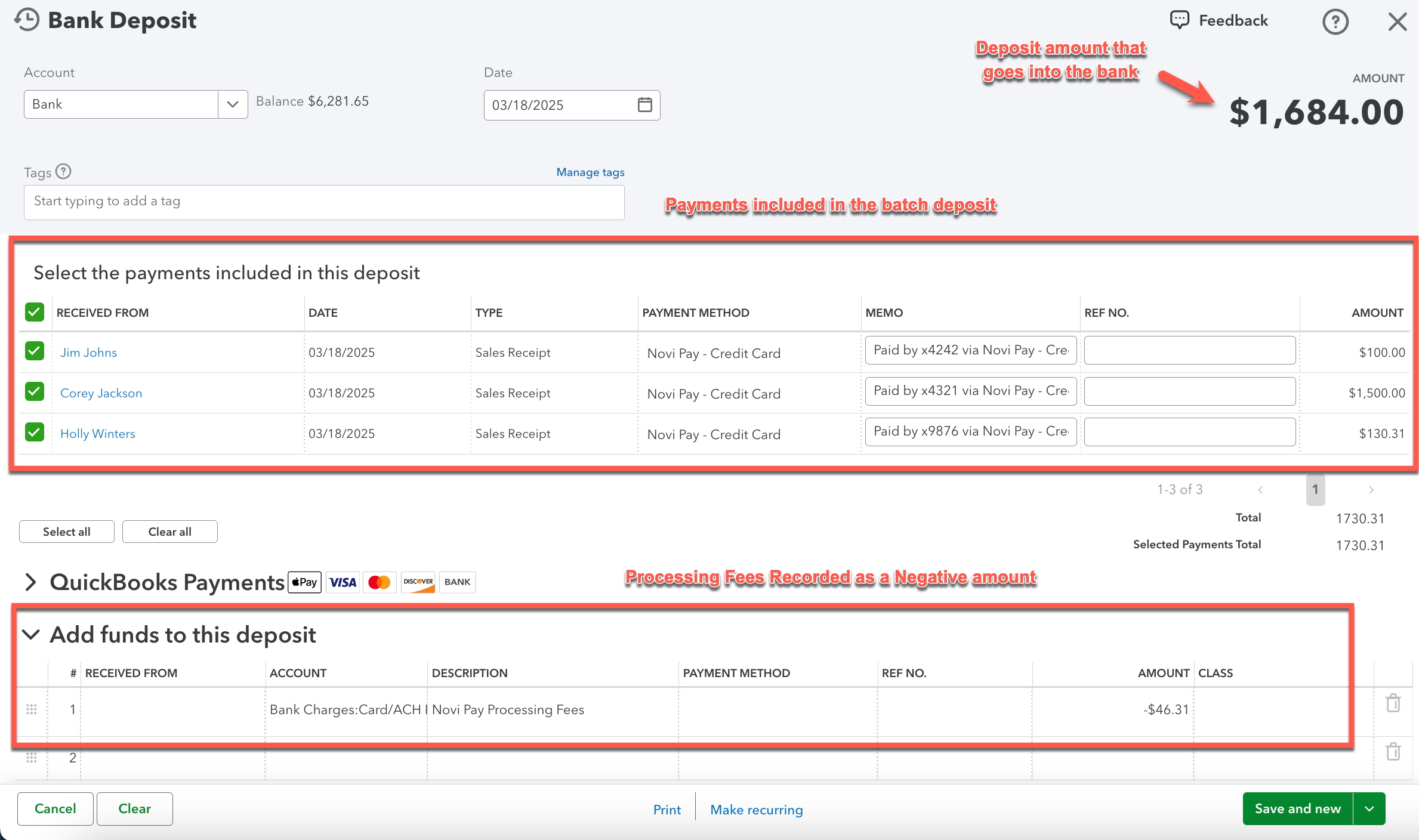
The Bank Deposit screen will include:
The payments included in the deposit
The processing fees recorded as a negative amount
The total deposit amount to the bank
The processing fees transactions are recorded directly on the deposit to match the deposited amount to your bank account.
ACH fees aren't included on the deposit. They're recorded as a separate expense each month.
→ Learn More: 📄 Novi Pay: Settings & Documents
Automatic Deposits to Bank
When Novi Pay makes the deposit to your bank account, three things happen automatically:
The Bank Deposit recorded to Undeposited Funds moves to your bank account in QuickBooks Online, according to the deposit date.
The transaction fee is recorded to the account based on your Novi Pay Settings.
Association Admins with Special Accounting Privileges receive an email that shows the payments that have been deposited. This is an optional email notification based on your Association Settings.
Novi Pay Balances List View
Admins can see more details about Payouts and Top-Ups* on the Novi Pay Balances list view. Using this list, you can review the deposit details or retry a failed deposit.
With Novi Pay - Fiserv, ACH processing fees also appear here once a month as their own ACH Fees row on the All Activity tab. This row is the monthly expense Novi creates in QuickBooks Online for your ACH fees.
→ Learn More: Novi Pay: Balances

Important Note: Top-ups are specific to our legacy Novi Pay Processor by Stripe and may not apply to you if you are new to Novi Pay after January 1, 2026.
Troubleshooting
If there is a failure to deposit the batch, Novi sends an email to notify the admin. This email will typically state that a "deposit reconciliation failed".

In most cases, payout issues should be handled by reviewing and resolving the status message shown in Novi Pay and then "retrying" the automated deposit.
If you’re unable to resolve the error, you can manually record the payout in QuickBooks Online (QBO) and reconcile it in Novi.
→ Learn More: 📄 How to Manually Resolve a Failed Novi Pay Deposit in QuickBooks Online
If you need additional support with a Novi Pay Payment, you can reach out to Novi through Intercom (the "Blue Bubble") or by emailing help@noviams.com.
Payouts
Novi Pay will automatically deposit your payouts in your Deposit Account.
→ Learn More: 📄 Novi Pay: Settings & Documents
Related Articles: