Monitoring Event Financial Performance
Last updated: October 6, 2026
Once your event is live and registration is open, Novi gives you a real-time performance snapshot directly from the event backend; No need to navigate back to the Events list. This article explains where to find ticket sales, discounts, net revenue, budget variance, and related financial details, plus why those numbers may differ from QuickBooks Online.
When you open an event on the backend, the stage at the top of the page displays five key metrics:
Net Revenue – Estimated revenue based on ticket sales and discounts applied. Tax is not included in revenue, even after refunds and cancellations.
Tickets Sold – Total tickets sold across all ticket types
Attendees – Number of named attendees registered
Companies – Number of companies represented in registrations
Capacity – Total capacity limit, if one has been set

Tickets Tab: Revenue by Ticket Type
The Tickets tab inside an event gives you a more granular view of revenue broken down by individual ticket type. Three optional revenue columns are available. Enable them using the column settings gear icon on the Tickets tab:
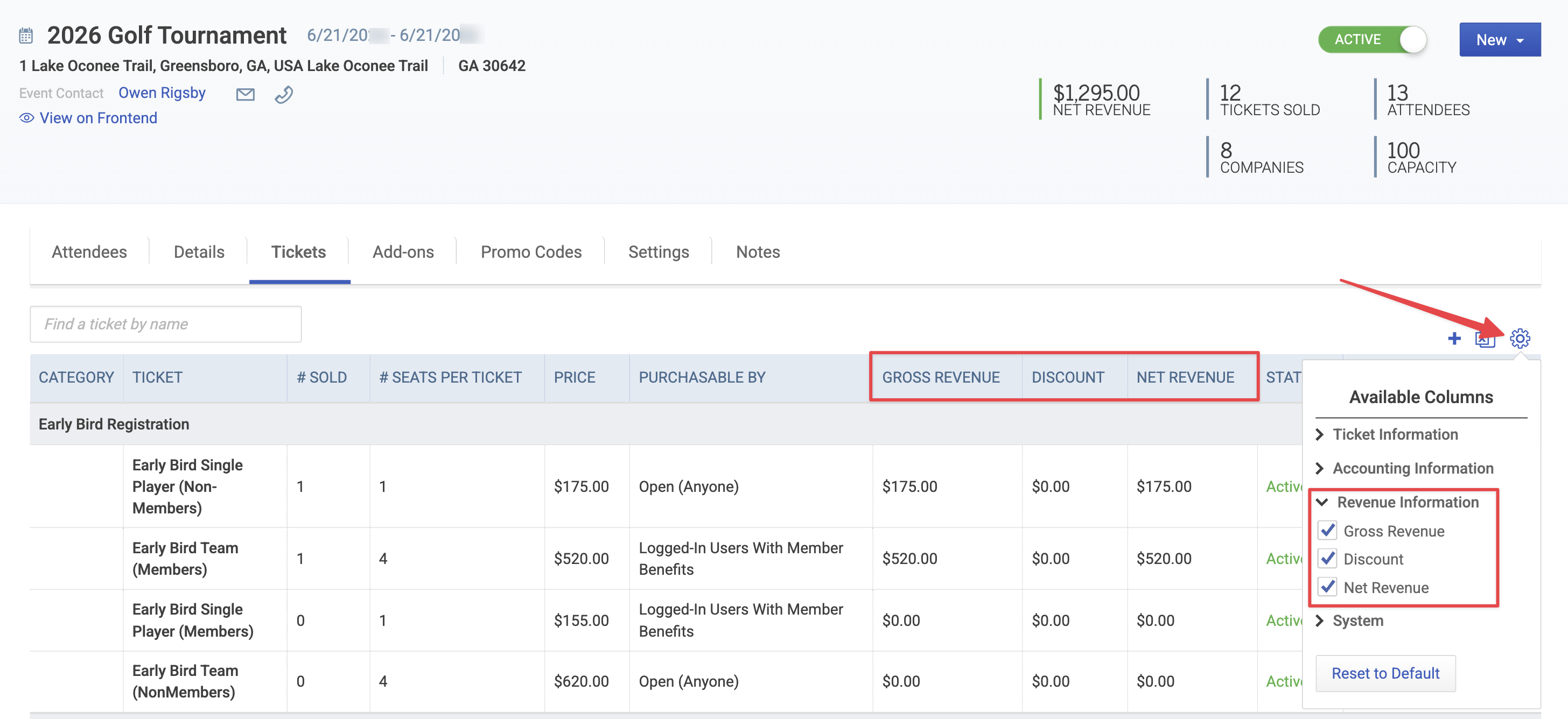
Column | What it Shows |
Gross Revenue | Total revenue from tickets sold at full price, before any discounts are applied |
Discount | Total discount amount applied via promo codes for that ticket type |
Net Revenue | Gross Revenue minus Discounts (Gross – Discount = Net) |
Tip: These columns are optional and hidden by default. Click the gear icon on the Tickets tab to enable them. Your column preferences are saved per event within your own account.
Events List View: Revenue Columns
The Events List View (found at Navigation Menu > Events > Events) includes the following optional revenue columns.
Gross Revenue – Total ticket sales before discounts.
Discount optional – Total promo code discounts applied across the event.
Net Revenue optional – Gross Revenue minus Discounts. This is the same value shown in the event stage.
$ Budgeted – The revenue target set in the Budgeted Revenue field on the event's Details tab. Displays $0.00 if no budget has been entered.
$ Variance – Net Revenue minus $ Budgeted. A positive number means the event is outperforming its budget; a negative number means it's tracking below.

Tip: To get meaningful data in the $ Budgeted and $ Variance columns, make sure to enter a Budgeted Revenue amount on the event's Details tab when setting up your event. Learn how to create and configure an event.
Net Revenue: How It's Calculated
Net Revenue is calculated as:
Gross Revenue (tickets sold) – Discounts (promo codes applied) = Net Revenue (estimated)
$ Variance is then calculated as:
Net Revenue – $ Budgeted = $ Variance
A negative $ Variance means Net Revenue is below your budgeted target. A positive $ Variance means the event is tracking ahead of budget.
Why Net Revenue in Novi May Differ from QuickBooks Online
The Net Revenue shown in Novi is an estimate based on transaction data recorded within Novi. It does not account for changes made outside of Novi — including adjustments, refunds, or edits made directly in QuickBooks Online. The only way a change is reflected in an event's Net Revenue is if it is made within the event itself in Novi.
Note that while transaction adjustments made in QuickBooks Online may appear on a connected member's record in Novi or in your transactions list, Novi has no way to determine that a given adjustment is connected to a specific event. For that reason, the event page will not reflect it.
Here are the most common reasons the numbers may not match:
Cancellations, refunds, or transaction edits handled in QuickBooks Online
When a registration is cancelled or a refund is processed directly in QuickBooks Online rather than through Novi, Novi has no way of connecting that adjustment back to the event. The same applies to any invoice or sales receipt that is manually edited, voided, or zeroed out on the QuickBooks Online side. This is the most common cause of discrepancies.
Free tickets with paid product add-ons
When a ticket is free but a registrant purchases paid product add-ons during registration, the ticket revenue columns will show $0 – even though a payment was collected. Revenue from product add-ons is tied to the add-on, not the ticket, and is captured in your Ecommerce Sales Report instead.
QuickBooks Online Is Your Source of Financial Truth
Although QuickBooks Online will always serve as your source of financial truth, the revenue data in Novi gives you a quick estimated view of performance without leaving the event. The Net Revenue figure is a useful bellwether of under- or over-performance – not a replacement for your accounting records.
For accurate, finalized revenue data – including refunds, credits, voids, and any transactions modified in QuickBooks Online – always refer to QuickBooks Online.
If you don't have direct access to QuickBooks Online, Novi's Item Sales Report is a useful alternative. It pulls financial data based on the QuickBooks Online items connected to your event tickets and product add-ons, and mirrors what you'd see in the Sales by Product/Service report in QuickBooks Online. This makes it a reliable way to pull event revenue figures without needing QuickBooks Online access directly.
→ Learn More: 📄 Item Sales Report