Setting Up Nested (Dependent) Custom Fields
Last updated: September 6, 2026
Use Nested Custom Fields to only show follow-up fields when they are relevant based on a user's response.
Nested Custom Fields lets you ask smarter, more dynamic questions by showing follow-up fields only when they're relevant based on how a user responds to a previous field. This helps keep member signup, event registration, and product checkout cleaner and easier to complete, while still allowing you to collect the details you need.
For example:
You ask "How did you hear about us?", a member selects "From another member," and a field appears asking for the member name
A member selects “Yes” to “Will you attend the networking dinner?” and a meal preference field appears
An event registrant selects “Bringing a Guest” and additional guest information fields appear
Nested custom fields appear only when triggered, creating a more streamlined and personalized experience.
How Nested Custom Fields Work
Nested fields are tied to an originating (parent) custom field and appear or disappear dynamically when a specific answer is selected. If a user changes or clears a parent answer, any nested fields below it disappear and previously entered values are cleared.
Setup rules:
The parent field must be a Set of Options (drop-down) field
Nesting is limited to one level deep
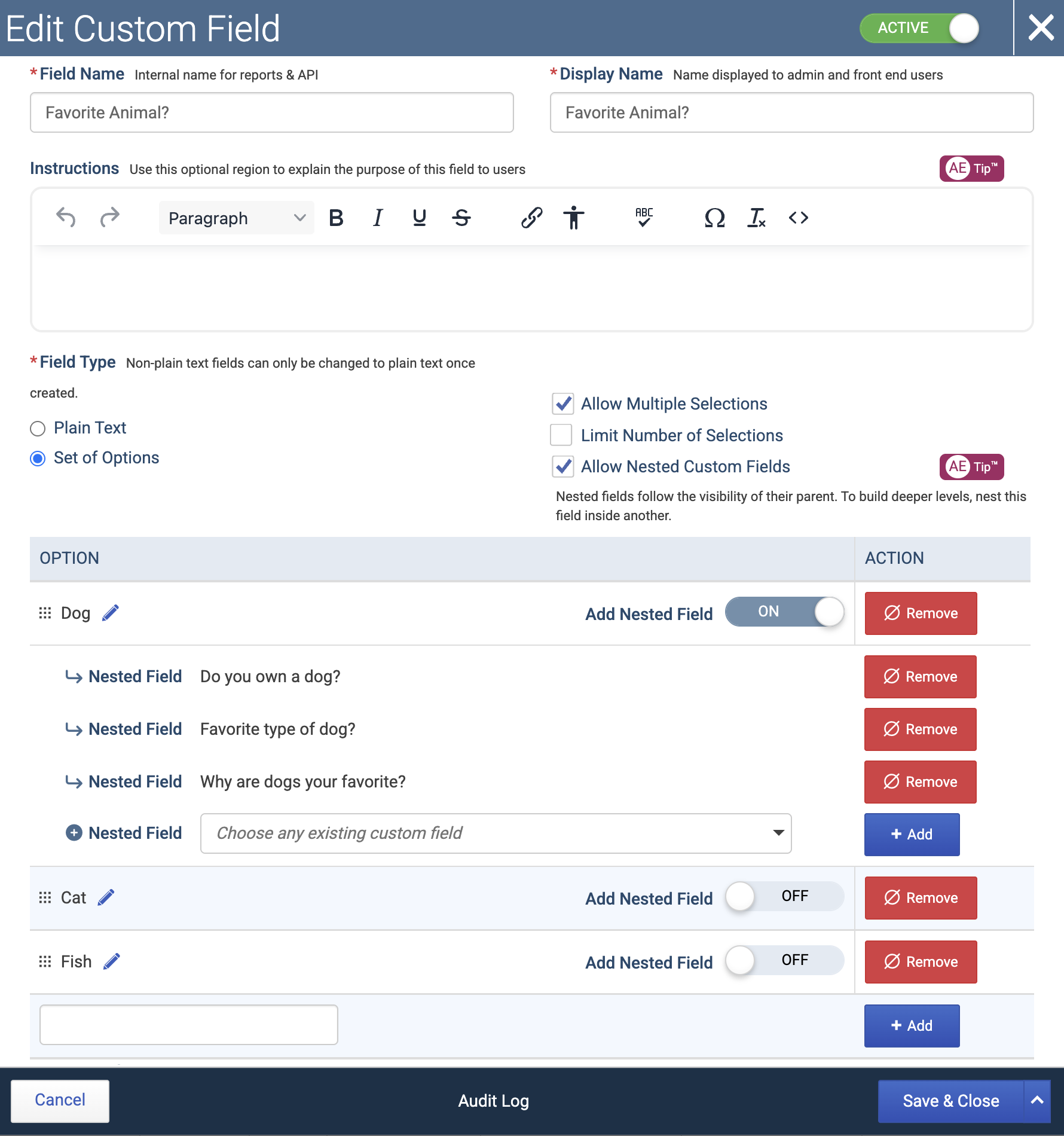
A single parent response can trigger multiple nested fields, but nested fields cannot trigger additional nested fields.
For Example:
From Parent Field A → if “Value 1” is selected → show Nested Field A, Nested Field B, and Nested Field C
You can ask multiple follow-up questions to the original field values, but you cannot, at another level down, link additional follow-up fields based on answers to those nested fields.
Where Nested Custom Fields Work
Nested custom fields can appear in all areas where Set of Options custom fields are supported, including:
Membership registration
Member Compass profile
Event registration and checkout
Ecommerce product purchases
Directory filters and profile pages
Enabling Nested Custom Fields
To enable nesting for a custom field:
Go to Main Menu > Fields > Custom Fields
Create or edit a Set of Options custom field
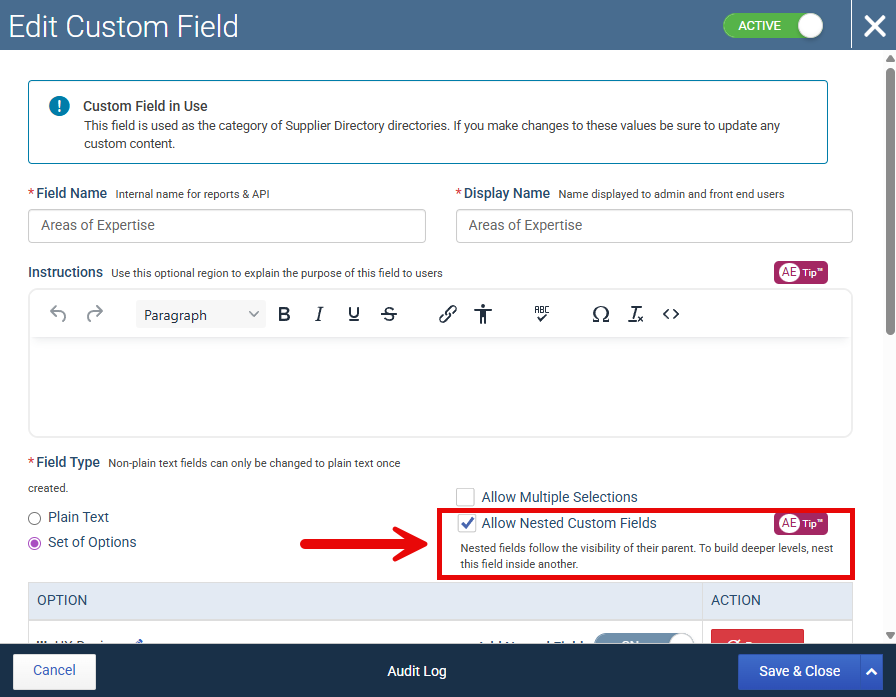
Check Allow Nested Custom Fields
Save the field
Once enabled, you will be able to attach additional fields to specific options.
Adding a Nested Field
After enabling nested fields:
Locate the option that should trigger another question
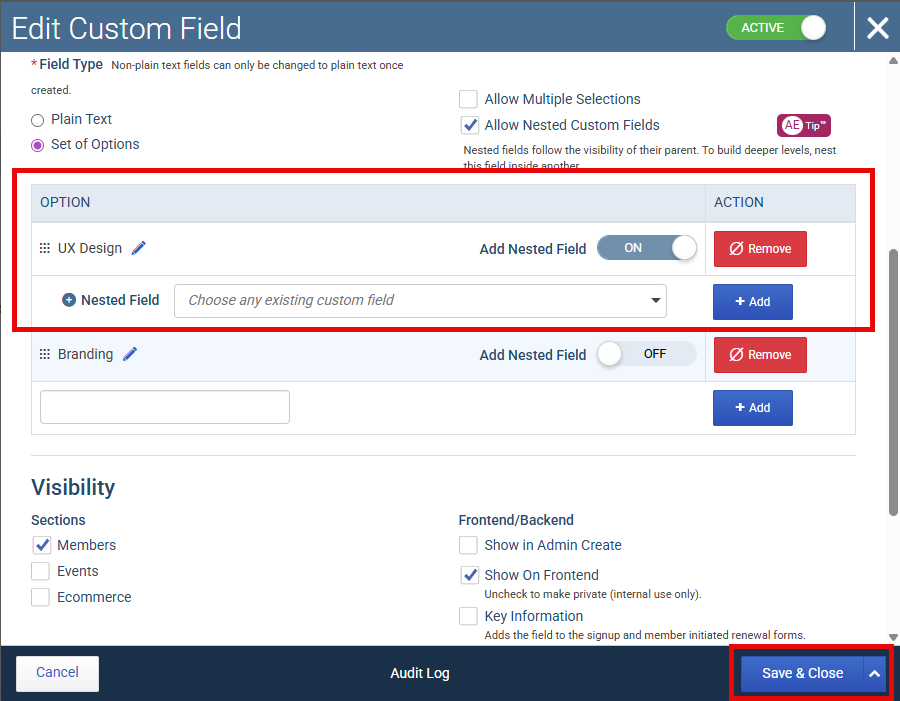
Turn on the Add Nested Field toggle
Choose an existing custom field from the dropdown
Click Add
Click Save & Close
That field will now appear only when the selected option is chosen.
Using Nested Fields on Event Tickets and Ecommerce Products
When adding nested fields to an event ticket or ecommerce product, you only need to add the originating (parent) custom field. The nested fields will appear automatically based on the user's selected value — you do not need to manually add each follow-up field.
Using Nested Fields for Member Signup, Renewal, and Profile Forms
For member signup, renewal, and profile forms, what appears is still governed by your existing custom field settings. Nested logic controls when a field appears — your field visibility settings control whether it appears at all.
For example: if a field is marked as Key Information, that setting determines whether it appears during signup. Nested logic then controls when it displays based on the parent answer.
💡 Tip: If you need to ask the same question in different contexts (for example, once during signup and once at checkout), create separate fields with clear labels rather than reusing the same field.
Using Nested Fields in Directory Filters
Nested fields can also appear in membership directory filters. When a user selects a value in the parent filter, the related nested filters appear automatically — allowing visitors to refine directory searches based on previous selections.
📌 Important Notes
A nested field can only be nested once — under one parent field. It cannot be nested under multiple parent fields simultaneously.
Nested fields behave like any other custom field outside of their nesting context. They can still be used in groups, committees, reports, and other forms.
Related Articles
Keywords: dependent fields, conditional fields, conditional logic, field logic, nested questions, follow-up fields, set of options, custom field nesting, custom field logic