How to Manually Resolve a Failed Novi Pay Deposit in QuickBooks Online
Last updated: September 15, 2026
Received a deposit reconciliation failed notice? Follow these steps to manually record the payout in QuickBooks Online and reconcile it in Novi.
To understand how Novi Pay® payouts and deposits normally work, including specific status messages and their recommended resolutions, see Novi Pay: Balances.
💡 Tip: In most cases, payout issues should be handled by reviewing and resolving the status message shown in Novi Pay and then "retrying" the automated deposit.
If you’re unable to resolve the error, you can use this manual option to record the payout in QuickBooks Online and reconcile it in Novi.
Identifying a Failed Payout
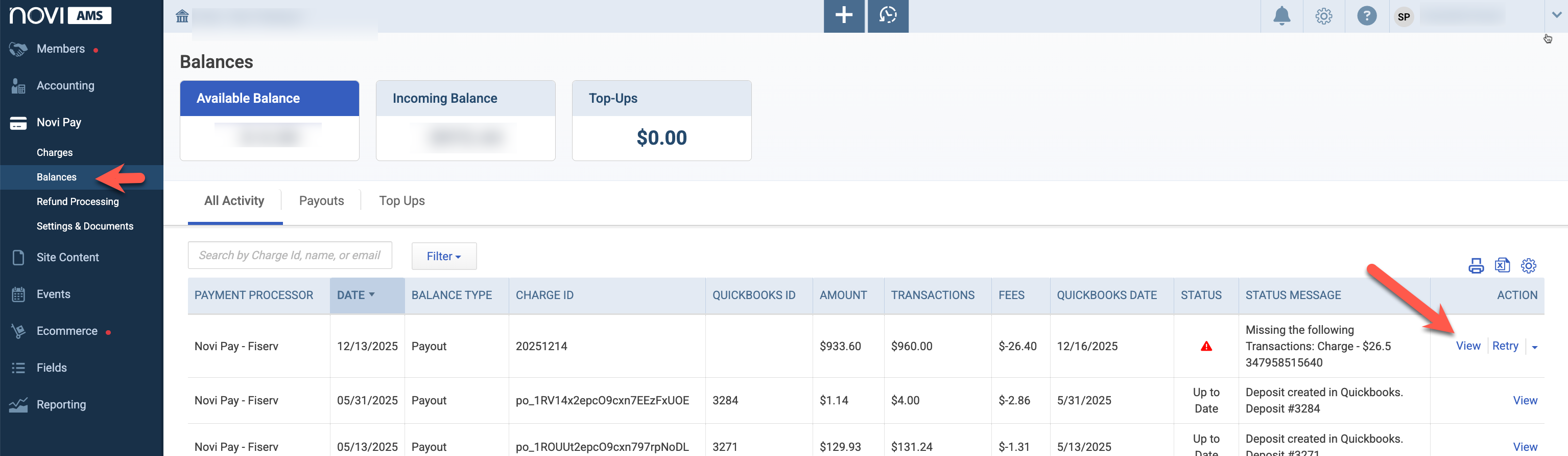
When viewing Novi Pay > Balances in Novi, you may see a payout with a ⚠ symbol in the status column:

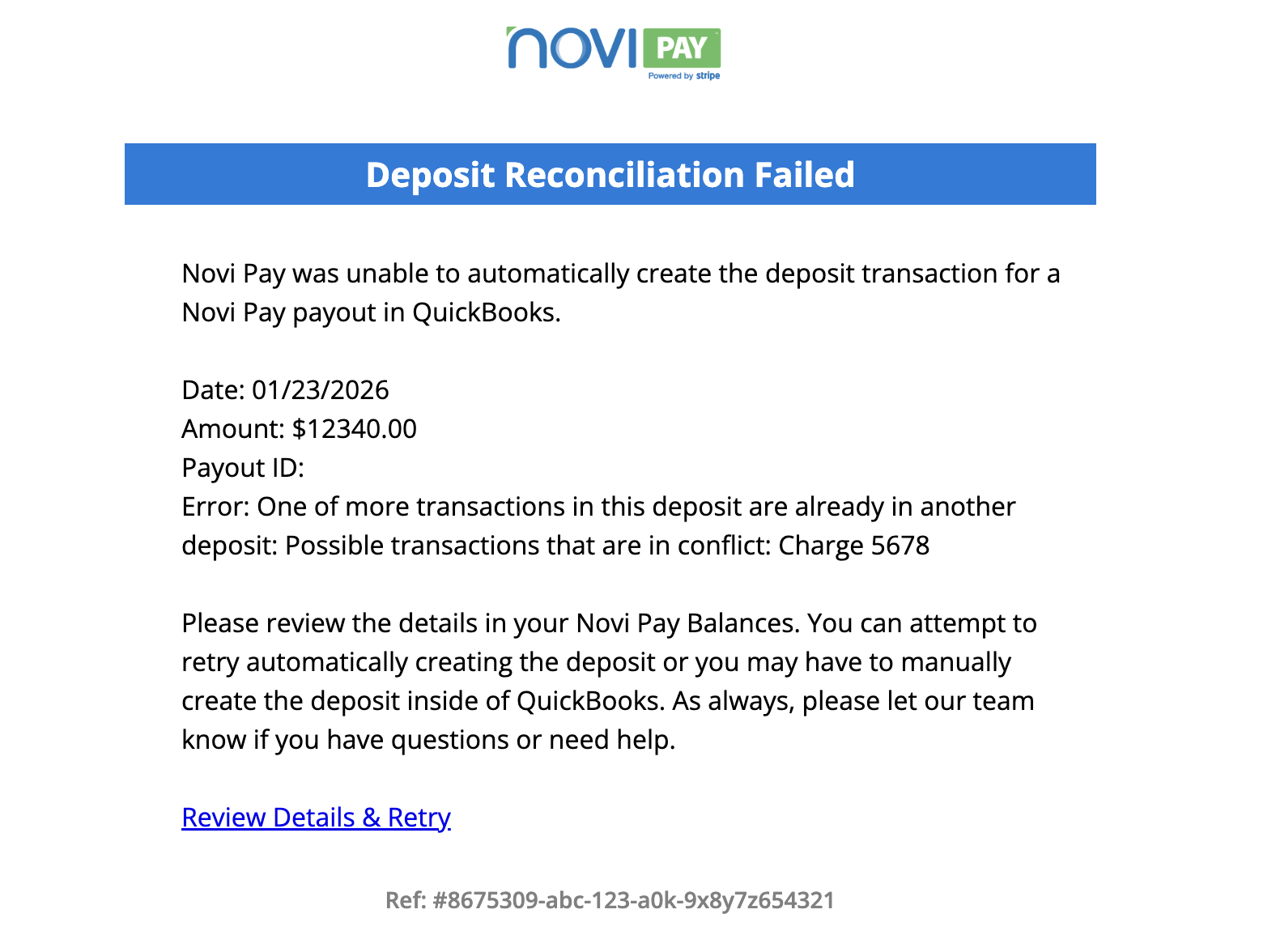
If your settings are configured to send email notifications of a failed deposit reconciliation, then you will also receive an email like this "Deposit Reconciliation Failed" notice:
Manually Create a Bank Deposit in QuickBooks Online
1. View Bank Deposits in QuickBooks Online
Log into QuickBooks Online
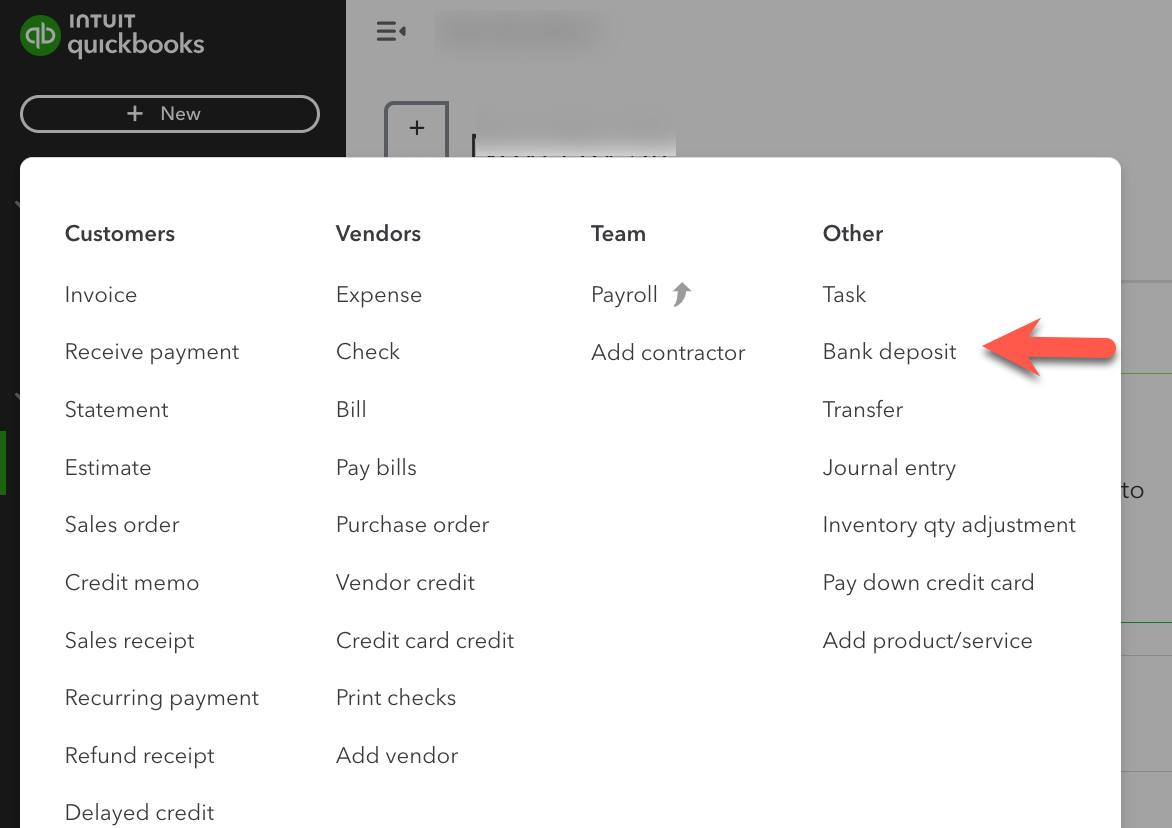
Click the + New button in the top left corner
From the menu, select Bank Deposit
2. Select Account and Date
In the Bank Deposit window, choose the bank account where the payout should be deposited
Note: Your Novi Pay settings have the bank details if you need to verify that information
Enter the date the deposit was made into your bank
3. Add Payments
Under the Select payments included in this deposit section, check the boxes for the customer payments that are part of this payout
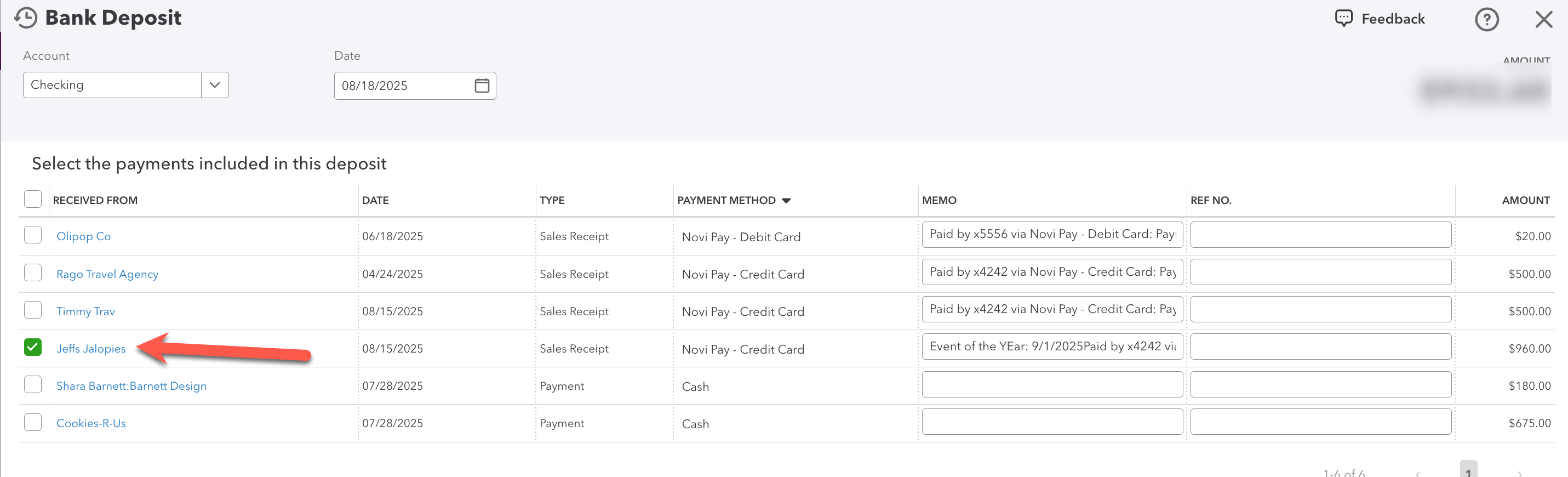
You can get a list of all transactions included in the payout from your Novi Pay Balance tab
4. Add Processing Fees
Scroll down to the Add funds to this deposit section
In the Received From / Account column, select the appropriate account you’ve designated for Novi Pay fees from you Novi Pay settings
Enter the processing fee as a negative amount (e.g., -$26.40)

5. Verify the Total
Review the Deposit total at the top
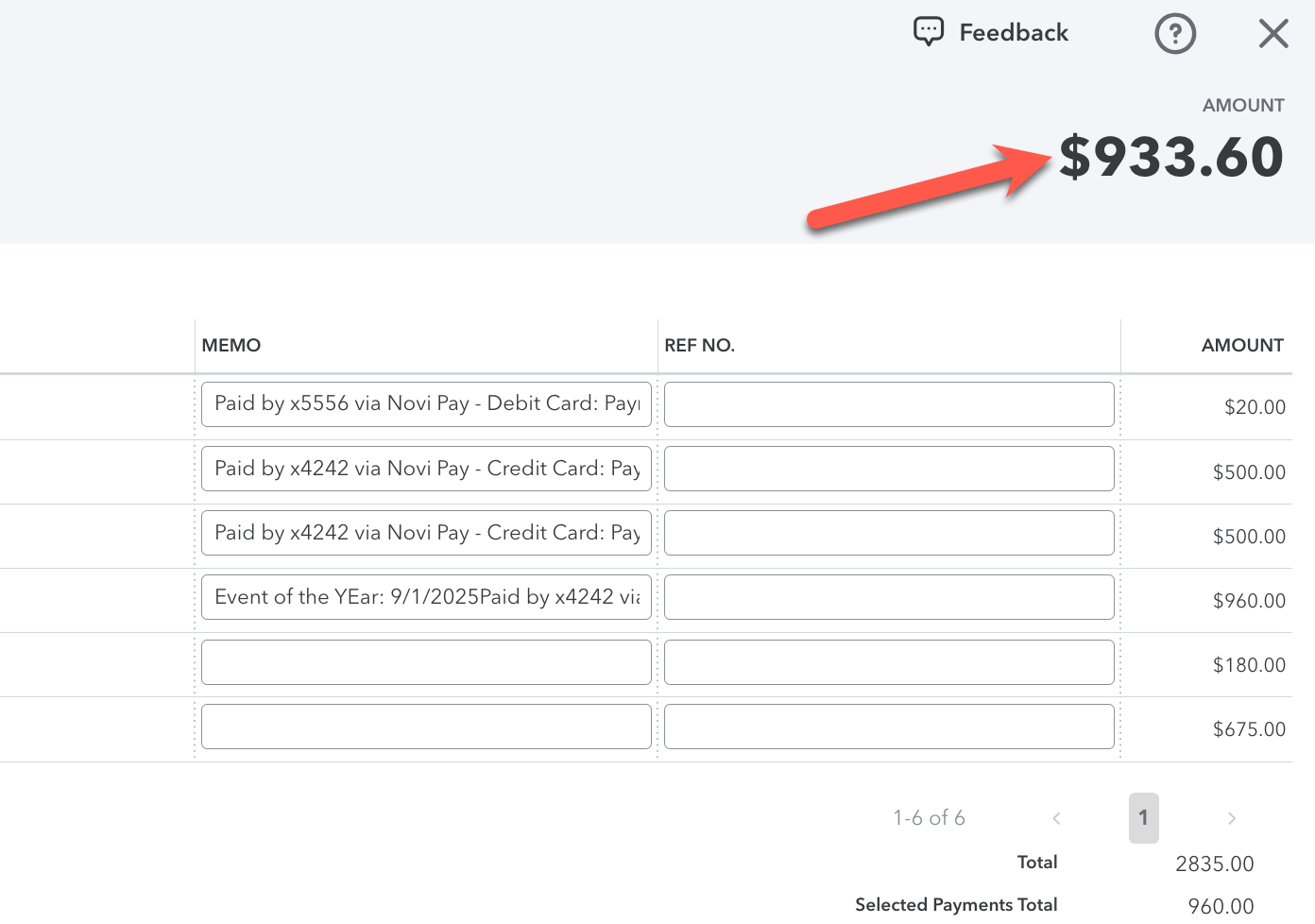
Ensure it matches the payout amount displayed in your Novi Pay Balance tab.
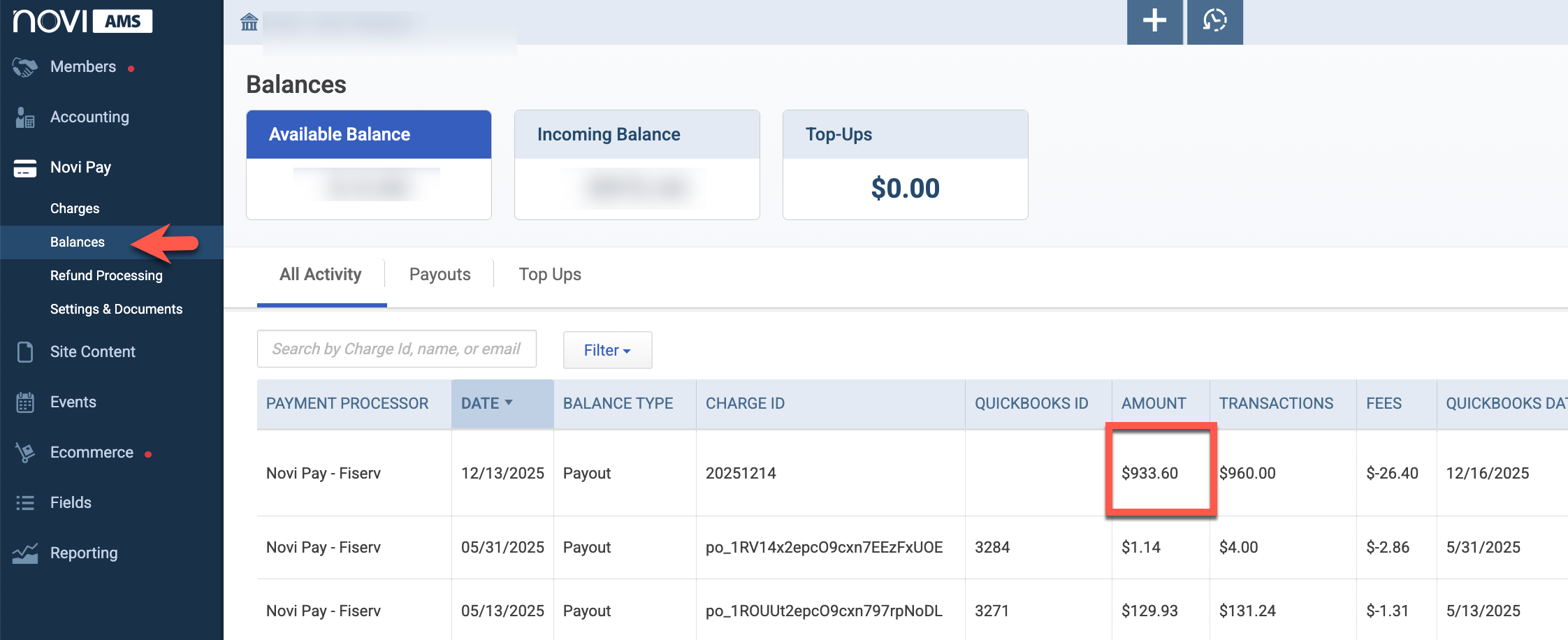
Click Save and Close to finalize the deposit
6. Reconcile Deposit in Novi
The last step is to confirm in Novi that this deposit has been manually reconciled.
Go to the Novi Pay > Balances tab in Novi
Find the payout that failed
Click the dropdown arrow under the Actions column
Select Manually Reconciled
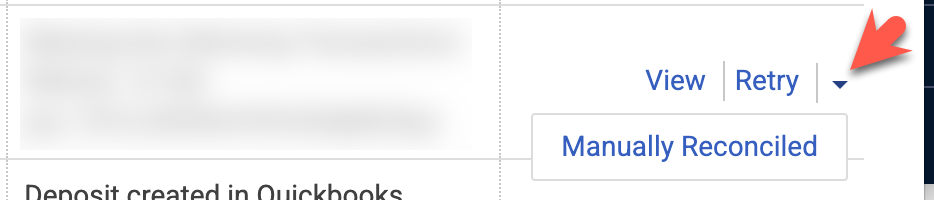
This marks the payout as reconciled and stops any further reminder emails from Novi.
✅ That’s it! Your payout is now recorded in QuickBooks Online and reconciled in Novi.