Novi Pay: Sunsetting Features
Last updated: October 13, 2026
These features were used with an old version of Novi Pay®.
As customers migrate to the new version of Novi Pay, these features will no longer be applicable. This article may be useful for customers still on the old version of Novi Pay and have questions about these specific features.
If you still need to migrate from Novi Pay, powered by Stripe to Novi Pay, powered by Fiserv, you can follow these instructions to get started.
Novi Pay Settings & Documents
Refund Delay Process
Novi Pay allows you to hold Refunds in a pending status while you accrue a positive balance in your Novi Pay account.
For example, your current Novi Pay Available Balance is $50.00 and you issue a refund for $100.00. The Refund Delay Processing will delay issuing the refund based on your settings to give your Novi Pay Available Balance time to accrue more income to cover the total refund. This allows you to avoid a negative balance and a fee to top up your account.

These settings include:
Wait Up to: the number of days to delay (1 - 5 days)
Default: 2 Business Days
Refund Processing Order: the order in which refunds should be processed based on their age or amount.
Default: Oldest to Most Recent
Top-ups
Top-ups cover negative balances that occur when there is no Available Balance to cover fees such as disputes, refunds, or failed ACH payments. When this happens, Novi Pay automatically charges your "top-ups" stored payment method. An Account Debit Fee applies to each top-up.

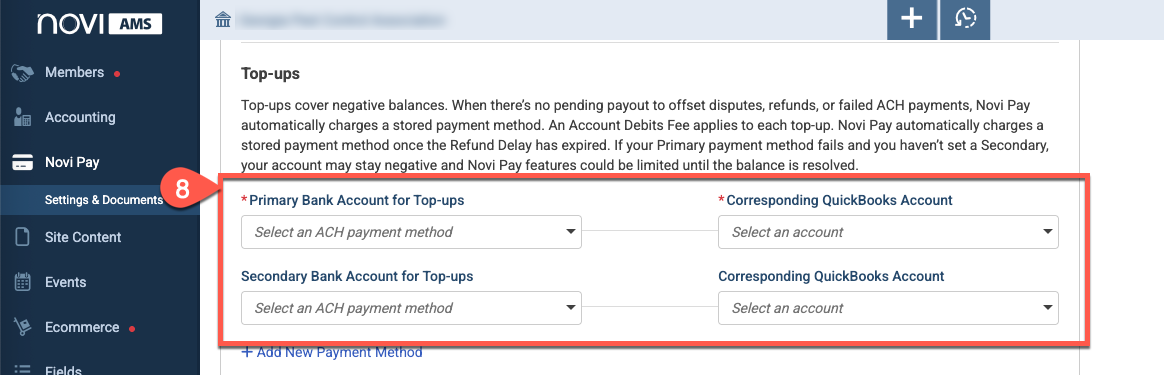
While only a Primary Bank Account is required, a Secondary Bank Account is recommended for Top-ups. If your Primary payment method fails and you haven’t set a Secondary, your account may stay negative and Novi Pay features could be limited until the balance is resolved.
Add/Change a New Payment Method
Click Add New Payment Method
Enter your email, name, and bank account information using Stripes secure connection or manually add your bank account information (see more instructions about manually adding your bank account below)
Click Save in the Add Payment Method modal

4. After saving the new payment method, it will be available to enter as the Primary or Secondary Bank Account.

Note: If you add a Secondary Bank Account for Top-ups, it must be a different bank account than your Primary Bank Account for Top-ups.
Enter Bank Details Manually
Click Add New Payment Method
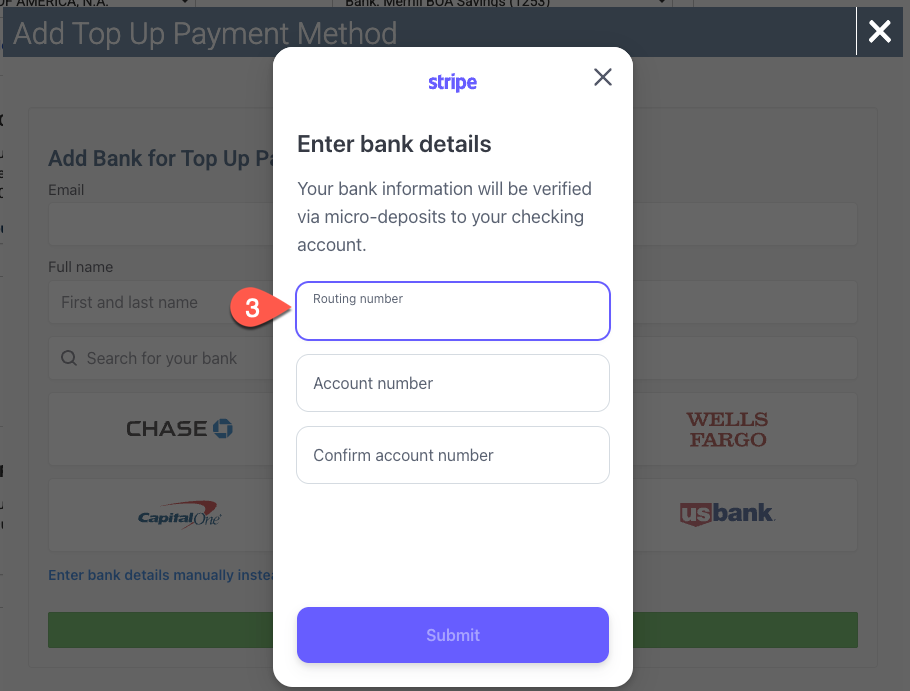
Click Enter bank details manually instead
Enter your Routing Number, Account Number, and Confirm Account Number
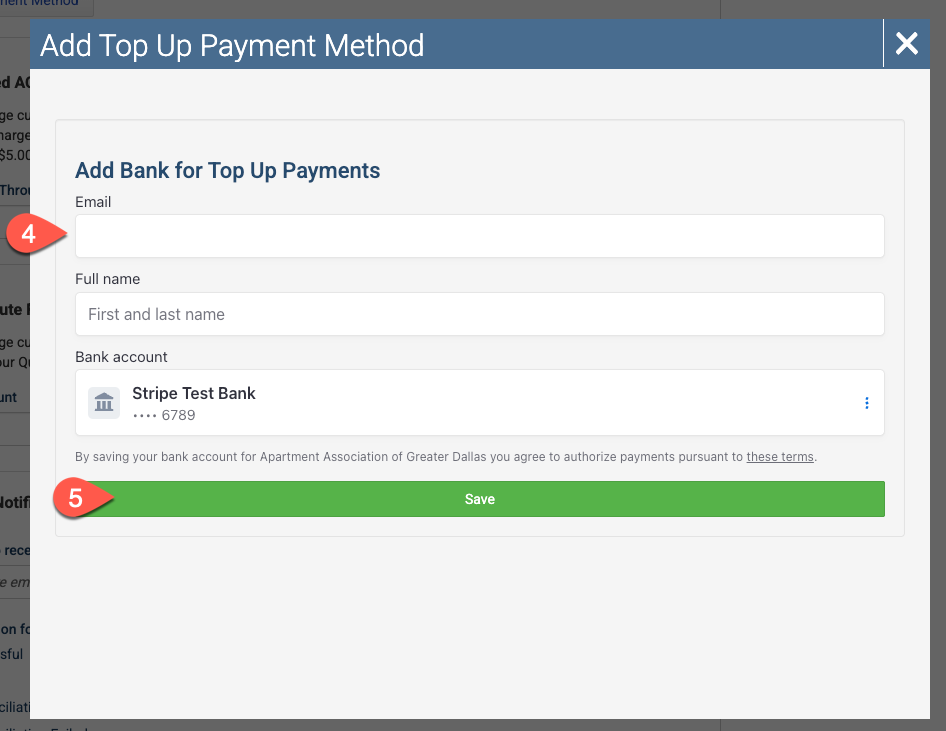
Add your email and name associated with the account
Click Save
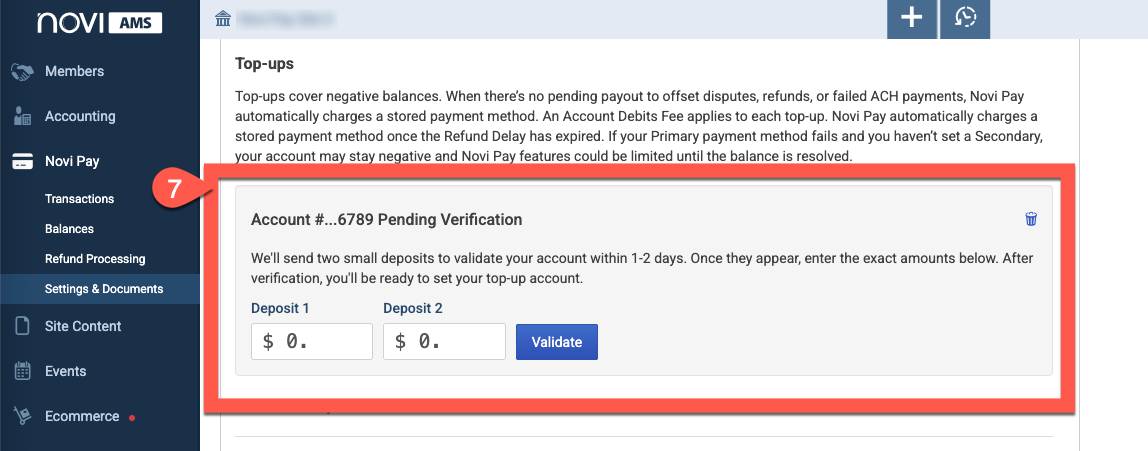
The next step can take up to 1 - 2 days. We'll send a small deposit (literal pennies) to your bank account. Log in to your bank to view the deposit amount.
Input the exact deposit amounts and click Validate.
Once validated, the bank account will now be available as an option in the primary or secondary Bank Account for Top-ups dropdown.

Pass Along Failed ACH Fees to Members & Customers
When an ACH payment from one of your members or customers fails (generally a result of insufficient funds or closed accounts), Novi Pay automatically charges your association a fee for the failed transactions.

This setting allows you to automatically pass the fee along to the member or customer.
You determine:
Failed ACH Pass-Through Amount: how much the member or customer is charged
Failed ACH Pass-Through Item: the QuickBooks Online Item (product/service) that will be used on invoices for the pass-through charge
Failed ACH Pass-Through Class: the QuickBooks Online Class that will be used for the charge
When an ACH payment fails, the Payment transactions will be voided and the original invoice will have a new line item for this Failed ACH fee.
Pass Along Dispute Fees to Members & Customers
When a charge from your association is disputed, Novi Pay automatically charges your association a fee. If the dispute is resolved in favor of the association, this setting allows you to automatically pass the fee along to the member or customer.

You determine:
Dispute Fee Amount: how much the member or customer is charged
Dispute Fee Item: the QuickBooks Online Item (product/service) that will be used to record the fee
Email Notifications
Determine which emails will receive Novi Pay notifications and what notifications they will receive.

Association Admins with Special Accounting Privileges will automatically be added to the list of email addresses to receive notifications. Additional emails can be manually added.
Note: Due to the nature of "Transaction Disputed" emails, you will be unable to uncheck the "Transaction Disputed" checkbox, it is a required notification.
For those who want to setup inbox rules, we've included the subject line for each email notification too.
Notification Options
Payout Successful
Email Subject: Novi Pay - Payout Successful for
Payout Failed
Email Subject: Novi Pay - Payout Failed for
Deposit Reconciliation Successful
Email Subject: Novi Pay - Deposit Reconciliation Successful for
Deposit Reconciliation Failed
Email Subject: Novi Pay - Deposit Reconciliation Failed for
Payment Received
Email Subject: Novi Pay - Payment Received for
Refund Processed
Email Subject: Novi Pay - Refund Processed for
Transaction Disputed
Created Email Subject: Novi Pay - Transaction Disputed - Created for
Lost Email Subject: Novi Pay - Transaction Disputed - Lost for
Won Email Subject: Novi Pay - Transaction Disputed - Won for
Note: These notification settings are universal for all email addresses included in the Email addresses to receive notifications. Consider checking with your team when making changes to notification settings. Tip: Set up folder automations in your email client (Outlook, Gmail, etc) to route Novi Pay emails into a specific folder if you need them for history but not action items.
Refunds & Top-Ups with Stripe
Summary of the Refund Workflow
1 | Refund initiated |
2 | Novi waits 2 days* for new charges to amount to the refund due. As soon as your Available Balance can cover the refund, it's sent to customer. In most cases, the process ends here with your customer receiving their refund. |
3 | If at the end of the waiting period, your Available Balance can't cover the refund amount, a Top-Up is pulled from your bank. |
4 | Refund accounted for in next payout (reduces total deposit) |
How Refunds Are Handled
When you process a refund through Novi Pay, powered by Stripe, we will first attempt to use the funds from your Available Balance — meaning, from cleared payments that haven’t been paid out yet.
In most refund cases:
No top-up is needed
The refund is covered automatically by your Available Balance
You won’t notice any extra transactions in your bank account
This process helps reduce the number of top-ups and keeps your reconciliation clean and efficient.
However, if there aren’t enough funds available to cover the refund within two business days*, that’s when a Top-Up will be triggered (as explained below).
* Two days is the default Refund Delay Processing setting. You can update this setting to be between 1 and 5 days. For the ease of explanation, we'll continue to reference two days in this article.
When Top-Ups Come into Play
Occasionally, you may reach the end of your Refund Delay Processing time period and still not have enough of an Available Balance to cover a pending refund. In that case, here's what happens:
Wait period: Novi waits 2 business days (based on your Refund Delay Processing setting) to see if enough new charges come through to cover the refund.
Top-up initiated: If at the end of that time period, there aren’t enough funds in your Available Balance, Novi Pay will pull money from your bank account to cover the refund. This is called a Top-Up. This amount will include the refund amount plus an Account Debits Fee.
In QuickBooks, this will appear as a negative deposit from your bank into a Novi Pay Reserve Account for Top-Ups
Refund released: Once the top-up settles, Stripe releases the funds to your customer.
Next payout: In your next positive payout:
The refund is included, reducing the amount of money you receive Ex: If you're owed $500 in your payout but had a $100 refund, you'll receive $400.
[Rare Scenario] Top-up return: In a very rare case of perfect timing, a Top-Up can be pulled from your account while your Available Balance increases to meet the necessary amount to refund. In this case, the Top-Up will be returned to you in the following payout:
You receive the original top-up amount back, plus the fee charged Ex: $102.75 returned for a $100 top-up and a $2.75 fee.
A line item like "Fee for top-up – [date]" will appear in your deposit record under "funds added to deposit".